1
IUCLID 5: Technical Completeness Check plug-in – User Manual
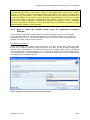
Copy
the file
eu.echa.iuclid.server.plugin.tccvalidate.zip
into
the
folder
<IUCLID5-folder>\plugins\server
Sample
C:\IUCLID5\plugins\server\eu.echa.iuclid.server.plugin.tccvalidate.zip
Hint
In the folder you will already find files like:
-
ServerExtensionPointRootPlugin.zip
-
eu.echa.iuclid.plugin.resources.zip
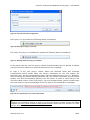
The plug-in will be available after re-starting your IUCLID 5 application.
Tip:
If the plug-in is no longer required, the files can be removed from the
folders. The plug-in will disappear from the IUCLID 5 application.
2.2 Distributed installation
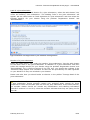
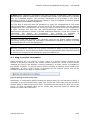
You will find the sub-folders on your IUCLID 5 application server:
...\i5clientPlug-ins\remotePlugins
(folder for the client side plug-ins)
...\WEB-INF\classes\plugins
(folder for the server side plug-ins)
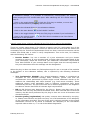
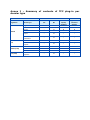
To install the plug-in you need to copy the above-mentioned client and server side zipfiles into the appropriate folders (see examples below in the table).
Important:
Do not extract the ZIP files!
Depending on your computer setting the file name may be displayed
without extension (.zip).
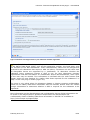
Copy
the file
eu.echa.iuclid.client.plugin.tccvalidate.ui.zip
into
the
folder
<IUCLID5 WebApp-folder>\i5clientPlugins\remotePlugins
Sample
C:\Program Files\apache-tomcat\webapps\i5server\
i5clientPlugins\remotePlugins\eu.echa.iuclid.client.plugin.tccvalidate.ui.zip
Hint
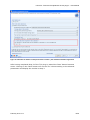
In the folder you will already find files like:
February 2013 v1.6
-
ClientExtensionPointRootPlugin.zip
-
eu.echa.iuclid.plugin.helpsystemEN.zip
-
eu.echa.iuclid.plugin.xform.zip
6/24