1
172
Chapter 22. Network File System (NFS)
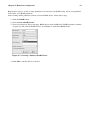
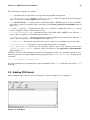
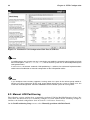
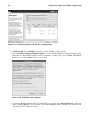
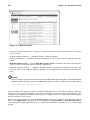
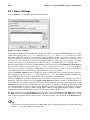
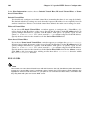
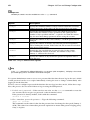
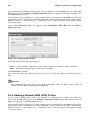
To use the NFS Server Configuration Tool, you must be running the X Window System, have root
privileges, and have the system-config-nfs RPM package installed. To start the application, select
the Main Menu Button (on the Panel) => System Settings => Server Settings => NFS, or type the
command system-config-nfs.
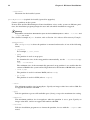
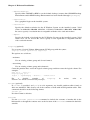
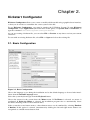
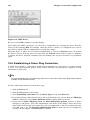
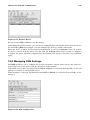
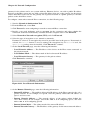
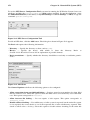
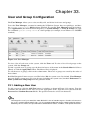
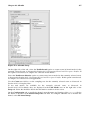
Figure 22-1. NFS Server Configuration Tool
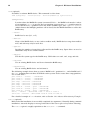
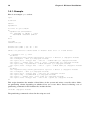
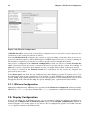
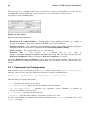
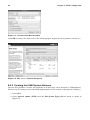
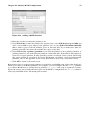
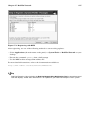
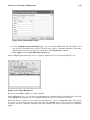
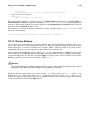
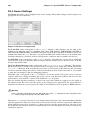
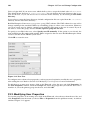
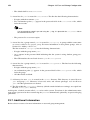
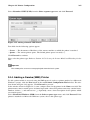
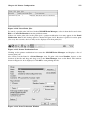
To add an NFS share, click the Add button. The dialog box shown in Figure 22-2 appears.
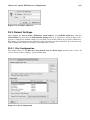
The Basic tab requires the following information:
•
Directory — Specify the directory to share, such as /tmp.
•
Host(s) — Specify the host(s) with which to share the
Section 22.3.2 Hostname Formats for an explanation of possible formats.
•
Basic permissions — Specify whether the directory should have read-only or read/write permissions.
directory.
Refer
to
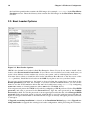
Figure 22-2. Add Share
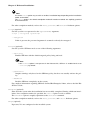
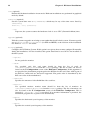
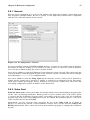
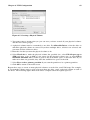
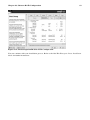
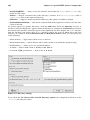
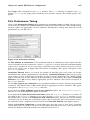
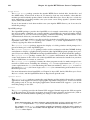
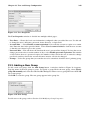
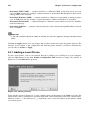
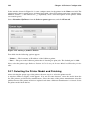
The General Options tab allows the following options to be configured:
•
Allow connections from port 1024 and higher — Services started on port numbers less than 1024
must be started as root. Select this option to allow the NFS service to be started by a user other than
root. This option corresponds to insecure.
•
Allow insecure file locking — Do not require a lock request. This option corresponds to
insecure_locks.
•
Disable subtree checking — If a subdirectory of a file system is exported, but the entire file system
is not exported, the server checks to see if the requested file is in the subdirectory exported. This
check is called subtree checking. Select this option to disable subtree checking. If the entire file