1
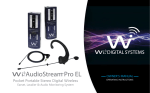
AudioLink Pro
TM
TM
Pocket Portable Stereo Digital Wireless
Instruments & Audio Monitoring System
OWNER’S MANUAL
OPERATING INSTRUCTIONS
CONGRATULATIONS!
Thank You For Choosing Wi Digital Systems
Congratulations on your purchase of the Wi AudioLink Pro Pocket Portable Stereo Digital Wireless
Instruments & Audio Monitoring System with 2-Way Wireless USB 2.0 Audio Interface.
Please thoroughly read this User’s Manual for all the feature operation information necessary
to install and operate your new Wi AudioLink Pro system.
Notice: Product specifications and package contents are subject to change without notice.
Package contents may vary according to the different regions.
For additional support, please visit www.widigitalsystems.com
TABLE OF CONTENTS
-----------------------------------------------------------------------------------------SUPPORT4
TECHNICAL
-----------------------------------------------------------------------------------------PACKING LIST5
-----------------------------------------------------------------------------------------SYSTEM CHARGING & PAIRING6
-----------------------------------------------------------------------------------------GUITAR SETUP8
-----------------------------------------------------------------------------------------STEREO GUITAR SETUP10
-----------------------------------------------------------------------------------------KEYBOARDS SETUP12
-----------------------------------------------------------------------------------------INSTRUMENTS SETUP14
-----------------------------------------------------------------------------------------RECEIVER CONNECTION16
-----------------------------------------------------------------------------------------AUDIO MONITORING18
-----------------------------------------------------------------------------------------SMART DEVICE WIRELESS GUITAR CONNECTION20
-----------------------------------------------------------------------------------------2-WAY WIRELESS USB AUDIO INTERFACE
22
-----------------------------------------------------------------------------------------MAC & PC USB SETUP24
-----------------------------------------------------------------------------------------28
iPad, Surface & Tablet PC USB SETUP
-----------------------------------------------------------------------------------------2-WAY WIRELESS USB GUITAR CONNECTION
30
-----------------------------------------------------------------------------------------WIRELESS USB AUDIO LISTENING32
-----------------------------------------------------------------------------------------WIRELESS USB VoIP & PODCASTING
34
-----------------------------------------------------------------------------------------WI TRANMITTER FEATURES36
-----------------------------------------------------------------------------------------WI RECEIVER FEATURES40
-----------------------------------------------------------------------------------------44
BUTTON FUNCTIONS & LED INDICATORS
-----------------------------------------------------------------------------------------SYSTEM SPECIFICATIONS48
-----------------------------------------------------------------------------------------FCC NOTICE & RECYCLING INFO50
-----------------------------------------------------------------------------------------WARRANTY52
3
TECHNICAL SUPPORT
Getting Answers!
We want you to get the most from your new Wi AudioLink Pro stereo digital wireless audio system!
Simply logon to www.widigitalsystems.com and access the resources available online including
instructional manuals and more.
Our customer service support staff are ready to assist you with any question you may have.
Your Wi AudioLink Pro comes with 90 days of telephone support and one year of service coverage.
There are several ways to contact Wi Digital Systems customer service support.
E-Mail:[email protected]
Website:www.widigitalsystems.com/support
Technical support:
(714) 505-4567
4
PACKING LIST
Wi Receiver
Hard Shell
Carrying Case
Wi Transmitter
1/4” to 1/8” TRS
Mono Cable
Universal USB
AC Charger
USB Y-Split
Power Cable
1/8” Male to 1/4” Stereo
TRS Male Y-split Cable
USB Data Cable
1/8” to 1/8” TRS Stereo Cable & Adapter
MIC/Headphone
Adapter
5
CHARGING
Charging The System
AC Charger
USB Connector
Before using your new Wi AudioLink™ Pro digital wireless system,
you need to fully charge the batteries for approximately 2 hours.
1. Plug the AC Charger into a power socket.
2. Connect the USB power cable to the USB port on the AC charger.
3. Connect one of the two mini USB connectors to the Transmitter
USB port.
4. Connect the second mini USB connector to the Receiver USB port.
5. The Power/Status LED will turn to solid Red ON.
6. When charging is complete the Red LED will turn OFF.
The system’s power source’s flexible design boasts 4 power options:
• 4~6 hours internal rechargeable battery use.
• 13 hours with USB AA battery adapter (optional accessory).
• Continuous use with AC power adapter.
• Continuous use with USB port bus power.
6
USB Port
K
LIN
R
WE
PO
USB Port
Mini USB
Connector
PAIRING
Pairing the Wi Transmitter & Receiver
The Wi Transmitter and Receiver are paired at the factory. Perform the
following steps ONLY if you need to reestablish connection between
the Transmitter and the Receiver.
r
p
(Tx)
k
1. First turn ON the Transmitter (Tx) and the Receiver (Rx) by pressing and
holding the POWER button
,
on each of the units for 2 seconds.
The green LED on Each unit will flash.
kv
p
2. Press and hold the LINK button
on the Transmitter (Tx) for 3 seconds.
The Power/Status green LED on the Transmitter will start flashing faster.
The Transmitter is now in a Pairing mode and ready to search for the Receiver.
(Rx)
z
3. Press and hold the LINK button
on the Receiver (Rx) for 3 seconds.
The Power/Status green LED on the Receiver will flash momentarily.
4. Once the Transmitter links with the Receiver, the Power/Status LED on both
devices will turn to solid green.
z
v
5. The Transmitter and Receiver are now ready for use.
7
GUITAR SETUP
Active, Passive & Acoustic Electric Guitars
The Wi AudioLink Pro Transmitter supports passive and active
guitars including lead, bass and acoustic electric guitars.
1. First locate the 1/4” to 1/8” mono cable
supplied with kit.
2. Connect the 1/8” end of the cable
to the “Audio Input” jack on the
Transmitter.
8
5
3. Connect the 1/4” end of the cable
to the electric guitar input.
4. Verify if you are connecting a passive or
active electric guitar to the Transmitter.
If the electric guitar uses a battery to
operate, then it is an active type. If not,
it is a passive type.
j
GUITAR SETUP
4.1 Passive Guitar Connection
Power up the Transmitter by pressing and holding the POWER button
k for 2 seconds.
(Tx)
F The standard factory power up setting is set for Passive Guitars / Mono Preamp Line-In.
This is indicated by the slow flashing Blue LED. The flashing Green LED indicates the
Transmitter is searching for the Receiver .The Transmitter can remember and power up in
the last power up mode selected . Please refer to the “Tx Button Functions” on page (44)
for more details.
r
4.2 Active Guitar & Electric Acoustic Instrument Connection
k for 2 seconds.
r for 2 seconds to change to Mono Line-in mode.
a. Power up the Transmitter by pressing and holding the POWER button
b. Press and hold the Mode button
k
F The fast flashing Blue LED indicates Active Guitar / Mono Line-in connection mode and
the flashing Green LED indicates the Transmitter is searching for the Receiver . The flashing
Green LED on the Transmitter will turn to solid green once the Receiver is powered up, paired and
linked with the Transmitter. Please refer to the “Tx Button Functions” on page (44) for more details.
5. Attach the Wi AudioLink to the Guitar Strap or to your belt.
6.. Please proceed to the Receiver connection instructions on page 16.
9
STEREO GUITAR SETUP
Stereo Electric Guitars
The Wi AudioLink Pro Transmitter supports guitars with
stereo/dual pickup outputs.
1. First locate the 1/8” to 1/8” TRS stereo cable with the
1/8” to 1/4” stereo adapter supplied with kit.
2. Connect the 1/8” stereo male end of the cable
into the “Audio Input” jack on the Transmitter.
3. Connect the 1/4” Stereo male end of the
cable/adapter to the electric guitar input.
10
j
STEREO GUITAR SETUP
k for 2 seconds.
r until the Blue LED displays two fast flashes.
5. Power up the Transmitter by pressing and holding the POWER button
4. Press and hold the Mode button
F The two fast flashing Blue LED indicates Stereo line-in connection mode
and the flashing Green LED indicates the Transmitter is searching for the
Receiver. The flashing Green LED on the Transmitter will turn to solid green
once the Receiver is powered up, paired and linked with the Transmitter.
Refer to the “Tx Button Functions” on page (44) for more details.
6. Attach the Wi AudioLink to the Guitar Strap or to your belt.
(Tx)
r
k
7. Please proceed to the Receiver connection instructions on page 16.
11
KEYBOARDS SETUP
Connecting Keyboards/Digital Pianos!
The Wi AudioLink Transmitter can support two (2)
keyboards / digital pianos in mono or one in stereo
mode without hiss, hum, crackle or sound compromise.
1. Keyboard Stereo Audio Connection!
1.1 First Locate the 1/4” stereo Y-split to 1/8” stereo
cable supplied with kit.
1.2 Connect the 1/8” stereo end of the cable into
the “Audio Input” jack
on the Transmitter.
j
12
5
1.3 Connect the red 1/4” end of the cable to the right
input jack and blue 1/4” end of the cable to the left
input jack located on the back panel of the
keyboard/digital piano.
j
KEYBOARDS SETUP
Keyboard #1
2. Two Keyboards Mono Audio Connection!
2.1 Connect the red 1/4” end of the cable to the left mono input located on
the back panel of the first keyboard/digital piano.
2.2 Connect the blue 1/4” end of the cable to the left mono input located on
the back panel of the second keyboard/digital piano.
1/4” Stereo Y-Split to 1/8’
Stereo Cable
(L/MONO)
(L/MONO)
3. Power up the Transmitter by pressing and holding the POWER
button
for 2 seconds.
k
4. Press and hold the Mode button
r until the Blue LED displays two fast flashes.
FThe two fast flashing Blue LED indicates Stereo line-in connection mode
and the flashing Green LED indicates the Transmitter is searching for the
Receiver. The flashing Green LED on the Transmitter will turn to solid green
once the Receiver is powered up, paired and linked with the Transmitter.
Refer to the “Tx Button Functions” on page (44) for more details.
5. Place the Transmitter on top of or next to your musical instrument.
Keyboard #2
r
(Tx)
k
6. Please proceed to the Receiver connection instructions on page 16.
13
INSTRUMENTS SETUP
(Tx)
Connecting Musical Instruments & DJ Gear!
r
The Wi AudioLink Transmitter supports digital and analog instrument
connection such as Electronic Drums, Electronic Wind Instruments,
Digital Multitrack Recorders, Samplers, Effects Pedals, Mixers,
DJ gear, and more...
k
1. For a (Mono) connection locate the 1/4” mono to 1/8” stereo cable.
For a (Stereo) connection locate the 1/4” stereo Y-split to 1/8” stereo cable.
2. Connect the 1/8” stereo end of the cable into the “Audio Input” jack
on the Transmitter.
4. For (Mono) connection, connect the 1/4” mono male end of the cable to the
left mono output (L/MONO) located on the back panel of the musical instrument.
14
5
3. Route the audio cable beneath the belt clip as shown to prevent accidental
disconnection of the cable.
j
INSTRUMENTS SETUP
5. For (Stereo) connection, connect the two 1/4” male ends of the cable to the
left (L/MONO) and right (R) outputs located on the back panel of the instrument.
6. Power up the Transmitter by pressing and holding the POWER button
for 2 seconds.
7. Press and hold the Mode button
k
r until the Blue LED displays two fast flashes.
F The two fast flashing Blue LED indicates Stereo line-in connection mode
and the flashing Green LED indicates the Transmitter is searching for the
Receiver. The flashing Green LED on the Transmitter will turn to solid green
once the Receiver is powered up, paired and linked with the Transmitter.
Refer to the “Tx Button Functions” on page (44) for more details.
8. Place the Transmitter on top of or next to your musical instrument.
Musical Instrument
(L/MONO)
(R)
1/4” Stereo Y-Split to 1/8’
Stereo Cable
(Tx)
9. Please proceed to the Receiver connection instructions on page 16.
15
Receiver CONNECTION
Connecting Analog and Digital Devices to Your Receiver!
The Wi AudioLink Receiver supports connections to analog and digital devices such as Mixers, Amplifiers,
Sound Systems, Speakers, Hard Disk Recorders, Samplers, Effects Pedals, Mixers, DJ gear, and more...
Please note connections must be made with the power turned off. Please be aware that
careless operation may damage your speaker system or cause malfunctions.
If you’ve connected a stereo audio amp, be aware that playing at high volume may
damage your speaker system. Be careful not to raise the volume excessively.
F For Mono connection locate the 1/4” to 1/8”
mono cable.
F For Stereo connection locate the 1/4” stereo Y-split to 1/8” stereo cable.
16
Receiver CONNECTION
Audio Cable Connection
1. Connect the 1/8” TRS end of the cable to
the audio output port
of the Receiver,
then connect the 1/4” Mono end of the cable
or the left and right 1/4” TRS cable ends to the
amp, foot pedal or mixing console audio inputs.
u
2. Turn ON the Receiver by pressing and holding
the POWER button on the Receiver for 2 seconds.
F The Power Status LED on both the Receiver
and
the Transmitter will show Solid Green indicating
communication between the Transmitter and
Receiver has been established.
3. Power up your Amp, Mixer, Digital Recorder or
Foot pedal and you are ready to go!
u
17
AUDIO MONITORING
Audio Monitoring
The Wi AudioLink Pro is designed to provides freedom
of wireless movement to any conventional headphones
or in-ear personal monitors making it an ideal system
for audio listening and monitoring applications.
You can wirelessly listen to your music from MAC, PC,
Smart device, Live Sound system or any audio source
by connecting the Wi Transmitter to your audio source
and your headphones or in-ear personal monitors to the
Wi Receiver.
The system is optimized for Wi Digital’s optional
Wi Sure-Ears model Wi-SEBD10 and Wi Micro-In-Ear
model Wi-SEMI5 personal reference monitors for
a high quality wireless monitoring experience.
18
AUDIO MONITORING
Headphone & In-Ear Personal Monitors Setup
PLEASE PROTECT YOUR EARS! Prolonged use
of headphones or In-ear personal monitors at high
volumes may affect your hearing capacity or may
result in noise induced hearing loss (NHL).
1. Connect the Wi Transmitter to your audio source using
one of the included stereo audio cables that best fit
your audio source audio port jack.
2. Set the Wi Transmitter to “Stereo Line-in” mode by
pressing the MODE button
for three seconds until
the blue LED reflects “Two Fast Blue Flashes”.
r
}
the “Tx Button Functions” on page (44)
FforRefermoreto details
3. Insert the 1/8” TRS stereo end of the Headphone cable
into the Wi Receiver audio output jack
.
u
u
19
Receiver SMART DEVICE CONNECTION
Smart Device Wireless Guitar Connection
Take your guitar App with you on stage!
This powerful system enables
smart devices guitar Apps
users to wirelessly connect
a guitar to iPhone, iPod,
iPad, Windows Surface,
Tablet PC or any
Smartphone and connect
the smart device to a
mixer, powered speaker,
amplifier or live sound
system for untethered
performance.
20
Wireless Hi-Z To Low-Z
Guitar Connection
5
5
1. Locate the 1/8” to 1/8” stereo audio cable,
the 1/8” to 1/4” mono audio cable and the
MIC/Headphone adapter included in the kit.
Refer to the “Tx Button Functions” on page (44) for more details
Amp Connection
Amp / Speaker
Connection
5
2. Insert one end of the 1/8” to 1/8” TRS stereo
cable into the Wi Receiver audio output jack.
3. Insert the other end of the 1/8” to 1/8” TRS
Wi Receiver
stereo cable into the MIC port on the
Connection
MIC/Headphone adapter.
4. Insert the 1/8” TRS end of the mono cable into
the Headphone port on the MIC/Headphone adapter.
5. Insert the 1/8” TRS end of the MIC/Headphone
adapter into the smart device audio port.
6. Insert the 1/4” TRS end of the mono cable
into the amp audio input.
7. Set the Transmitter to MONO Line-In mode.
5
Receiver SMART DEVICE CONNECTION
Using The MIC/Headphone Adapter to
Mount The Receiver to Smart Device
21
WIRELESS USB AUDIO INTERFACE
2-Way Wireless USB 2.0 Audio Interface
The 2-Way wireless USB 2.0
audio interface enables users
to wirelessly connect a guitar
and In-ear monitors to iPad®,
Windows Surface®, Tablet PC
MAC and PC computers for
simultaneous two-way 2.4GHz
digital wireless studio audio
quality connectivity to practice,
record and monitor their
performance with superb tones
using the sound effects in Apple’s
Logic Pro, GarageBand software
or any Core Audio compatible
application on iPad, Tablet, Mac
or PC.
22
WIRELESS USB AUDIO INTERFACE
Wireless USB Audio Interface Features List:
The amazing 2-Way wireless USB 2.0 audio interface features special circuitry designed to deliver
professional digital wireless audio I/O performance along with low latency USB 2.0 performance.
• Wirelessly connect your iPad®, Windows Surface®, Tablet PC, MAC and PC to studio gear or
professional on-stage audio systems such as DJ gear, audio mixers, powered speakers/monitors,
amplifiers and live sound systems in minutes.
•
Convert your iPad®, Windows Surface®, Tablet PC, MAC and PC to a powerful on-the-go audio
production tool without the cable clutter.
• Conduct Podcasting or voice over the internet (VoIP) chats with support for most common calling
applications including Webex®, GoToMeeting®, Skype®, Yahoo!®, Acrobat Connect®, Facebook®,
Google+Hangouts® and more.
• Connect your iPad®, Windows Surface®, Tablet PC, MAC and PC wirelessly to your home theater
or stereo system while keeping your gear at your finger tips.
• Stream audio wirelessly to your favorite headphone or in-ear monitors with full access to all of the
essential audio control functions of your iPad®, Windows Surface®, Tablet PC, MAC and PC including
volume up and down, play, pause, mute, track control and MIC muting in the palm of your hand.
23
MAC USB SETUP
5
1. Locate the included USB data cable.
2. Make suer that the Transmitter and the Receiver
are turned OFF.
3. Insert the mini USB end of the USB data cable
into the Wi Transmitter USB audio interface
port located on the side of the Transmitter.
4. Insert the full size USB end of the USB data cable
into your Mac laptop or desktop USB port.
5. Power up the Transmitter and the Receiver.
5
Connecting To Your Mac
USB
Data Cable
24
MAC USB SETUP
Configuring The Audio Ports On Your Mac
1. To select the Wi Transmitter as the computer’s audio output, open
the System Preferences from the dock or the main Apple Menu.
2. Open the Sound preferences then choose the output tab and
select Wi AudioLink Pro.
3. Adjust the Output volume slider at the bottom of the Sound dialog
box to the maximum setting. Use the Wi AudioLink Pro Receiver’s
volume controls to control the overall output volume for the headphones
or speakers.
4. Select the Wi AudioLink Pro as the computer’s audio input interface for use
with your Lavalier or your headphone with built-in MIC. Choose the Input
tab and Wi AudioLink Pro. Adjust the Input volume slider to set the MIC gain.
25
PC USB SETUP
26
5
1. Locate the included USB data cable.
2. Make sure that the Transmitter and the Receiver
are turned OFF.
3. Insert the mini USB end of the USB data cable
into the Wi Transmitter USB audio interface port
located on the side of the Transmitter.
4. Insert the full size USB end of the USB data cable
into your laptop or desktop USB port.
5. Power up the Transmitter and the Receiver.
6. Windows will recognize the Wi Transmitter and
automatically install the universal driver. A balloon
will pop up, telling you the computer has found the
Wi Transmitter. When Windows is finished
installing the driver, a balloon pop up will say
“Your device is installed and ready to use”.
5
Connecting To Your PC
PC USB SETUP
Windows 7/Vista/XP Optional Settings
1. Setting the Wi Transmitter as your default audio device
To set the Wi Transmitter as your default device for sound playback and recording, or to change its
settings, click the Start button, click Control Panel and then click Sound. Under the Playback and Recording
tabs, you can select the Wi AudioLink Pro from the menus and use the Set Default button to set it as
the default device.
2. Setting the Wi Transmitter MIC gain
To set the gain of the microphone when using the Wi Transmitter, click on the Volume button in the Sound
recording section. Moving the slider will adjust the microphone gain.
27
iPad USB SETUP
Apple Optional USB Camera Adapters
Connecting To Your iPad
The optional Apple Lightning to USB Camera adapter Model
MD821ZM/A or 30-pin to USB Camera adapter Model MC531ZM/A
is required to set up your Wi AudioLink Pro with iPad.
Note: Before using the Wi AudioLink Pro with your
iPad, you need to fully charge the Transmitter batteries.
Your iPad will display the message “The attached
acessory uses too much power” if the Transmitter
is not fully charged..
1. Make sure that the Transmitter and the Receiver are OFF.
2. Insert the mini USB end of the USB data cable into the
USB audio interface port located on the side of the Transmitter.
3. Insert the full size USB end of the USB data cable to the USB
port on the optional Apple iPad Camera connection adapter.
4. Power up the Transmitter and the Receiver.
5. Apple iPad iOS will automatically install the universal driver.
28
Apple 30-pin Adapter
Model MC531ZM/A
Apple Lightning Adapter
Model MD821ZM/A
SURFACE & TABLETPC USB SETUP
1. Locate the included USB data cable.
2. Make sure that the Transmitter and the Receiver
are turned OFF.
3. Insert the mini USB end of the USB data cable
into the Wi Transmitter USB audio interface port
located on the side of the Transmitter.
4. Insert the full size USB end of the USB data cable
to your Windows Surface or Tablet PC USB port.
5. Power up the Transmitter and the Receiver.
6. Windows will recognize the Wi Transmitter and
automatically install the universal driver. The
Wi AudioLink Pro Plug-and-Play systems is
now ready for use.
5
Connecting to your Windows Surface and Tablet PC
29
USB 2-WAY GUITAR SETUP
2-Way Wireless USB Guitar Connection
The Wi Receiver enables you to wirelessly
connect an electric guitar and In-Ear monitors
to iPad®, Windows Surface®, Tablet,
MAC or PC computers for
untethered simultaneous
2-way digital wireless
audio connectivity.
Play, record and monitor
your performance with superb
tones using the guitar amps effects
in Apple’s Logic Pro, GarageBand
software or any Core Audio compatible
application on iPad®, Windows Surface®,
Tablet, Mac or PC.
30
USB 2-WAY GUITAR SETUP
5
5
Using The MIC/Headphone Adapter
1. Locate the 1/8” to 1/4” TRS mono audio cable,
and the MIC/Headphone adapter included
in the kit.
Wi Receiver
Connection
Headphone
Connection
5
2. Insert the 1/8” TRS end of the headphone
cable into the Headphone port on the
MIC/Headphone adapter.
3. Insert the 1/4” TRS end of the mono
cable into the Guitar port.
4. Insert the 1/8” TRS end of the mono cable
into the MIC port of the MIC/Headphone
adapter.
5. Insert the 1/8” TRS end of the MIC/Headphone.
adapter into the Wi Receiver Audio I/O port.
We recommend using the Wi Sure-Ears (Wi-SEBD10)
or the Wi Micro-In-Ear (Wi-SEMI5) in-ear monitors for
a high quality monitoring experience.
31
USB AUDIO LISTENING
USB Audio Listening
The Wi AudioLink Pro is designed to provide freedom of
wireless movement to any conventional headphones or
in-ear personal monitors making it an ideal system for audio
listening and monitoring applications.
You can wirelessly listen to your music from iPad®,
Windows Surface®, Tablet PC, MAC and PC computers by
connecting your headphones or in-ear personal monitors to
the Wi Receiver.
We recommend using the Wi Sure-Ears (Wi-SEBD10)
or the Wi Micro-In-Ear (Wi-SEMI5) in-ear monitors for
a high quality monitoring experience.
32
USB AUDIO LISTENING
PLEASE PROTECT YOUR EARS! Prolonged use
of headphones or In-Ear personal monitors at high
volumes may affect your hearing capacity or may
result in noise induced hearing loss (NHL).
1. Insert the 1/8” TRS stereo end of the Headphone cable
into the Wi Receiver audio output jack
.
}
u
2. Pressing the Play
button on the Wi Receiver will
automatically start iTunes or Windows media player.
|
x
}
y
{
3. You can remotely control the audio functions of your MAC,
PC, iPad or Windows Surface Play/Pause/Mute , Next
Track
, Prev Track , Volume UP , Volume Down
directly from the Wi Receiver using the function buttons.
y
{
|
x
}
u
33
USB VoIP & PODCASTING
2-Way Wireless USB Audio Connection
The 2-Way wireless USB 2.0 audio interface
enables users to wirelessly connect microphones and In-ear monitors to iPad®, Windows Surface®, Tablet PC, MAC and PC
computers for simultaneous two-way digital
wireless studio audio quality connectivity
to practice, record and monitor their
performance with superb tones using
the sound effects in Apple’s Logic Pro,
GarageBand software or any Core
Audio compatible application on iPad,
Tablet, Mac or PC.
Conduct Podcasting or voice over the
internet (VoIP) chats with support for
most common calling applications
including Webex®, GoToMeeting®,Skype®,
Facebook®, Google+Hangouts® and more.
34
USB VoIP & PODCASTING
5
5
USB VoIP and Podcasting
Your MIC is probably the most important part of your setup.
For VoIP application, typical headphones equipped with a
microphone are sufficient. Simply plug in your headphones
equipped with a microphone to the Receiver and get started.
1. Locate the MIC/Headphone adapter.
2. Insert the headphone cable jack into the
Headphone port on the MIC/Headphone adapter.
3. Insert the 1/8” TRS end of your earset or lavalier MIC
into the Microphone port on the MIC/Headphone adapter.
4. Insert the adapter into the Wi Receiver Audio I/O port.
Microphone
Connection
Headphone
Connection
5
For Podcasting, you will need a good set of monitors when
you’re recording to monitor yourself as well as hear your
guests and a good unidirectional earset MIC that can isolate
your voice against typically noisy backgrounds. We
recommend using the Wi Micro-In-Ear (Wi-SEMI5) for a high
quality monitoring experience and the Wi Sure-Fit earset and
lavalier microphone (Wi-ELOCBE).
35
TRANSMITTER FEATURES
Transmitter Controls and Connections
j
Audio IN Jack: k
Power ON/OFF: Provides mono and stereo connection for your
microphone or other sound source.
Press and hold the Power button for 2 seconds
to turn the Transmitter ON or OFF.
l
Power/Status LED: Displays the status of six functions: ON/OFF, Battery
Charging, Low Battery, Pairing, Mute, Operating and
Lock Modes.
o
n
m
p
l
k
F Refer to the “Tx Button Functions” on page (44) for more details.
m Volume UP: n Volume DOWN: 36
j
Press once to increase the volume level one step
at a time. Hold to increase continuously.
Press once to decrease the volume level one step
at a time. Hold to decrease continuously.
TRANSMITTER FEATURES
o Mute: Press and hold for 1.5 seconds to mute or un-mute the audio.
p Link/Pair: The Link button performs two functions: Pairing and Linking.
Pairing allows the Transmitter to connect and communicate with the Receiver. Press and hold for 3 seconds until the green LED displays fast flashes, indicating that it is ready to pair with a Receiver. Once the Transmitter links with the
Receiver, the LED on both devices will turn solid green.
37
TRANSMITTER FEATURES
q
Lock: r
Mode:
Press and hold for 2 seconds to lock the function key pads on the Transmitter
and the Receiver to preserve all settings and prevent accidental triggering of the
function buttons during operation. Press once to unlock the Transmitter and Receiver function key pads and restore normal operation.
Press and hold for 2 seconds to select the desired operation indicated
by the following blue LED flashing sequence. Continue to hold to cycle
between the three operating modes.
Mono Preamp Mode Solid Green LED and Slow Blue LED Flashes.
Mono Line-In Mode Solid Green LED and Fast Blue LED Flashes.
Stereo Line-In Mode Solid Green LED and Two Blue LED Flashes.
F Refer to the “Tx Button Functions” on page (44) for more details.
38
TRANSMITTER FEATURES
r
11
q
s
s USB 2.0 Audio Interface
& Charging Port: This is a mini USB 2.0 Plug-and-Play
wireless audio interface for iPad®, Windows Surface®, Tablet PC, MAC and PC.
This is also a mini USB connection to power up and charge the internal batteries. The Transmitter can be charged using the supplied universal AC charger, via an instrument or computer USB port, or the optional AA battery power booster adapter.
11 Belt Clip: The Transmitter can be attached to belts, shirts and pants’ pockets. The compact and lightweight design is easy to wear without impeding body movement. The Transmitter can also be attached to stands, tripods and bipods using the1/4”-20 screw mount.
39
RECEIVER FEATURES
Receiver Controls and Connections
u
Audio I/O Jack: v
Power ON/OFF: w Power/Status LED: x Volume UP: y Volume DOWN: 40
Stereo/Mono audio output and mono MIC input port
connection for professional Sound Systems, In-Ear
Monitors, Guitars, Microphones and more...
u
|
Press and hold for 2 seconds to turn the Receiver
ON or OFF.
Displays the status of six functions: ON/OFF, Battery Charging, Low Battery, Pairing, Mute and Lock mode.
Press once to increase the volume level one step
at a time. Hold to increase continuously.
Press once to decrease the volume level one step
at a time. Hold to decrease continuously.
y
{
z
w
x
v
RECEIVER FEATURES
z Link/MIC:
This multifunction button performs the Pairing and VoIP MIC activation.
Pairing allows the Receiver to be discovered by the Transmitter. Press and hold the Link button for 3 seconds until the green LED displays fast flashes, indicating that it is ready to pair with a Transmitter. Once the Transmitter links with the
Receiver, the LED on both devices will turn solid green.
{ Next Track: |
VoIP & Microphone operations - See item #10
The Next Track function button is used to remotely control jumping to the next
track for media players or sequencing software. Press the Next Track button once
to jump to the next audio track.
Previous Track: The Previous Track function button is used to remotely control jumping to the
previous track for media players or sequencing software. Press the Previous Track
button once to go back to the previous audio track.
41
RECEIVER FEATURES
} Mute/Pause/Play: Press and hold the Mute/Pause/Play button for 1.5 seconds to mute/un-mute audio.
Press once to pause or play an audio track. This function will remotely control the
media player or sequencing software functions.
~
MIC:
Press the LINK / MIC button once to mute the Microphone.
The Blue LED on the Receiver will turn ON when the MIC is on mute.
Press the LINK / MIC button again to unmute the Microphone.
The Blue LED on the Receiver will turn OFF when the MIC is off mute.
F
Refer to the “Rx Button Functions” on page (46) for more details.
42
RECEIVER FEATURES
11 Charging Port: s
}
~
12
This is a mini USB connection to power
up and charge the internal batteries. The Receiver can be charged using the supplied universal AC charger, via an
instrument or computer USB port, or the optional AA battery power booster adapter.
12 Belt Clip: The Receiver can be attached to belts, shirts and pants’ pockets. The compact and lightweight design is easy to wear without impeding body movement. The Receiver can also be attached to stands, tripods and bipods using the1/4”-20 screw mount.
11
43
Tx BUTTON FUNCTIONS
Transmitter (Tx) Button Functions
FunctionButton
ActivationHold Time
LED Status
2 sec
Solid Green
k POWER Press and Hold
Press and Hold
3 sec
Fast Green Flashes
p LINK
Click for Step, Press and hold for Auto
Click
Volume UP/Down
mn
Mute ON/OFF
Press and Hold
1.5 sec
Solid Green and Blue
o
Lock Tx/Rx Key Pads
Press and Hold to Lock/Unlock Key Pad 2 sec
Solid Green Only /
q
Solid Green & Blue Flashes
Mono Preamp Mode r MODE
Press and Hold
2 sec
Solid Green LED and
Slow Blue LED Flashes
Power ON/OFF
Pairing Mode
r
r
Mono Line-In Mode
MODE
Press and Hold 2 sec
Solid Green LED and
Fast Blue LED Flashes
Stereo Line-In Mode
MODE
Press and Hold
2 sec
Solid Green LED and
Double Blue Flashes
44
Tx LED INDICATOR CHART
Transmitter (Tx) LED Indicator Chart
Function
Searching For Receiver
Linked to Receiver
Lock Mode
Low Battery
Charging With Power OFF
Charging With Power ON Charging Complete
LED Status
l
l
l
l
l
l
l
Flashing Green
Solid Green
Solid Green Only
Solid Green & Flashing Red
Solid Red
Solid Red & Green
Red OFF
r
o
n
q
p
l
m
k
45
Rx BUTTON FUNCTIONS
Receiver (Rx) Button Functions
FunctionButton
ActivationHold Time
LED Status
2 sec
Solid Green
v POWER Press and Hold
Press and Hold
3 sec
Fast Green Flashes
z LINK
LINK/MIC Click
Click
Two Blue LED Flashes MIC Mute On/Off
z
/ Solid Green LED
Power ON/OFF
Pairing Mode
xy
}
Play/Pause
}
Next Track
{
Prev Track
|
Volume UP/Down
Click for Step, Press and Hold for Auto Click
Mute ON/OFF
Press and Hold
1.5 sec
Click (In USB Mode)
Click
Click (In USB Mode)
Click
Click (In USB Mode)
Click
46
Solid Green & Blue
Rx LED INDICATOR CHART
Receiver (Rx) LED Indicator Chart
Function
Searching For Transmitter
Linked to Transmitter
Key Pad Lock
Low Battery
Charging With Power OFF
Charging With Power ON
Charging Complete
LED Status
w
w
w
w
w
w
w
Flashing Green
Solid Green
Solid Green (Activated by Tx)
Solid Green & Flashing Red
Solid Red
Solid Red & Green
Red OFF
|
}
y
{
z
w
x
v
47
SYSTEM SPECIFICATIONS
Wi AudioLink Pro Technical Specifications
Specifications
Transmission Format:
2.4 GHz, 16-bit, 48kHz Digital Wireless
15Hz to 20kHz
Frequency Response:
Auto select
Frequency Selection:
More than 90 dB (A-weighted)
S/N Ratio:
Distortion:0.12 % THD
1/8” (3.5mm) TRS Stereo
Connectors:
3Vrms
Max Input Level:
1.2Vrms
Max Output Level:
Input Impedance:
1M ohm
Output Impedance:
< 10 ohm
4~6 hours
Rechargeable Battery Life:
Power Input:
5V DC, 500 mA
48
SYSTEM SPECIFICATIONS
Specifications
Battery Power Booster:
10~13 hours (With optional AA battery power booster adapter)
USB Bus Power:
Low Battery Alert:
Power-up Modes:
Antenna:
Range:
Units operating at the same time:
USB 2.0 Audio Interface:
Apple OS Support: Windows OS Support: Compatibility: VoIP Capable:
802.11g/n Network Safe:
Transmitter Weight:
Receiver Weight:
Yes
15 minutes of life left
Three (3) power-up modes (Preamp Line-In, Mono Line-In, Stereo Line-In)
Two internal antennas
Up to 100 ft
(Range may be dependent on line of sight and may vary due to local conditions)
9
Full Speed Two-Way USB 2.0 Wireless Audio Interface
MAC OSX and iOS
Win XP/VISTA/ Win 7/Win 8
MAC, PC, iPad®, Windows Surface®
Yes
Yes
0.068 lbs (1.08 Oz) (30.8g)
0.068 lbs (1.08 Oz) (30.8g)
49
REGULATORY COMPLIANCE
Regulatory Compliance Information
FEDERAL COMMUNICATIONS COMMISSION INTERFERENCE STATEMENT This equipment has been tested and found to comply with the limits for a Class B digital device, pursuant to part 15 of the FCC Rules. These
limits are designed to provide reasonable protection against harmful interference in a residential installation. This equipment generates, uses
and can radiate radio frequency energy and, if not installed and used in accordance with the instructions, may cause harmful interference to
radio communications. However, there is no guarantee that interference will not occur in a particular installation. If this equipment does cause
harmful interference to radio or television reception, which can be determined by turning the equipment off and on, the user is encouraged to
try to correct the interference by one or more of the following measures:
- Reorient or relocate the receiving antenna.
- Increase the separation between the equipment and receiver.
- Connect the equipment into an outlet on a circuit different from that to which the receiver is connected.
- Consult the dealer or an experienced radio/ TV technician for help.
CAUTION:
Any changes or modifications not expressly approved by the grantee of this device could void the user’s authority to operate the equipment.
This device complies with Part 15 of the FCC Rules. Operation is subject to the following two conditions: (1) this device may not cause
harmful interference, and (2) this device must accept any interference received, including interference that may cause undesired operation.
RF Exposure Warning
The equipment complies with FCC RF exposure limits set forth for an uncontrolled environment.
The equipment must not be co-located or operating in conjunction with any other antenna or transmitter.
50
RECYCLING INFORMATION
Disposal and Recycling Information
Correct Disposal
This symbol indicates that your product must be disposed of properly according
to local laws and regulations. When your product reaches its end of life, contact
the retailer where the product was purchased or your local authorities to learn
about recycling options. This product should not be mixed with other
commercial waste for disposal.
51
PRODUCT WARRANTY
Product Warranty Terms
Wi Digital Systems warrants that the Wi AudioLink Pro is free from material defects and faulty workmanship for a period
of twelve (12) months from the date of purchase. Wi Digital Systems will repair or replace, at its option, any Product that
breaches this warranty during said period. This warranty does not cover and is void with respect to (1) Products which
have been improperly installed, repaired, modified or altered; (2) Products which have been subject to abuse, misuse,
physical damage, exposure to fire, water or excessive moisture or dampness; (3) Products on which the serial number
has been removed, altered, or rendered illegible; (4) Products that are operated outside the limits of the technical specifications of the product.
Repair and/or replacement of the Wi Digital Systems product will be performed through Wi Digital Systems Return
Material Authorization (RMA) procedure. The customer is required to contact Wi Digital Systems at www.widigitalsystems.
com to obtain the approval and procedure for returning any product under warranty.
IN NO EVENT SHALL Wi DIGITAL SYSTEMS BE LIABLE FOR ANY INCIDENTAL, CONSEQUENTIAL, DIRECT,
INDIRECT, SPECIAL OR PUNITIVE DAMAGES WHICH ARISE IN ANY WAY OUT OF THE MANUFACTURE, SALE OR
USE OF ITS PRODUCTS OR SERVICES. In the event that a court of competent jurisdiction determines that Wi Digital
Systems is in breach of any warranty, the amount of recoverable damages shall be limited to the cost of the replacement
of any Product found to be defective or nonconforming.
52
PRODUCT WARRANTY
Out of Warranty
Should your Wi AudioLink Pro not function properly after the warranty period has expired, please contact
Wi Digital Systems Customer Care at [email protected]
Limitations of Liability
Wi Digital Systems expressly assumes no responsibility for any error, omission, interruption, deletion, defect, delay
in operation or transmission, communications failure, theft or destruction or unauthorized access to, or alteration of,
any use of the Wi AudioLink Pro product. TO THE MAXIMUM EXTENT PERMITTED BY APPLICABLE LAW, IN NO
EVENT SHALL WI DIGITAL SYSTEMS OR ITS SUPPLIERS BE LIABLE FOR ANY SPECIAL, INCIDENTAL, INDIRECT,
PUNITIVE OR CONSEQUENTIAL DAMAGES WHATSOEVER, INCLUDING, BUT NOT LIMITED TO, DAMAGES
FOR: LOSS OF PROFITS OR REVENUES, LOSS OF CONFIDENTIAL OR OTHER INFORMATION , BUSINESS
INTERRUPTION, PERSONAL INJURY, DEATH, LOSS OF PRIVACY, CORRUPTION OR LOSS OF DATA, FAILURES
TO TRANSMIT OR RECEIVE AUDIO OR ANY OTHER PECUNIARY LOSS WHATSOEVER ARISING OUT OF OR
IN ANY WAY RELATED TO THE USE OF OR INABILITY TO USE THE DEVICE OR THE SUPPORT SERVICES OR
OTHERWISE IN CONNECTION WITH ANY PROVISION OF THIS AGREEMENT, EVEN IF WI DIGITAL SYSTEMS OR
ANY SUPPLIER HAS BEEN ADVISED OF THE POSSIBILITY OF SUCH DAMAGES.
53
w w w.widigitalsystems.com
© 2013 Wi Digital Systems, Inc. All rights reserved. Stylized Wi logo is a registered trademark of Wi Digital
Systems, Inc. in the United States and may be a registered trademark in other countries. Wi, Digital Wireless Stereo logos and Wi AudioLink, Wi Sure-Ears, Wi Micro-In-Ear are trademarks of Wi Digital Systems,
Inc. All other trademarks included herein are the property of their respective owners.
US and Foreign Patents Pending.
(Design and specifications subject to change without notice)..