1
Summer 2013
EDI CONNECTION
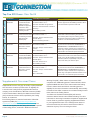
A/B MAC webpage (not the DME MAC webpage). From an
A/B MAC webpage, click on the myCGS link in the left
column. Do not attempt to access myCGS directly from an
internet search site (i.e., Google, Bing, etc.)—internet search
results for the term “myCGS” vary, and you may end up
trying to access the wrong website.
2. Look at the URL in your internet browser’s address bar:
yy
The DME MAC myCGS URL is
https://mycgswebportal.cms.gov.
yy
The A/B MAC myCGS URL is
http://www.cgsmedicare.com/mycgs/index.html.
3.On the splash/login page, look in the “Who Can Register
for myCGS?” section. The text will state either “DME MAC
Jurisdiction C” or “Jurisdiction 15 A/B MAC.”
Chapter 5: Financial Tools Tab
Chapter 5 explains how to check your payment floor status, and
determine recent checks issued to you.
Chapter 6: Messaging/Forms Tab
(for Part A Providers)
The Messaging/Forms chapter provides information on how
to submit a redetermination request to CGS using the myCGS
portal, as well as how to check the status of your request.
Chapter 6: Messaging/Forms Tab
(for Part B and HHH Providers)
Coming Soon!!!
Try myCGS today!
Chapter 7: Administration Tab
Updated myCGS User Manual
This chapter explains the role of the Provider Administrator,
including how to add, edit or delete a Provider User.
The myCGS User Manual has recently been updated to provide
more detailed information about accessing and obtaining
information from the myCGS Web portal. The User Manual
consists of chapters that correspond with each Tab available
in myCGS. The following provides a summary of each chapter.
This manual is available at https://www.cgsmedicare.com/hhh/
myCGS/Manual.html on the CGS website.
Chapter 1: Overview of myCGS
This chapter provides an introduction of myCGS, including
Provider Administrator and Provider User roles, how to register,
passwords, and logging in and out of myCGS.
Chapter 2: Claims Tab
This chapter explains how to access and view claims data using
the myCGS Web portal.
Chapter 3: Remittance Tab
Chapter 3 provides information about how to view and print
remittance advices using myCGS.
Chapter 4: Eligibility Tab
This chapter includes instructions for accessing beneficiary
eligibility information, including deductible and cap information,
preventive benefits, Medicare Advantage plans, Medicare
Secondary Payer (MSP), home health and hospice services,
and hospital and skilled nursing facility (SNF) stays.
Page 3
Understanding GPNet
GPNet is the EDI gateway to CGS. The GPNet communication
platform supports asynchronous telecommunications up to 56K
bps. It will support numerous asynchronous telecommunication
protocols, including Kermit, Xmodem (Check Sum), Ymodem
(Batch), and Zmodem. Most off-the-shelf communication
software will support one or all of these protocols. You may
select any of the protocols indicated; however, Zmodem
is recommended based on its speed and reliability. The
asynchronous user’s modem should be compatible with 56K,
V.34 28.8 bps, V.42 14.4 bps.
In addition, we encourage the use of PKZIP compatible
compression software. GPNet is defaulted to send
uncompressed files; therefore, if you wish to receive all of your
files in a compressed format, contact the Technology Support
Center for maintenance to the database.
NOTE: GPNet also supports file transfers via File Transfer Protocol
(FTP) and CONNECT:Direct, also known as Network Data Mover (NDM).
Specifications on these options are included later in this manual.
For more detailed information, check out the GPNET
Communications Manual online at: http://www.cgsmedicare.com/
ohb/claims/edi/pro32/pdf/CGSGPNetCommunicationsManual
20110418.pdf
Updated July 12, 2013.
© 2013 Copyright, CGS Administrators, LLC.