1
IH-M155WB
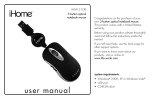
5-button wireless optical
notebook mouse
Congratulations on the purchase of your
new 5-button wireless optical notebook
mouse. This product comes with a limited
lifetime warranty.
Before using your product, please thoroughly
read and follow the instructions inside this
manual.
If you still need help, see the back page for
other support options.
If you want to know more about our
products, visit us online at
www.life-works.com.
system requirements
u s er m a n ua l
• Windows® 2000, XP or Windows Vista®
• USB port
• CD-ROM drive
your package should contain
user manual contents
features • 2
your new mouse • 3
connect hardware • 3
install software • 4
5-button wireless
optical notebook mouse
to customize the mouse
buttons • 5
to customize the mouse scroll
wheel • 5
mini USB
receiver
2 AAA DURACELL®
batteries
travel pouch
product operating tips • 6
troubleshooting • 6
features
.
user manual
(in your hands right now)
use r man ua l
IMPORTANT! Do not use the enclosed mini CD
with slot loading or trayless-style CD drives, or with
a sideways mounted CD drive. The mini CD may
become jammed. Instead, download the software
at www.life-works.com/drivers.
installation CD
2
• plug-n-play—no synching needed
• programmable buttons
• low battery indicator
• rubberized finish
• travel pouch included
your new mouse
2. Insert 2 AAA batteries into the mouse battery compartment
and replace the battery compartment cover.
programmable
buttons
scroll wheel and
low battery
indicator
programmable
buttons
3. Connect the mini USB receiver to an available USB port
on your computer. The mouse automatically connects to
the mini USB receiver.
plug in to
USB port
on computer
battery
compartment
cover
connect
button
connect hardware
1. Gently squeeze the sides of the battery cover and slide it
off to access the battery compartment.
a. squeeze
gently
4. Start using your mouse.
ff note Your mouse is plug-n-play—no synching needed.
a. squeeze
gently
However, in the unlikely event that your mouse should
ever have a problem connecting, press the connect
button on the mini USB receiver and the ID button on the
bottom of the mouse.
b. slide
To set up the advanced functions of your mouse, install the
supplied software.
3
install software
4. The Choose Destination Location dialog box displays.
Click Next to accept the default installation location.
1. Insert the installation CD into your computer.
5. The InstallShield Wizard Complete dialog box displays.
Select the option to restart your computer now and click
Finish.
2. On the screen that appears, click install.
5-button wireless
optical notebook mouse
Model # IH-M155WB
click
install
a. select
exit
www.life-works.com
2008© LifeWorks Technology Group LLC
iHome™ is a trademark of SDI Technologies Inc.
used under license.
3. The InstallShield Wizard dialog box displays. Click
Next.
b. click
ff note With the software installed, you can customize all
mouse buttons or change settings for the scroll wheel.
click
4
to customize the mouse buttons
to customize the mouse scroll wheel
1. Double-click the mouse icon in the system tray.
1. Double-click the mouse icon in the system tray.
2. Select the Config of the mouse wheel tab.
This opens a dialog box.
2. Select the Config of mouse button tab.
3. Click the drop-down list to select an action for each
button.
click to select an
action
3. Select Speed of wheel scroll and choose how many
lines should scroll when the wheel is rotated one click, or
select For Pages to scroll a whole page with each click.
To set the mouse wheel to adjust the audio volume
instead, select Adjust of the volume, and adjust the slider
to determine how fast the volume changes when you turn
the wheel.
scroll options
4. Click OK to accept the changes and exit.
audio volume
option
4. Click OK to accept the changes and exit.
5
product operating tips
• Your mouse will operate from as far away as 20 ft. (7 m)
from your computer.
• Customize the programmable keys on your mouse for
greater functionality.
• The scroll wheel is also a button. Press the scroll wheel
(without rolling it) to automatically scroll a document or
web page, then move your mouse up or down to set the
automatic scroll speed.
troubleshooting
situation try this
mouse does •Ensure the mini USB receiver is connected.
not work at •Connect the mini USB receiver to a different
setup
USB port.
•Check that batteries are inserted correctly
into the battery compartment.
•Move the mouse closer to the mini USB
receiver.
•Disconnect the mini USB receiver, then
reconnect it.
•Connect the mini USB receiver to a different
USB port. Try a USB port on the computer,
not a USB hub.
mouse has •Check that the batteries are good. If
stopped
necessary, replace the batteries.
working •Ensure the optical sensor on the mouse is
clean.
•Press the connect button on the mini USB
receiver and the ID button on the bottom of
the mouse.
low battery •Install fresh batteries.
indicator
continues to
blink
6
FCC Statement
This device complies with part 15 of FCC Rules. Operation
is subject to the following two conditions: (1) this device
may not cause harmful interference, and (2) this device must
accept any interference received, including interference
that may cause undesired operation. This equipment has
been tested and found to comply with the limits for a Class
B digital device, pursuant to part 15 of FCC Rules. These
limits are designed to provide reasonable protection against
harmful interference when the equipment is operated in a
residential installation. This equipment generates, uses, and
can radiate radio frequency energy and, if not installed and
used in accordance with the instruction guide, may cause
harmful interference to radio communications. However,
there is no guarantee that interference will not occur in a
particular installation. If this equipment does cause harmful
interference to radio or television reception, which can be
determined by turning the equipment off and on, the user is
encouraged to try to correct the interference by one or more
of the following measures:
• Reorient or relocate the receiving antenna.
• Increase the separation between the equipment and
the receiver.
• Connect the equipment into an outlet on a circuit
different from that to which the receiver is connected.
Consult a service representative for help.
Properly shielded and grounded cables and connectors
must be used in order to comply with FCC emission limits.
LifeWorks is not responsible for any radio or television
interference caused by using other than recommended
cables and connectors or by unauthorized changes or
modifications to this equipment. Unauthorized changes or
modifications could void the user’s authority to operate the
equipment.
Responsible party:
LifeWorks Technology Group LLC
1412 Broadway
New York, NY 10018
Tested To Comply With FCC Standards
FOR HOME OR OFFICE USE
Warning
Improper setup, use and care of this product can increase
the risk of serious injury, death or device damage. Read
and keep this guide and all other printed guides for future
reference. For updated guides or replacements, go to
www.life-works.com
Do Not Attempt Repairs
Do not attempt to take apart, open, repair, service or
modify the device(s). Doing so may risk electric shock or
other hazard. Evidence of any attempt to open or modify
the device, including any peeling, puncture or removal of
labels, will void the Limited Lifetime Warranty.
Keyboard and Mouse Devices: Health Warning
Use of a keyboard or mouse may be linked to serious
injuries or disorders. As in many activities, when using
a computer you may experience occasional discomfort
in various parts of your body. However, do not ignore
symptoms such as persistent or recurring discomfort, pain,
throbbing, aching, tingling, numbness, burning sensation or
stiffness. Promptly see a qualified doctor, even if symptoms
occur when you are not working at your computer.
There is general consensus among researchers that
there may be many factors linked to the occurrence of
these symptoms, including overall health, stress, physical
condition and how a person positions and uses his or her
body during work and other activities (including the use of
a keyboard or mouse). The amount of time a person spends
performing an activity may also be a factor.
If you have questions about how your own lifestyle,
activities or physical condition may be related to these
symptoms, see a qualified health professional.
Battery-Powered Devices
Use of rechargeable or disposable batteries in an improper
manner may result in battery fluid leakage, overheating
or explosion. Battery fluid is corrosive, may be toxic, can
cause skin and eye burns, and is harmful if swallowed.
• Keep batteries out of reach of children.
• Do not heat, open, puncture, mutilate or dispose of
batteries in fire.
• Do not mix new and old batteries or batteries of
different types (for example, carbon-zinc and alkaline
batteries).
• Remove the batteries if they are worn out or before
storing your device for an extended period of time.
• Always remove old, weak or worn-out batteries
promptly and recycle or dispose of them in accordance
with local and national disposal regulations.
• If a battery leaks, remove all batteries, taking care to
keep the leaked fluid from touching your skin or clothes.
If fluid from the battery comes into contact with your skin
or clothes, flush with water immediately. Before inserting
new batteries, thoroughly clean the battery compartment
with a damp paper towel, or follow the battery
manufacturer’s recommendations for cleanup.
• Caution Risk of explosion if battery is replaced with an
incorrect type. Use and replace with the correct size
and type (alkaline, zinc-carbon, or zinc-chloride) of
battery only.
Wireless Devices
Remove the batteries from any wireless device, or turn it
off, before boarding an aircraft or packing the device
in luggage that will be checked. Wireless devices can
transmit radio frequency (RF) energy whenever batteries are
installed and the device is turned on.
Radio Frequency Technical Specifications:
2.4 GHz Devices
Non-specific short range device. RF output power meets all
SRD requirements.
Printed in China
© 2008 LifeWorks Technology Group LLC.
iHome™ is a trademark of SDI Technologies Inc. used
under license.
Windows Vista® is a registered trademark or trademark of
Microsoft Corporation in the United States and/or other
countries.
All other brands and logos are trademarks of their
respective companies.
technical support
for technical support please visit
www.life-works.com
or call (877) LIFE-540
(877-543-3540)
lifetime warranty
for warranty information, please visit
www.life-works.com/warranty
for model number
IH-M155WB
document version number 0811-0