1
Quick Start
Using the Channel Window
LightFactory V2
A Guide for Users
Note: Make sure that the grand master (GM) is
at full for all examples used in this section.
T
T
Using the Channel Window
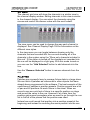
The channel display window is the main access to all of the
channels and fixtures that are connected to the software. It allows
you to modify the output of a channel, control the attributes of
intelligent fixtures and record to the various functions of the
software.
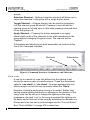
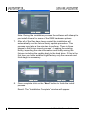
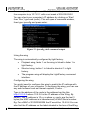
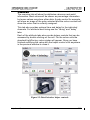
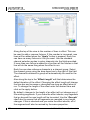
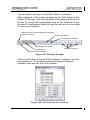
1. Open the channel window by clicking on the ―Channel Display‖
button at the bottom of the command interface or by pressing
F2 on your keyboard.
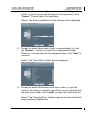
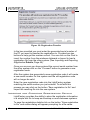
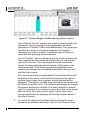
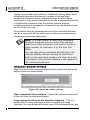
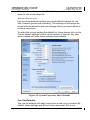
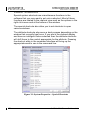
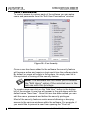
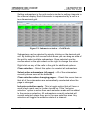
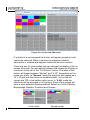
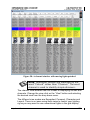
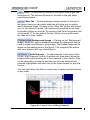
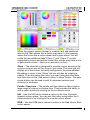
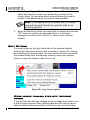
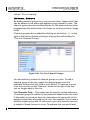
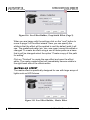
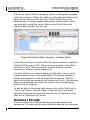
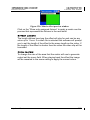
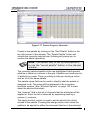
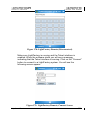
Figure 15: Channel Window
If this is the first time you have used the software you should
see the window above displayed on your screen. Each channel
in the system is represented by a cell in a two dimensional grid.
The grid will try to fit as many channels across as it can and so
resizing the window will allow you to see as many channels as
possible. If you prefer to have a fixed number of channels
across the screen you can set this in the system properties.
2. A standard Windows scroll bar on the right-hand side can be
used to scroll through the non-visible channels. If you do not
http://www.lifact.com
65