1
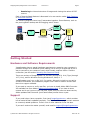
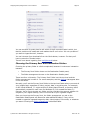
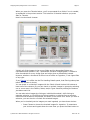
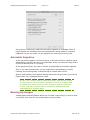
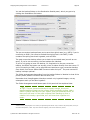
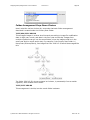
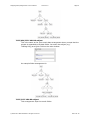
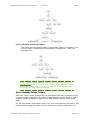
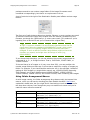
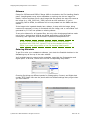
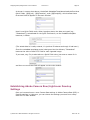
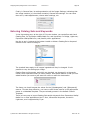
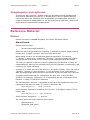
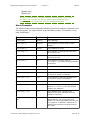
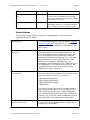
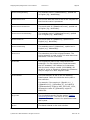
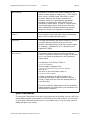
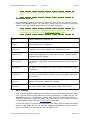
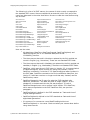
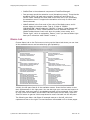
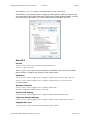
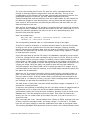
ImageIngester/ImageVerifier User’s Manual Version 3.5 Page 20 You set the backup folders on the Destination Details panel, which you get to by clicking the Destination Set button: The pre-conversion backup allows you to save the original raws (e.g., NEFs) if you’re converting to DNG. (You can also embed the original raw in the DNG.) It also contains everything else that’s ingested, such as JPGs. The post-conversion backup allows you to back up converted raws (as well as nonraws). If you’re not converting, the two backups are identical. If you’re only going to have one backup, it’s required to be the pre-conversion backup, but that’s the better one anyway, since it’s taken directly from the source. If you’re converting to DNG, you’re required to at least have a pre-conversion backup, since that’s from where Adobe DNG Converter takes its input.3 The post-conversion backup is always optional. The folder arrangement descending from the backup folders is identical to that of the primary folder, and all file names are the same, too. Remember that ImageIngester’s backups contain only ingested images, not any subsequent work you do after ingestion. The Folder Arrangement and Names part of this panel will be explained later. Tip: The pre-conversion backup is usually enough, since your regular backup will back up the primary folder eventually anyway. Add a USB or FireWire hard drive to your system, and put the backup there, so that you’ll still have it if the main computer fails. Backing up over a network isn’t usually a good idea, as it will slow down ingestion too much. 3 Because of this, ImageIngester never erases your ingested original raw files. They’re either in the primary folder, or the preconversion backup folder, or both. If you don’t want the originals, you’ll have to erase them yourself. © 2007-2011 Marc Rochkind. All rights reserved. 2011-09-16