1
To view primer data on the Map page:
Step
5
(continued)
Action
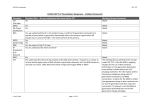
As shown in Figure 4-8, observe the graphic representations of the
primer pairs found and the numerical attributes associated with
each primer.
With the window at its original size, only four primer pairs are
completely visible at any one time on the Map page.
To view more primers, you can:
Click the scroll arrows on the right edge of the Primer pane, or
Resize the window to a larger size.
Forward primer
Reverse primer
Amplicon length
Reverse primer
start location (5´
end)
Forward
primer start
location
Amplicon
Reverse primer
Tm
Forward primer
Tm
Figure 4-8
6
Map page primer pair graphic
Select the second primer pair graphic shown in the pane.
To do this, click any open space between the dotted grey lines
between primer graphics.
Do not click any of the attribute numbers.
If you do, this causes the primer pairs to sort and change position
in the Primer pane.
7
Observe that the highlighted area in the Feature pane changes
when you select a different graphic in the Primer pane.
The highlighting indicates where in the sequence the selected
region is located.
Quick and Easy Oligo Design 4-21