1
Getting Started
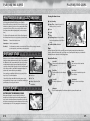
PLAYSTATION®3 System Front
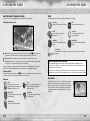
Using the SIXAXIS™ Wireless Controller (for PLAYSTATION®3)
Port indicators
Slot cover
Port indicators
Slot
1
slot
CF*cover
L2 button
L1 buttonL2 button
slotbutton
CF*
Eject
1
2
Eject
SD*button
Memory
L1 button
Card slot
SD*2 Memory
Memory
Card
slot
Stick™ slot
CF
CF
SD/miniSD
SD/miniSD
Memory
Stick™ slot
*1 CompactFlash®
*2 Secure Digital
*1 CompactFlash®
*2 Secure Digital
Insert the disc with the
label side facing up.
Insert the disc with the
label side facing up.
Power button
Directional
buttons
Left stick/
L3 button*
Right stick/
R3 button*
Directional
buttons
L3 button*
SELECT button
Disc slot
Vent
Power
button
Eject
button
WLAN access indicator
Vent
HDD access indicator
Eject button
USB access
connectors
WLAN
indicator
Note: Some models of the PLAYSTATION®3 system do not include media slots. For specific features
access
indicator
included, refer to the instructions HDD
for use
of your
model of the PLAYSTATION®3 system.
Starting a game: Before use, carefully
read the instructions supplied with the PLAYSTATION®3 computer
USB connectors
entertainment system. The documentation contains information on setting up and using your system as
well as important safety information.
R2 button
R1 button
button
button
button
button
SELECT buttonLeft stick/
Disc slot
USB connector
USB connector
R2 button
R1 button
button
button
button
button
START button Right stick/
R3 button*
PS button
START button
PS button
* The L3 and R3 buttons function when the sticks are pressed.
Note: To use the controller, you must first register or “pair” the controller with the PLAYSTATION®3 system
and assign a number to the controller. For details, refer to the instructions supplied with the system.
Saved data for PLAYSTATION®3 System format software
Saved data for PLAYSTATION®3 format software is saved on the system’s hard disk. The data is
displayed under “Saved Game System” in the Game menu.
Check that the MAIN POWER switch (located on the system rear) is turned on. Insert the Sonic
Unleashed™ disc with the label facing up into the disc slot. Select the icon for the software title under
[Game] in the PLAYSTATION®3 system’s home menu, and then press the gS button. Refer to this manual
for information on using the software.
Quitting a game: During gameplay, press and hold down the PS button on the wireless controller for at
least 2 seconds. Then select “Quit Game” from the screen that is displayed.
HINT
2
To remove a disc, touch the eject button after quitting the game.
3