1
Synchronizing Web Registrations
Once your students have completed the registration form and you have held at least one i>clicker
session, you may update your course registration information using the Synchronize Web
Registrations feature.
NOTE: You will must be connected to the Internet to synchronize web registrations.
To synchronize web registrations:
1
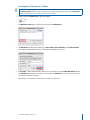
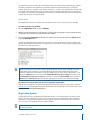
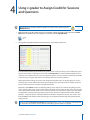
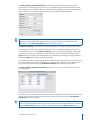
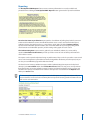
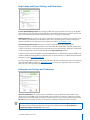
Click Synchronize Web Registrations from the main i>grader window.
2
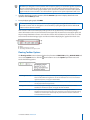
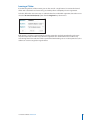
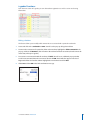
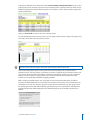
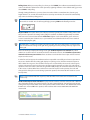
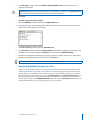
A Synchronize Web Registrations window will appear with a description of the synchronization function.
Click Continue to proceed.
3
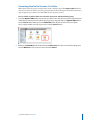
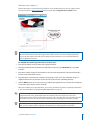
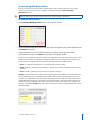
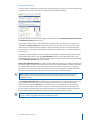
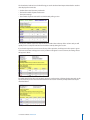
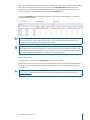
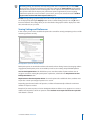
i>grader synchronizes your roster information with your students’ online registrations. After
synchronization is complete, click Done to return to the main i>grader window.
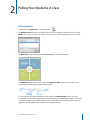
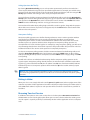
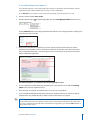
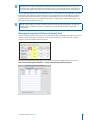
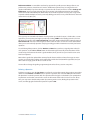
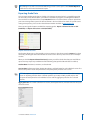
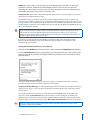
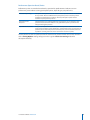
If an inconsistency between your roster and the web registrations exist, you will be prompted to resolve
it before synchronization is completed. The software will alert you to any discrepancies between your
roster and the web registrations. Your choices for resolving registration conflicts include:
• Ignore: no registration information is associated for that particular student.
• Accept: allows the student ID to be included in i>grader and associates the student with the correct
remote ID.
• Cancel: exits the registration process and leave i>grader unchanged.
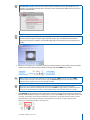
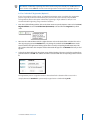
Example: A student registers his i>clicker online, entering remote ID 143B436C and student ID 67-890.
Upon synchronizing, you are notified that this student’s student ID does not match any record in your
roster file. You realize that the student has both mistyped his last name and entered the student ID in a
slightly different format from the student ID in your roster file (with a dash in the middle). Because you
can be reasonably sure that this is the correct student, you select his name from the list of students in
the roster and click the Accept button. This action associates the correct student ID 67890 with i>clicker
remote ID 2796B1.
i>clicker User Guide Macintosh
17