1
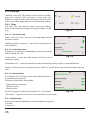
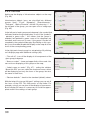
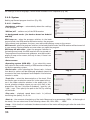
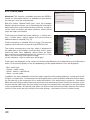
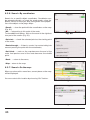
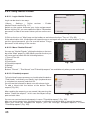
7. A privacy mode for new friends: privacy in relation to new
friends, by default. In the case of setting any privacy (except
the “Define individually”) privacy in relation to new friend is
automatically set to selected mode. If you have set in this
menu "Define individually" on the button Friends (as well as
on the dialogue between the requests for friendship) will be
the numerical indicator (1), which means that you need to
define privacy in relation to the new friend (information will
be duplicated in the dialog requests for friendship). The
location of the device will be hidden from your friend until the
user defines the mode of privacy.
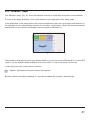
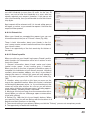
Fig. 109
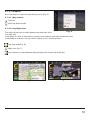
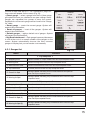
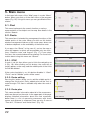
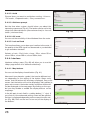
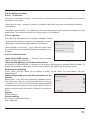
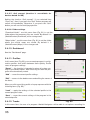
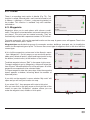
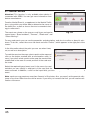
8. Your location in the service "Navitel.Friends": defines the
source of the positions in the service of friends: either GPS
sensor, or position selected manually (Fig. 110).
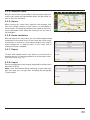
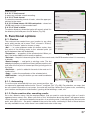
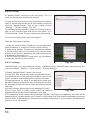
6.8.2.8. "Navitel.Chat"
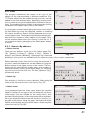
Having access to the service "Navitel.Friends", the user has
the opportunity to exchange personal messages with
friends. For this you need to open a chat (opens the icon
"Navitel.SMS") and create a new chat, clicking on the button "Create new talk" in the bottom of the screen, then
Fig. 110
"Create Navitel.Friends talk" and selecting friend.
Messages are sorted in order of decreasing the time of the last message. Thus, the recent talks will be
in the beginning of the list. Unread messages are determined by the green indicator in the upper-right
corner of the avatars.
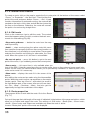
6.8.2.9. Talks
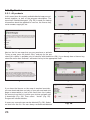
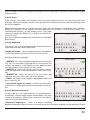
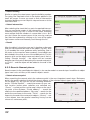
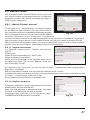
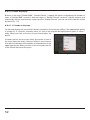
In the talk with friend displays all incoming and outgoing messages, sorted by date from the top down in
ascending order. On the left on a white background is displayed your friend's messages, on the right on
a gray background – you messages.
Messages on one side are grouped according to the time between sending messages no more than 10
minutes. When you scroll the history, the program requests the server old messages, which are automatically added to the talk list.
To send new message you have to open the keyboard, enter your message and click the button "Send".
The message which is in the process of sending displayed in orange color. The message that has failed
to send and will be displayed in red. By clicking on the message that is not sent successfully, the user is
sending the message again.
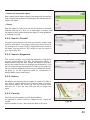
In talks there is a possibility to send the different locations types. To attach the location to message, click
on the button “Attach” and select the desired position. When you click on a message with the location
map shows you the specified point.
51