1
CHAPTER 1: INTRODUCTION
1
Chapter 1: Introduction
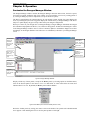
Paragon Manager Overview
Thank you for choosing one of Raritan's Paragon series products! Your Paragon UMT appliance includes
Paragon Manager, a management and configuration application that lets you display Device, User, Log,
and Outlet information in one coordinated graphical user interface. You can Add, Modify, and Delete
Devices, Users, or Groups in your Paragon system from one central location, and specify log events to
keep an audit trail of events that are updated in real time. Complete administration of your Paragon
configuration is possible from a different room or from across the country using Paragon Manager.
Log On
Please note that only Administrators have permissions to log on to Paragon Manager.
1. On the Start menu, click Programs, and then click Paragon Manager. Click Paragon Manager
once more to launch the Paragon Manager application.
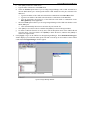
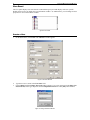
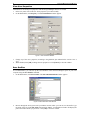
2. When the Paragon Manager window appears, on the Session menu, click Connect.
Figure 1 Paragon Manager Login Window
3.
4.
5.
Type your user name in the User Name field.
Type your password in the Password field.
Click on the Select UMT drop-down arrow and select one of the UMT devices from the list.
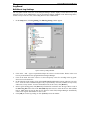
a. If the device to which you want to connect is not listed, click the […] button to add (or delete) a
UMT device. The UMT Profile window appears.
Figure 2 UMT Profile Window