1
H.264MP-MegaPixels RTSP Streaming User’s Manual
【PC】check the recorded video files or snapshot pictures in local PC according to the
selected date.
【SD Card】check the recorded video files or snapshot pictures in SD Card according to the
selected date.
【File List】Shows the selected recorded video files or snapshot pictures in the File List.
Check the current recorded video files or snapshot pictures in the list as follows:
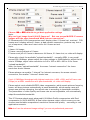
There are two Lists: Record & Pic:
Record List means the recorded video in PC on Dec 6, 2007
Pic List means the snapshot pictures in PC on Dec 6, 2007
The left of the Record / Pic List is the Hour (from 0 to 23)
The right of the Record / Pic List is the Minute (from 0 to 59)
The yellow icon means the video recorded / pictures taken in the
selected time.
The blue icon means the video recorded / pictures taken on
other time.
This blue icon means the picture taken at 9:26 on Dec 6, 2007
Yellow icon means the video recorded at 10:38 on Dec 6, 2007
These files were named by the recording time. For example: the
file 10_38_40.mp6 means this video is recorded at 10:38:40'.
【
】Choose the recorded video or snapshot picture in play list, then click “play”
button as :
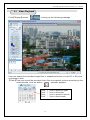
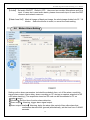
Playback control as follows:
Time table
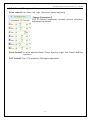
The buttons from left to right:File, Play, Pause, Stop, Backward, Fast, Single
frame, Audio, Recycle, Snapshot.
【
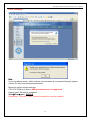
】Searching the recorded video file or snapshot pictures which downloaded
from SD card in Play list, click the “
” button to download it to local PC.
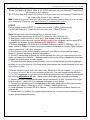
【
】following window pop up after click the “
33
”: