1
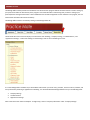
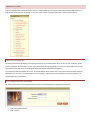
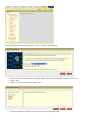
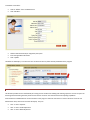
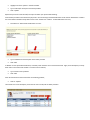
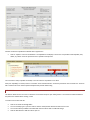
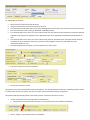
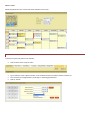
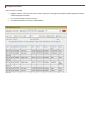
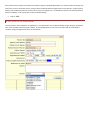
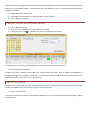
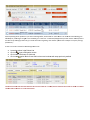
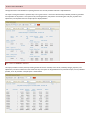
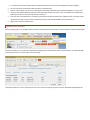
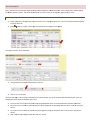
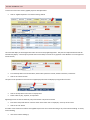
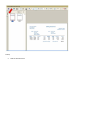
The Inventory Report enables the user to view a list of claims sent to Office Ally for processing. Various filters let the user be as broad or as specific as needed in searching the records. •
•
•
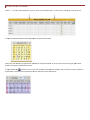
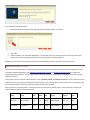
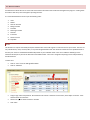
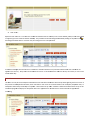
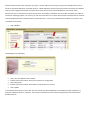
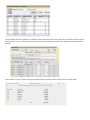
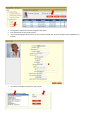
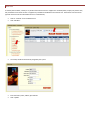
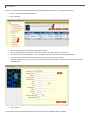
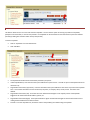
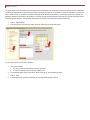
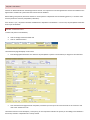
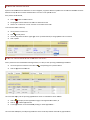
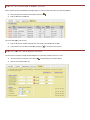
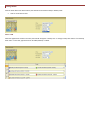
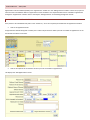
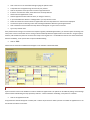
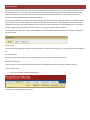
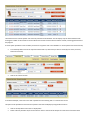
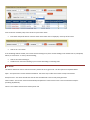
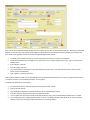
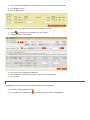
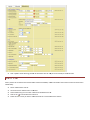
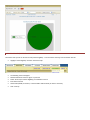
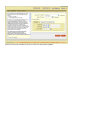
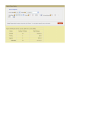
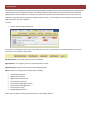
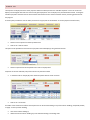
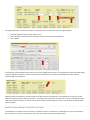
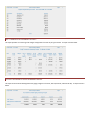
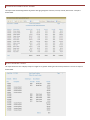
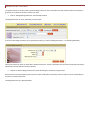
You can specify: • Payer • DOS date, Uploaded date, or Processed date • Fill in the date range you wish to search by • Status (All Statuses, Accepted, Pending, or Rejected)(If you choose to search only rejected status, you can also choose to only search for a specific rejection) • Master Vendor (Tax ID) • State License ID • Patient Name • Office Ally’s File ID • Office Ally’s Claim ID • There are several other criteria you can specify, the only criteria that is required is the Date Range Once you have selected your criteria for your search click the Search button and your results will be listed You also have the option of Exporting the results to Excel. Just click the Export To Excel button and an Excel file will be created The Quick Claim Status report provides a summary of claims Accepted, Pending, or Rejected for a given period of time. This report can be run for all payers or for a specific payer only.