1
End User Training Guide
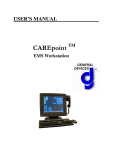
CAREpoint
TM
EMS Workstation
IMPORTANT
Federal (USA) law restricts portions of this device to sale by or on the order of a physician.
This instrument is to be used by authorized personnel only.
Responsibility for Information
It is the customer’s responsibility to ensure that the appropriate personnel within their
organization have access to this manual, including the safety information provided in Section 1.
General Devices
1000 River St.
Ridgefield, NJ 07657
Phone: (201) 313-7075
Fax: (201) 313-5671
Internet: www.general-devices.com
CAREpoint End User Training Guide
CAREpoint, D-Scribe, InfoManager, Rosetta-Lt,
Rosetta-Rx, GEMS,GEMSCOM and e-Bridge are
trademarks of General Devices.
LIFEPAK is a registered trademark of PhysioControl Corporation.
M Series & E Series are trademarks of ZOLL
Medical Corp.
HeartStart MRx is a trademark of Philips Medical
Systems.
Specifications subject to change without notice.
©July 2010 General Devices.
DOC 1838045 Rev A
1-2
Table of Contents
Section 1 General Information
1.1 Safety Information .....................................................................................................................
1.2 Description.................................................................................................................................
1.3 Glossary of Terms
1.4 Applicability ..............................................................................................................................
Section 2 Communications Operation
2.1 Communications Controls and Indicators .................................................................................
2.2 Handling Calls ...........................................................................................................................
2.3 Call Alarms................................................................................................................................
2.4 Conferencing and Patching........................................................................................................
Section 3 Telemetry Operation (Option)
3.1 Telemetry Controls and Indicators ............................................................................................
3.2 Printing and Sending ECG ........................................................................................................
Section 4 D-Scribe LogRecorder (Option)
4.1 General Information ..................................................................................................................
Section 5 Information Management
5.1 D-Scribe Reviewer.....................................................................................................................
5.2 Forms .........................................................................................................................................
5.3 InfoManager...............................................................................................................................
5.4 E-Mail & Fax
5.5 Help ..........................................................................................................................................
CAREpoint End User Training Guide
1-3
Section 1 General Information
This manual provides descriptions, connection information, operating instructions as well as
maintenance and service information for the General Devices' CAREpoint EMS workstation.
1.1 Safety Information
DO NOT OPERATE THIS EQUIPMENT WITHOUT
FIRST REVIEWING THIS SAFETY INFORMATION!
The following terms are used in this manual:
WARNING!
Hazards or unsafe practices that may result in serious personal injury or
death.
CAUTION!
Hazards or unsafe practices that may result in minor personal injury,
product or property damage.
IMPORTANT! Action or practice that may result in, improper operation, product or
property damage.
Section 1: NOTE!
operation.
Information that the user should be aware of to prevent improper
CAUTIONS!
• Before operation, read entire manual.
• This device is to be used by authorized personnel only.
• This device requires periodic maintenance to assure proper operation. Refer to Section
10 for maintenance information.
• Should the device appear to perform improperly, refer to Section 10 for test and
servicing information.
• Do not connect or operate this device in any manner other than that specified within
this manual or any of the addendums included with this manual.
• Operator Position Electronics (OPE) MUST be connected to an Uninterruptible Power
Supply (UPS) and MUST be connected to Emergency Power.
• Before operation, check to insure that information is reliably transmitted over the
communications system you are using.
WARNINGS!
• Possible explosion hazard if used in the presence of flammable anesthetics or gases.
• Do not immerse in water or other fluids. Do not allow water or fluids to enter case.
GENERAL DEVICES AND ITS AGENTS ARE NOT RESPONSIBLE FOR ANY DAMAGE OR
CONSEQUENCES RESULTING FROM IMPROPER OR UNAUTHORIZED USE OF THIS
PRODUCT.
CAREpoint User’s Manual
F-1
1.2 Description
The General Devices CAREpoint EMS workstation provides an integrated “systemsapproach” to the management of Emergency Medical Services (EMS) activities in the
Emergency Department. CAREpoint provides hospital-based care providers with a compact,
multi-function, easy-to-use and fully integrated system for:
•
•
•
•
•
•
•
management of voice and data communication on all commonly used communications
means; documenting call activity for medical, QA and legal purposes;
communications interoperability via a built-in communications switch;
receiving, displaying, documenting, archiving and printing single and 12-lead ECG
telemetry;
forwarding of 12-lead ECG telemetry through built-in Email & Fax software components;
fast, simplified access to a wide variety of text and graphic information used to support
out-of-hospital care such as protocols, drug lists and hazmat information;
a practical means of completing electronic forms for data gathering, QA or record keeping
purposes;
a convenient way to display information available from other Windows based software
applications (such as ED Status and Patient Tracking).
In addition, the CAREpoint EMS Workstation provides a powerful open-architecture platform
to support newly emerging technologies, such as receiving and displaying images from the
field and telemedicine-related tasks. The CAREpoint is the one of the building-blocks for the
e-Bridge EMS Telemedicine System.
1.3 Glossary of Terms
•
•
•
•
Administrative Functions: Various activities related to maintenance tasks, servicing usersupplied system information, storing telephone numbers & material for InfoManager,
installing software updates & third-party applications, etc. Depending upon the task and
the nature of the installation, the functions may be performed at the workstation or from a
remotely located (networked) PC. Administrative functions are to be performed ONLY by
persons authorized by the user organization...
D-Scribe: CAREpoint’s built-in digital logging recorder. D-Scribe may be used to make
recordings of some or all CAREpoint call activity, including voice and data over all
CAREpoint communications means. Recorded data may be stored on a removable CD
(Compact Disk) media or on the hospital network. All recorded information is accessible
both on line (at the CAREpoint Workstation) as well as off-line, using any networked
computer equipped with D-Scribe review software. For more information, refer to the DScribe user’s manual.
DTMF: Dual Tone/Multi-Frequency is the technical name for “touch-tone” dialing and is
a commonly used method of signaling over radios and telephones.
Expansion Module: Expansion Modules (one or more) are used to house additional
communications interface cards in systems using more than five communications lines
(radio or telephone). Expansion Modules may be located either nearby or at a distance
from the workstation OPE.
CAREpoint User’s Manual
F-2
•
•
•
•
•
•
InfoManager: CAREpoint’s information management “browser”. InfoManager provides
CAREpoint with a means of storing and retrieving various types of information.
Information, which may consist of text or graphic documents, may be stored on, or be
retrievable from the CAREpoint Workstation, the hospital network (including medical
records and the medical library), or the Internet. All information is user supplied or user
defined. For more information, refer to the InfoManager User’s manual.
LP-12: LIFEPAK 12 monitor-defibrillator manufactured by Medtronic Physio-Control
corporation of Redmond Washington, USA.
Operator Position Electronics (OPE): The Operator Position Electronics is the “box” that
all peripheral elements (monitor, keyboard, mouse, modem lines, telecom block, etc.)
connect to. The OPE is normally located near the monitor. The OPE contains
CAREpoint’s PC Module (see below) as well as the system power supply and (up to) five
communications interface cards.
PC Module: The PC Module is the “computer” section of the Operator Position
Enclosure. It contains CAREpoint’s computer elements (motherboard, drives, interface
cards, etc.). Designed to be removable in the field, the PC module is replaceable as a
single unit.
Rosetta: General Devices’ system for sending and receiving high-quality 12-lead ECGs
over voice grade communications means. The CAREpoint EMS Workstation (with
telemetry option) includes a built-in Rosetta receiving means. For more information, see
Section 6 Telemetry Option.
Touch Screen Monitor: A flat screen monitor with integral “on-screen” touch controls.
The touch screens permit simplified operation by minimizing the need for a keyboard,
mouse or other pointing device. Touch screen operation is limited in resolution (finger
size) and may not be practical for small on-screen controls from non-CAREpoint
programs.
1.4 Applicability
This manual describes many CAREpoint features and functions. Some of these features or
functions may be optional and may not be provided or compatible with all models or versions
CAREpoint User’s Manual
F-3
Section 2 Communications Operation
This section contains operating information for the workstation’s communications functions, as
seen in
2.1 Communications Controls and Indicators The CAREpoint system provides three
methods of controlling or inputting information:
Mouse
A standard PC mouse is provided and can be used to control functions of the CAREpoint
EMS Workstation. Typically the mouse is only used for off-line purposes.
Keyboard
A standard PC keyboard is provided and can be used for text entry or to control Windows
functions. Typically the keyboard is rarely used during normal operation.
Touch-Screen Monitor
The CAREpoints touch screen monitor controls most functions of the CAREpoint EMS
Workstation. Operation is simply by a gentle press in the displayed key or control. The
touch screen is used for most CAREpoint functions.
IMPORTANT! DO NOT press touch screen with sharp objects!
Task Bar
The Task Bar, located at the bottom of the screen contains selection keys for CAREpoint
functions that are NOT available on the Launch Panel. These keys unusually include third
party applications as well as some CAREpoint applications. The contents of the Task Bar will
vary, depending on the requirements of the installations.
CAREpoint User’s Manual
F-4
Keypad
This region contains the keypad used to enter telephone numbers (as on a standard telephone)
as well as to enter special instruction codes to the workstation (i.e.; Self test features,
configuration access, etc.). Similar to standard telephone controls, there are also buttons for
Autodial, Redial, Conference, Hold, and Flash.
Communications Panel
This region contains the Resource buttons that have been configured for this Workstation.
There is the potential for a total of 16 Resource buttons (a 4x4 grid). Icons are used to
differentiate between radio and telephone means. In addition to the Resource buttons, the
Autodial list will display on the right side of the Communications Panel when the Autodial
button, which is located on the keypad, is pressed.
Status Panel
This region displays all of the messages that CAREpoint relays to the user. By clicking the
accompanying “i” button, the user can obtain further information on the nature of and followup to the message.
CAREpoint User’s Manual
F-5
Launch Panel
The buttons contained within this region are used to select the most commonly used
CAREpoint functions (i.e.; InfoManager, D-Scribe, ECG, etc.). Some of the function choices
are user-configurable. The region also includes a current time and date display.Controls Panel
Controls Panel: The Controls Panel is used for the following functions:
•
Volume Control: The Volume Control is an UP/DOWN type control, with a volume
bar graph indicating the relative volume setting. The bar graph is self-canceling after
approximately 5 seconds. The Mute functions operate as Push-On/Push Off, and are
self-canceling after approximately 1 minute of no PTT activity.
•
Hang-up Button: The Hang-up button hangs up (disconnects) a Resource line. The
key requires TWO successive presses. The double press is intended to avert
unintentional hang-up caused by accidental key presses.
•
Transmit Status Bar: The Transmit Status Bar displays when the PTT switch is
pressed and the system is transmitting.
•
Alert Legend: The Alert legend displays to indicate the presence of a field (medic)
activated alert call.
•
Active Communications Means Indicator: The currently active communications
means (i.e.; Med Channel, Phone) Line 1, etc.) is indicted by text that appears in this
grouping.
CAREpoint User’s Manual
F-6
CAREpoint Status Panel
This region is reserved for special system alerts and status reporting (i.e.; remaining free space
on D-Scribe CD, Call In Progress, Rosetta D Status,etc.).
...................................................................................................................... .
Figure 2.1, Communications (Main) Screen
The communications screen is the Workstation’s main (default) screen. Because of its
importance, screens such as those used for ECG, continue to display parts of the
communications screen, while other screens, such as the InfoManager screen, completely
replace the communications screen.
CAREpoint User’s Manual
F-7
2.2 Handling Calls
2.2.1 Call Status Indicators
•
Gray – The Resource is inactive and waiting for an incoming call.
•
Green (Flashing) – The Resource has detected an incoming call and its audio will be
heard over the UnSelected speaker (Radio Resource only)
•
Green (Solid) – The Resource is patch and its audio will be heard over the Selected
Speaker and through the Handset.
•
Red (Flashing) – The Resource has been triggered to alarm by an incoming call, a
telemetry tone, or a DTMF code. The Alarm Tone and the incoming audio will be
heard over the UnSelected speaker (Radio Resource only)
•
Red (Solid) – The Resource is currently unavailable for use
•
Yellow – The Resource is currently on Hold. The Resource will not be able to transmit
audio and its receive audio will be heard over the Unselect Speaker.
•
Blue (Flashing) – The Resource is currently programming a new version of Firmware.
•
Blue (Solid) – The combination of Resources are conferenced together and have been
placed on Hold.
2.2.2 Answering Calls
•
Automatic – If set, when a Resource is in the incoming or alarming state, simply pickup the handset, press the PTT switch and talk. If multiple calls are incoming, select the
one you want to answer.
•
Manual – When a Resource is in the incoming state, manually patch it by pressing the
Resource button. If the Resource is in the alarming state, press the “Answer Call”
button. If multiple calls are incoming, select the one you want to answer.
2.2.3 Ending Calls
•
Automatic – Phone Resource calls will end automatically when the caller hangs-up or
is disconnected. Radio Resource calls will end automatically when after a pre-set
amount of time. Also, the call can be disconnected automatically when the handset is
placed in the cradle (Refer to 4.2.6 Handset Options for further information).
•
Manual – A call can be ended manually by pressing the Hang-up button twice.
2.2.4 Using Hold
•
To place a call into the Hold state, simply press the “Hold” button located on the
keypad. The Resource will switch to the Yellow (Flashing) state. To remove a call
CAREpoint User’s Manual
F-8
from Hold, simply press the Resource button. (Note: A Resource that is set to
“Disconnect when not active” cannot be put on hold. Refer to 4.2.1: Program #1 –
Button and Resource Config – Miscellaneous Options for further information.)
2.2.5 Adjusting the Audio Volume
•
Use the Up/Down arrows to change the volume of the Selected Speaker (the Resource
currently patched) and the Unselected Speaker (any Resources that are not patched).
The “Mute” button will mute the volume for the respective speaker. (Note: If the
handset is in the cradle, the Selected mute button will not stay depressed)
2.3 Handling Call Alarms
When a Resource is set to alarm and the alarming conditions are met, a sound file will
play, the Resource will flash red, its audio will be heard on the UnSelected Speaker (Radio
Resource Only) and the following screen will appear:
From this screen, the user has two options:
•
Cancel Alarm – If the alarm is cancelled, the Alarm sound file will stop playing and
the Alarming screen will disappear. However, the Resource will still flash red.
•
Answer Call – If the call is answered, the Alarm sound file will stop playing, the
Alarming screen will disappear and the Resource will turn solid green.
2.4 Conferencing and Patching
WARNING!
Conferencing Resources together will lower the overall volume of the
call with each additional Resource added into the patch.
2.4.1 Conferencing Two Resources
Conferencing multiple Resources together allows the user to connect the transmit and
receive audio of multiple calls. First, select one Resource that you want to use for
CAREpoint User’s Manual
F-9
conferencing. Once the Resource is patched, press the “Conf” button on the keypad. The
Resource button will remain solid green. Select a second Resource to add to the patch.
Now, both Resources will be solid green. At this point, all transmit audio from the
CAREpoint will be heard on both Resources and the transmit audio from both Resources
will be heard at the CAREpoint as well as at both parties in the conference. If “Hold” is
pressed, both Resource buttons will turn solid blue, but the remote parties can still hear
each other.
2.4.2 Conferencing Three or more Resources
Follow the same steps as above, except continue to add as many Resources as necessary.
CAREpoint User’s Manual
F-10
Section 3 Telemetry Operation (Option)
This section contains operating information for the workstation’s single and 12-Lead ECG
telemetry features, as seen in Figure 6.1 & 6.2.
Figure 6.1, Single Lead ECG Screen
Figure 6.2, 12-Lead ECG Screen
CAREpoint User’s Manual
F-11
3.1 Telemetry Controls and Indicators
The Single and 12-Lead ECG Screens are invoked by the “ECG” button on the main
(communications) screen.
The row of buttons below the ECG trace area contain the ECG controls, consisting of:
View Single Lead
If the 12-Lead screen is currently displayed, this button will switch to
the Single Lead screen.
View 12 Lead
If the Single Lead screen is currently displayed, this button will
switch to the 12-Lead screen.
Print / Send
This button will print to the default printer or, if the Workstation is
configured for multiple printing/sending methods, it will display a list
of printing/sending options (Refer to B.14 Quick Guide #14:
Configuring the ECG Print/Send Option).
Heart Rate
This window displays the Heart Rate during a Single Lead
transmission and identifies the ECG source when receiving a
Rosetta 12-Lead Transmission.
Noise Filter
This button will set the Noise Filter to “clean-up” the reception of
ECG data. It invokes a high-frequency filter to assist in removing 60
Hz., muscle, and other types of higher frequency (spiky) artifact.
When invoked, the bandwidth of the ECG is NOT of diagnostic
quality, and is marked accordingly (Filter ON) on the hard copy
printout. This is recommended to be set to default as “On” (Refer to
4.1.1 Program #1 – Button and Resource Config).
Note: This option has no effect on the ECG transmission if the Filter
was set at the transmitting ECG Monitor. In this case, the Filter
should be turned off at the ECG Monitor in use.
CAREpoint User’s Manual
F-12
50 mm Sec
If the Single Lead screen is currently displayed, this button will
switch to the switch to a 50 mm per second display.
3.2 Printing and Sending ECG
When an ECG is received by the CAREpoint, the user may want to transfer the data to a more
practical means of communication. The ECG data can be printed out as a hard copy, either on
standard paper or strip chart paper (for a Single Lead only). The CAREpoint supports both
local and network printers. The data can also be forwarded through an email or fax using the
built in Email/Fax software. Additionally, the ECG data can be converted into an Adobe PDF
file and stored for later use. The ECG can also be output as the General Devices proprietary
format of a .tlm file.
CAREpoint software also supports the sending of ECG data to multiple sources with only one
touch of the screen. The user can setup “Groups” that will send the ECG data through any of
the methods describe above. As an example, a group can be configured to send the ECG data
to several email addresses, a fax machine, and also print a hard copy to a network printer.
(Refer to B.14 Quick Guide #14: Configuring the ECG Print/Send Option).
CAREpoint User’s Manual
F-13
Section 4
D-Scribe LogRecorder (option)
4.1 General Information
The CAREpoint D-Scribe LogRecorder is an optional digital logging recorder that logs
(records) all CAREpoint transmit and receive audio (voice) into a database for later review for
quality and medical-legal aspects. In addition to audio, D-Scribe logs data such as forms
completed on CAREpoint, telemetry (single lead strips & Rosetta 12 lead reports), as well as
incoming and outgoing emails and faxes. D-Scribe also logs call event information such as:
•
Time/date when call is received or initiated
•
On which phone or radio the call was answered
•
Time/date when call is answered
•
If alarm was activated
•
When & how call was terminated
•
Call duration
The D-Scribe Logging System is made up of two main program components:
D-Scribe LogRecorder (referred to as LogRecorder from here on), which runs on the
CAREpoint workstation for logging (recording calls and information) and managing the
database and backups, and
D-Scribe Reviewer (referred to as D-Scribe from here on), which can be run at the
CAREpoint workstation as well as at other compatible PC’s for reviewing the database of
and information.
Note: In order to run D-Scribe desktop software on a remote PC, the PC must be multi-media
(sound card/speakers) equipped and have Windows 98 or newer operating system. A network
connection, and related access settings are required to assess D-Scribe information on the
CAREpoint workstation from a remote PC.
Logged voice and data is stored on the internal hard drive and is backed up at scheduled
intervals onto a CD for archiving. Another backup option is to utilize a shared network drive
on the hospital system for back up. (Note: This requires a network connection, and related
access settings.)
In order to protect the logged information and settings, both D-Scribe and LogRecorder can be
set for password-protected access or user authentication. LogRecorder is set for password
protection by default.
LogRecorder has two different modes, User and Administrator. The User mode is locked
down and cannot perform all of the functions that LogRecorder has to offer. This is the mode
that all users should be trained to logon to. The Administrator mode allows access to
additional settings and tools. Only the system administrator should have this password.
CAREpoint User’s Manual
F-14
Section 5 Information Management
5.1 D-Scribe Reviewer
The D-Scribe Reviewer software is used to review the audio and data contained in the
database. This program has its own user’s manual.
Refer to the D-Scribe User’s Manual for operating instructions and further information.
To launch D-Scribe; From CAREpoint – Press the More button; then press the D-Scribe button.
5.1.1 Playback
o Playback Controls
Previous call
This button allows the user to navigate to the previous call
Play
This button allows the user to play the currently selected call
Next call
This button allows the user to navigate to the next call
Stop
This button allows the user to stop playback
o Volume Slide
This slider allows the user to control the volume of the call being played.
CAREpoint User’s Manual
F-15
o Play Select / UnSelect Audio
This control allows the user to choose between playing Selected Audio or Unselected
Audio.
5.1.2 Timeline Zoom
o
Zoom In
This button allows the user to Zoom In on the Timeline.
o
Zoom Level
o
This dropdown menu allows the user to select between 30 minutes, 1 hour, 2 hours, 6 hours,
12 hours, 1 day, 2 days, 4 days, 1 week, 2 weeks, or 1 month.
o
Zoom Out
This button allows the user to Zoom Out on the Timeline
5.1.3 Pick Date
o
Pick Date
This button allows the user to select the display date from a calendar control.
o
Calendar
This calendar control is used to navigate through potential display dates for the Timeline.
Previous Month
This button navigates the Calendar to the previous month.
Next Month
This button navigates the Calendar to the next month
CAREpoint User’s Manual
F-16
Bold Dates
This icon indicates that data exists in the Database for this date.
Selected Date
This icon indicates the date that is currently selected.
5.1.4 Pick Time
o
Pick Time
This button allows the user to select the display time from the Hour Grid.
o
Hour Grid
These buttons allow the user to select the hour for the timeline.
5.1.9 Call Log
5.2 Forms
Form Builder provides an easy-to-use tool for creating the electronic forms that are part of
CAREpoint’s reporting and data-gathering process. These forms, which may be designed and
created on any Windows-based desktop computer, are intended to be completed (filled out) on
the CAREpoint EMS Workstation. This program has its own user’s manual.
Refer to the Form Builder User’s Manual for operating instructions and further information.
CAREpoint User’s Manual
F-17
5.3 InfoManager
InfoManager provides an easy-to-use means of viewing a wide range of text and graphic
information (content) at the CAREpoint Workstation. InfoManager may be used to access
medical protocols, HAZMAT information, drug lists, PDR, contact (call-list) and many other
types of text and graphic information. This information may be used to assist in decision
making during a call, or for accessing information at any other time. This program has its own
user’s manual.
Refer to the InfoManager User’s Manual for operating instructions and further information.
Launching InfoManager
To launch InfoManager;
•
From CAREpoint – Press the More button; then press the InfoManager button.
CAREpoint User’s Manual
F-18
5.3.1 Information Category Keys: Located on the left side of the screen, the information
category keys (Drug List, Protocol, PDR, HAZMAT, Library, Contacts Other) selects from
among the major information groupings.
5.3.2 InfoManager Control Keys: Located below the viewing screen, the control keys
(BACK, FORWARD, FAVORITES, SEARCH, PAGE UP, PAGE DOWN) control the
operation of InfoManager.
• BACK: Return to last screen.
• FWD: Returns to next screen (applicable only after use of BACK function).
• SEARCH: Invokes a dialog box to operate a topic search.
• PAGE UP: The first actuation directs curser to top of list. The second actuation brings
up preceding page (if there is one).
• PAGE DN: The first actuation directs curser to bottom of list. The second actuation
brings up following page (if there is one).
Exiting InfoManager.
• To switch between InfoManager and CAREpoint (or other application), press the desired
button on the task bar.
• To exit and close InfoManager, select File > Exit or click the “X” in the upper right corner.
5.4 E-Mail & Fax
CAREpoint comes equipped with its own email and fax software. EmailFax can be used to
send and receive ECG data through a configurable email account and/or to a fax machine.
Some other examples of use would be receiving camera-phone pictures from an accident
scene or faxing miscellaneous reports.
Refer to the EmailFax User’s Manual for operating instructions and further information.
5.4.1 Accessing Email/Fax at the CAREpoint Workstation
The Email/Fax Software can be accessed by clicking
in the taskbar.
If this button is not there, go to Start and click “Email/Fax”
The following is an introduction to familiarize
Software control means and how to perform basic operations.
CAREpoint User’s Manual
the
user
with
Email/Fax
F-19
5.4.2 Screens and Views
The Email/Fax User Interface is arranged in a manner similar to most Windows
applications. Descriptions of each button and indicator are provided in this manual.
On the next page is the main screen for the Email/Fax program, a list of the
buttons, and what they do.
will open a selected item (email or fax) in the main window list
will open a new email form
will open a new fax form
will send any emails or faxes in the outbox, and will also update your mailbox with any new
emails.
will delete a selected item (email or fax) in the main window list.
It is disabled by default; see instructions on how to enable it in section 2.2
will enter the configuration utility. It is disabled by default; see instructions on how to
enable it in section 2.2
will open the password dialog box to unlock administrator functions
will minimize the window
CAREpoint User’s Manual
F-20
5.5 Getting Help
Built-In Help File
At anytime during operation, the user can access the Help File by pressing the “Help”
button located on the Launch Panel
The “i” Button
The user can also access context-sensitive help for any message that appears on the screen
in the Status Panel. Pressing the “i” button next to the message will display information on
how to address the message and remove it from the Status Panel.
CAREpoint User’s Manual
F-21