1
User‟s Manual
i-CEN‟S
3.2 Live Display configuration
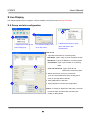
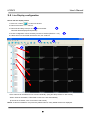
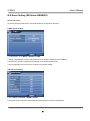
How to set live display screen
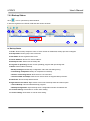
1. Click Live 1 button(
) to view live window.
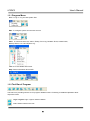
2. Select screen division on tool bar.
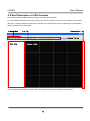
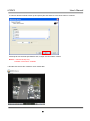
3. Select site and drag & drop it on live 1screen as below.
2
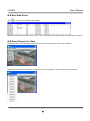
Cameras will be displayed sequentially.
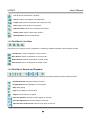
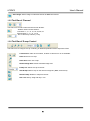
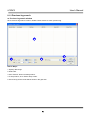
4. Screen configuration can be saved by tool bar of channel (Refer to 1.3.5)
3
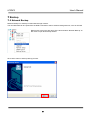
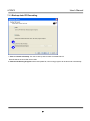
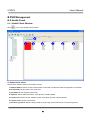
5. If there are more connected cameras to see, use scroll bar.
3
1
2
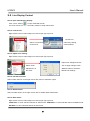
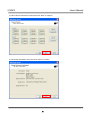
- Each camera can be added on live screen individually. (Drag and drop camera on live screen)
- When cameras are added, i-CEN‟S will access to the site automatically.
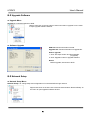
(If the site is accessed, color of icon will be red to blue.)
Notice: If camera is added to over previously added camera, newly added will be over displayed.
20