1
Arranging the Control-M/Desktop flow diagram display
■
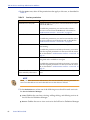
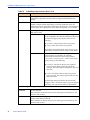
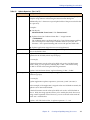
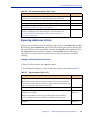
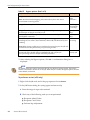
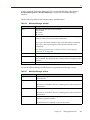
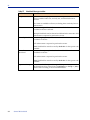
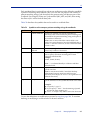
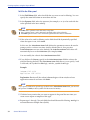
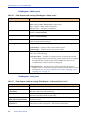
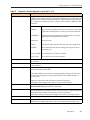
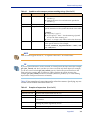
The LIKE operator treats ∗ and ? characters in the value as wildcards; the =
operator treats ∗ and ? characters in the value as literals.
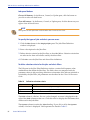
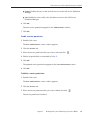
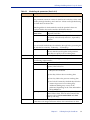
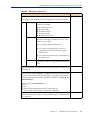
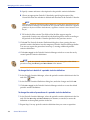
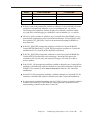
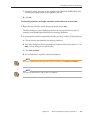
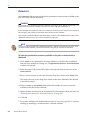
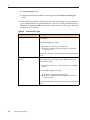
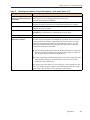
3 In the Action area, select how the criteria should be applied to the draft:
■
Only jobs matching the specified criteria should currently be included in the
filter (Set Matching jobs to be the current filter). This option is especially useful
when no other criteria are currently applied or you want to override previously
applied criteria.
■
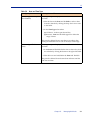
Jobs matching the new criteria should be added to or removed from the current
filter. These options are especially useful for adjustments when other criteria are
currently applied criteria. The Remove matching jobs from the current filter option
is also useful for defining criteria for exclusion rather than inclusion.
■
The full draft should be displayed (that is, the filter should be nullified).
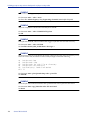
TIP
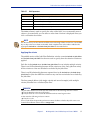
Because the relationship between multiple criteria specified in the dialog box is AND, to
create criteria using an implied OR relationship, do the following steps:
1. Define the first criterion or first set of AND criteria, and select Set Matching jobs to be the
current filter.
2. Then, define an OR criterion (or set of criteria, if they have an AND relationship between
them), and select Add matching jobs to the current filter. This set is added to the filter
(implying an OR relationship between it and the previous set). Repeat this step as needed.
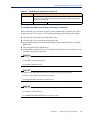
4 Click OK to filter the draft according to the specified criteria.
Draft filters are not saved for future use. When you close the draft, the filter definition
is lost.
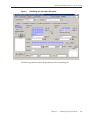
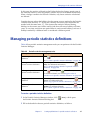
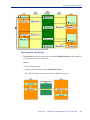
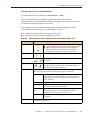
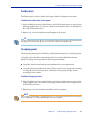
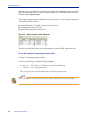
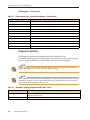
Arranging the Control-M/Desktop flow diagram display
In Control-M/Desktop, after you have performed many changes to the flow diagram,
(for example, adding or modifying job dependencies), you might want to have
Control-M/Desktop rearrange the flow diagram to more neatly display the job flow.
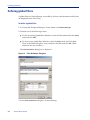
To arrange the display
In Control-M/Desktop, right-click anywhere in flow diagram (except on a job node),
and select Arrange All from the menu.
Chapter 2
Working with Control-M/Desktop and Control-M/EM
39