1
Page 16
HTML Kit Users Guide
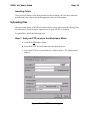
d. Type in your Server address, Login user name, Password and Display
name (your server’s name on the Workspace).
e. Click OK
Step 2: Uploading Files
If the Workspace is not open already, click on the view Workspace button on the Task
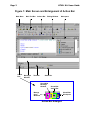
Bar Action Box (see “Figure 1: Main Screen and Enlargement of Action Box” on
page 2).
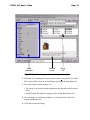
The Workspace shows a list of files with “+” signs and should now include the name
you have chosen for your ftp server (see Step 1).
To Upload a file follow these steps:
a. Open the HTML document that you would like to upload.
b. In the Workspace window, click on the “+” sign beside the name of your FTP
server. The message window should now show the messages that HTML Kit
is establishing a connection to the server.
c. Drag and drop the upload icon (
Workspace.
) on the bottom of the editor menu onto the
Additional Resources
HTML Kit offers many other features that are beyond the scope of this manual.
Further information can be found at the HTML Kit home page at
http://www.chami.com/html-kit.
Support is available through the newsgroup chami.public.htmlkit.misc.
Many plugins are also available at http://www.chami.com/html-kit/plugins.