1
4.0 Configuration and Operation
For your computer to be able to communicate with your EKM
iSerial, your computer must have an Ethernet card and
TCP/IP installed. TCP/IP should already be installed on
computers using Windows 98/2000/XP and later operating
systems. If your LAN (Local Area Network) already uses the IP
address range 192.168.1.xxx, skip to section 4.3. If not, use
section 4.2 to set up your computer to assign it a static IP
address in the 192.168.1.2 to 192.168.1.254 range with a
subnet mask of 255.255.255.0. If you are not sure what your
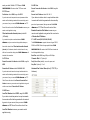
In the “Local Area Connection Status” window, click the
LAN IP address range is, use the following section 4.1.
“Properties” button.
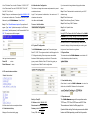
4.1 From the START menu, choose “Run…”. Type “cmd” (no
quotes) in the edit field and click “OK”. In the window that opens,
type “ipconfig” (no quotes) and hit the ENTER key.
In the “Intrnet Protocol (TCP/IP) Proerties” window, note if
“Obtain and IP address automatically” or “Use the following IP
Address” is selected. If “Use the following IP Address” is
selected, write down the IP address and Subnet mask settings.
You will need these settings to restore your computer’s
original settings. Click the radio button for “Use the following
IP Address”.
The information returned will tell you your IP address. If “IP
address” is in the range range 192.168.1.xxx, skip to section
4.3. If not go to the following section 4.2.
In the “Local Area Connection Properties” window, select
4.2 Step 1:From the START menu, choose Settings-->Control
Panel -->Network Connections. Double-click the “Network
Connections” icon. In the “Network Connections” window,
double-click “Local Area Connection”.
“Intrnet Protocol (TCP/IP)” and click the “Properties” button.