1
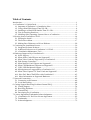
Table of Contents
Introduction.......................................................................................................................1
1. eComStation 2.1 QuickGuide........................................................................................2
1.1 Important eComStation 2.1 Installation Note........................................................3
1.2 Using a Hard Disk Larger Than 512 GB...............................................................4
1.3 Installing to a Hard Disk Smaller Than 512 GB....................................................9
1.4 Tips for Resizing Partitions.................................................................................10
1.5 Installing Other Operating Systems Next to eComStation..................................11
2. Booting from eComStation CD #1..............................................................................14
2.1 Starting the Install ...............................................................................................15
2.2 The Pre-boot Menu..............................................................................................17
2.3 Making Boot Diskettes or a Driver Diskette........................................................29
3. Continuing the Installation Process.............................................................................30
3.1 Integrated Software Products...............................................................................30
3.2 Additional Software on eComStation 2.1 CD #2.................................................32
3.3 eComStation Maintenance Tool..........................................................................33
4. Hardware Supported by eComStation 2.1...................................................................34
4.1 ACPI Support.......................................................................................................34
4.2 What Audio Cards/Chipsets are Supported?........................................................38
4.3 What Video Cards are Supported by eComStation?............................................39
4.4 Disk Storage Controllers......................................................................................41
4.5 What Network Card Chipsets are Supported?.....................................................42
4.6 What CPU/Mainboard Chipsets are Supported?..................................................42
4.7 USB / USB Peripherals Support .........................................................................43
4.8 Which printers are supported by eComStation 2.1?............................................44
4.9 What Video Capture/TV Tuner Cards are Supported?........................................45
4.10 How Do I Burn CDs/DVDs with eComStation?...............................................45
4.11 More Information on Supported Hardware........................................................45
5. Network Connectivity .................................................................................................46
5.1 Connecting to the Internet....................................................................................46
5.2 Local Networking................................................................................................48
6. Getting Support/Resolving Problems/General FAQ...................................................54
6.1 Getting Support....................................................................................................54
6.2 Resolving Problems.............................................................................................57
6.3 General FAQ........................................................................................................57
6.4 Developing for eComStation...............................................................................61
7. License Agreement/Trademarks/Acknowledgments...................................................63
7.1 eComStation 2.1 End User License Agreement...................................................63
7.2 Trademarks..........................................................................................................73
7.3 Acknowledgments................................................................................................73
Introduction
This QuickGuide is intended to help you get started with installing eComStation 2.1. It
provides information to assist you in booting the installation CD, and in getting the
graphical installer loaded and running.
We especially recommend that you read Chapter 1 of this QuickGuide if you are
installing to a large hard disk.
Chapter 1, eComStation 2.1 QuickGuide, contains important information about using
a hard disk of up to 2 terabytes, and tells you what you need to take into account when
installing multiple Operating Systems on the same computer.
Chapter 2, Booting from eComStation CD #1, explains how to set up your system to
boot from and use the Pre-boot Menu of eComStation 2.1 CD #1. The Pre-boot Menu
loads the proper drivers depending on what hardware is detected. You can also use this
chapter to help resolve startup problems.
Chapter 3, Continuing the Installation Process, explains the basics of using the
graphical Guided Procedures installer, which is started after you accept the Pre-boot
Menu selections. This section also explains how the Guided Procedures online help
works and where you can find more information. You should be able to find the
information you need to complete the installation in the online help once the Guided
Procedures installer is running.
Chapter 4, Hardware Supported by eComStation 2.1, is intended to help you
understand the computer hardware that eComStation supports and assist you in
resolving hardware-related installation issues. This chapter might be useful if you
encounter problems booting from eComStation CD #1 or if you are having other
problems installing eComStation.
Chapter 5, Network Connectivity, explains how to set up your Internet connection, as
well as how to connect to shared printer and drives on a network.
Chapter 6, Getting Support/Resolving Problems/General FAQ, will help you find
additional resources and explain how to get support.
Chapter 7, License Agreement/Trademarks/Acknowledgments, is the legal section of
the manual and describes your rights and duties as to the usage of eComStation 2.1.
1
1. eComStation 2.1 QuickGuide
Thank you for purchasing eComStation 2.1.
This QuickGuide is intended to assist you with starting the installation of eComStation
from CD #1 and also contains important installation notes. Additional online help is
available directly in the graphical installer and can be accessed easily by selecting the
Help button in the lower right-hand corner of the screen.
eComStation 2.1 has all the features you are used to from previous versions of
eComStation plus both major and minor improvements. To list a few:
• The IBM Boot Manager has been replaced with the open source Air-Boot boot
manager. (A boot manager is used to select the Operating System to be loaded by
your computer at boot time.)
• eComStation 2.1 includes a driver for AHCI disk controllers. See Chapter 6 for
details.
• ACPI enables you to use modern systems with multiple CPUs, and allows the use of
hardware that requires ACPI management in order to function.
• The bootable JFS file system gives your eComStation system a major performance
increase, and allows both applications and the Operating System to load much more
quickly.
• The Panorama video driver enables eComStation to work with just about any video
card.
• Improvements in network support, including new network adapter drivers from the
MultiMAC project as well as drivers for WiFi chipsets. The Samba features allow
greater access to shared network drives and printers.
• Improvements in the installer to support virtual machines such as VirtualBox, Virtual
PC, and others.
• Support for booting and installing from USB-attached CD drives.
• Better support for modern hardware, while preserving support for legacy devices.
• Major improvement in audio support with the updated Universal Audio driver.
• Support for large hard disks up to 2 terabytes (TB) in size.
• A free virus scanner, ClamAV, is included (refer to CD #2 for details).
It is strongly recommended that you not use versions of eComStation older than
eComStation 2.x in conjunction with Windows Vista or Windows 7. This is because
there is a risk of losing the Windows disk signature from your hard disk, potentially
damaging your Windows partition. eComStation 2.x preserves the Windows disk
signature, whereas older versions did not.
2
As of May 2011, eComStation 2.1 does not require any FixPaks to be installed. The last
FixPaks and updates released by IBM are already integrated into eComStation. Indeed,
you should not install the latest IBM FixPaks (including Convenience Package FixPaks
5 or 6) on eComStation 2.1, because they could render eComStation non-functional by
backlevelling files required by various system components.
1.1 Important eComStation 2.1 Installation Note
Before you start to install eComStation 2.1 on your system, please read this chapter
carefully in order to help you make the right choices. eComStation 2.1 supports hard
disks of up to 2.0 terabytes, but there are certain factors that must be taken into
consideration.
This chapter contains important information regarding all of the following scenarios:
a) Any of the hard disks in your system, including the hard disk you want to install
eComStation 2.1 onto, is larger than 512 GB.
b) You have Windows Vista or Windows 7 installed, or plan to install it later.
c) You booted from the installation CD and received a message from the Disk Utility
that referred you to the manual. (The Disk Utility will refer you to the manual to
help you resolve certain disk layout issues that it discovers.)
d) You want to boot other Operating Systems alongside eComStation, such as Linux or
older versions of Windows.
In this manual, you will find multiple references to two programs called the “Disk
Utility” and the “Installation Volume Manager”.
The Disk Utility is a program that runs during the selection phase of the graphical
eComStation installer (while booted from the installation CD). This will occur before
you are offered the opportunity to modify your system's hard disk layout; you will see
the message “Checking disk integrity. Please wait.” If any errors or other potential
problems with your disk layout are detected, a summary will be displayed along with an
explanation of the steps required to resolve them.
The Installation Volume Manager is a program for managing the volumes and
partitions on your hard disk(s). You can start it from eComStation 2.1 CD #1 as
follows: once the system has booted and the graphical installer starts, enter your
registration key. Click on the “Next” button until “Select the installation volume”
appears, then select the “Manage Volumes” button.
3
Before setting up your hard disk, make sure that you have a tested backup of
your hard disk, if it contains any existing Operating Systems or other data.
Many pre-installed Windows systems do not ship with recovery media (CD or
DVD) for reinstalling Windows; rather, there is a recovery partition on the
hard disk. There is a risk that this recovery partition can be lost when
modifying the partition layout. If possible, it is recommend that you use the
tool that comes with your pre-installed Operating System to create recovery
media before proceeding. Make certain that you back up all personal data.
Note: The IBM-supplied documentation (IDEDASD.TXT) that accompanies the
OS2DASD.DMD storage driver suggests that special switches are needed to
boot from hard disk drives larger than 512 GB. However, if the directions in
this chapter are followed, those switches are not required.
1.2 Using a Hard Disk Larger Than 512 GB
eComStation 2.1 supports hard disks larger than 512 gigabyte (GB), up to a maximum
size of 2 terabytes (TB). However, there are some limitations involved which you need
to be aware of.
In order to maintain compatibility with other system components, eComStation uses a
particular type of disk geometry to store partition information on hard disks larger than
512 GB. However, partitions created under some other Operating Systems (notably
Windows) use a slightly different disk geometry for hard disks larger than 512 GB; one
which eComStation is not yet capable of using. (Fortunately, however, other operating
systems can generally recognize and use the disk geometry created by eComStation.)
As a result, you must observe the following principles in order to use these large hard
disks with eComStation 2.1:
• In order for eComStation to be capable of using any partitions which lie (fully or
partially) beyond the 512 GB point on the disk, all partitions on that disk must have
been created by eComStation.
• In order for eComStation to be capable of installing to a disk which was partitioned
under a different Operating System (such as Windows), all existing partitions on that
disk must lie entirely within the first 512 GB.
The following two sections discuss the implications of these limitations within the
context of specific installation scenarios.
4
1.2.1 Installing to an Empty (or Erasable) Hard Disk
If you have an empty hard disk larger than 512 GB with no Operating System installed
and you want to install eComStation on it, or if you want to use a hard disk larger than
512 GB as an additional data drive, you need to completely partition the disk using the
Installation Volume Manager from eComStation.
You must not use other partitioning tools on the drive (such as Partition Magic or the
Windows Disk Manager).
For example, if you plan to install Windows next to eComStation, you need to use
eComStation to create all the Windows partitions. You can then proceed to install
Windows, selecting and formatting the partition(s) you created with the appropriate
Windows file system. The same principle holds true if you are installing Linux instead
of (or in addition to) Windows.
If you have original Windows (retail or OEM) installation disks, then the recommended
strategy for installing Windows XP/Vista/7 on the same disk as eComStation is as
follows:
• Using the eComStation Installation Volume Manager, first create a primary partition
that will contain the Windows installation.
• Create all other partitions for eComStation as logical partitions. If you plan to install
Linux as well, create your Linux partitions as logical partitions as well. Then
proceed with the installation of eComStation.
• Install Windows after eComStation installation is complete. When running the
Windows installer, do not delete the primary partition; rather, select it as the target
partition for Windows installation.
After Windows XP/Vista/7 is installed, boot from the eComStation CD #1 and start the
Installation Volume Manager again. Install the “Boot Menu” (Air-Boot) from the
System menu. Then shut down and reboot the computer. You should then be able to
add each of your Operating Systems to Air-Boot, and boot them as desired using the
Air-Boot menu.
Unfortunately, the above scenario is not possible with the system recovery disks
supplied by most computer vendors, because such recovery disks typically wipe the
entire hard disk and do not provide an option to select the installation partition. Either
you need to use a retail/OEM Windows installation disk that allows you to select and set
up the partition size, or else you will have to use the procedure described in section
1.2.2.
5
Erasing Existing Data
If the hard disk has existing partitions created by Windows or any other Operating
System, and you do not wish to keep them, you can erase the entire hard disk and then
follow the instructions above.
To erase the disk, perform the following steps:
•
•
•
•
•
•
Boot from eComStation CD #1.
When the graphical part of the installer has started, click on the “Next” button and
agree to the eComStation 2.1 license agreement.
On the “Installation Type” screen, choose “Management Console”.
From the Management Console, go to the "Disk" menu
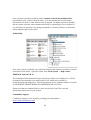
and select “Disk Utility”. (It may take several moments
to load, as it has to scan your system first.)
Highlight the correct disk, then select “Disk” → “Wipe
disk information” → “MBR and partition table” from
the menu-bar. You will be asked for confirmation.
After a countdown of 10 seconds, your disk will be erased. Reboot the system when
prompted.
Select to boot again from the eComStation 2.1 install CD.
If you would like to preserve the existing partitions on your disk, please refer to the
following section.
1.2.2 Installing to a Hard Disk with a Pre-loaded Operating System
This section applies when you encounter the following message from the Disk Utility
when booted from the eComStation installation CD:
This disk is larger than 512 GB and has been partitioned using a
geometry which is incompatible with eComStation.
If this is the only hard disk in your system, you will be advised that the installation
cannot continue until the problem is corrected. The steps needed to correct this problem
are described below.
If your system has additional hard disks, you may be able to continue with the
installation without correcting the above problem, as long as you do not attempt to
6
install eComStation to the hard disk indicated by the error message.
Explanation:
If your hard disk is bigger than 512 GB and it already has an Operating System other
than eComStation or OS/2 installed (for example, Windows), eComStation will not be
able to use that hard disk. This is because, as described previously, the logical geometry
currently used by the hard disk is not fully supported by eComStation 2.1. (This will be
addressed in future versions of eComStation.)
Implications:
In this situation, eComStation can access only the first 512 GB of the disk. This
means, unfortunately, that there cannot be any partitions extending past the first 512 GB
of the disk at the time you create the eComStation volume(s), or eComStation will treat
the entire disk as unusable. Therefore, you will need to resize the existing partition(s)
on the disk so that both they and eComStation can fit within the first 512 GB.
For example, if you have a 1.5 TB disk preloaded with Windows, and you want to use
100 GB of disk space for eComStation, you must reduce the main Windows partition to
400 GB so that the eComStation volume(s) fit below the 512 GB disk boundary. There
may NOT be any partitions in the area above the 512 GB boundary on your disk.
You will need to delete any system recovery partitions that reside above the 512 GB
boundary.
Most computers come with Windows Vista/Windows 7 pre-installed. Both Windows
versions have a built-in disk resizer; to resize your hard disk, start Windows Vista/7 and
do the following:
•
Click on Start and select Control Panel
•
Select the Category menu
•
Select System and Security
•
Create and Format Hard Disk Partitions lists all storage media attached to
your computer
•
Select the large partition on your hard drive
•
Choose Shrink Volume from the context menu
•
If you cannot resize the partition to less than 512 GB, try the following;
◦ Go to My Computer
◦ Click the right mouse button on the partition you need to resize,
◦ Choose the option Tools and select Error Checking to run CHKDSK - the
system will need to restart for this,
◦ Run the Windows disk Defragmenter.
You might need to repeat this procedure two or three times in order to clear the
end of the disk partition.
7
Note: If you want to create a partition for data exchange between Windows and
eComStation, this partition also needs to be below the 512 GB disk boundary.
After you have created free disk space within the first 512 GB, do the following:
•
Boot from the eComStation installation CD and start the graphical install
program.
•
On the “Installation Type” screen, choose “Management Console”.
•
From the Management Console, go to the "Disk" menu and select “Disk Utility”.
(It may take several moments to load, as it has to scan your system first.)
•
You will be prompted by the Disk Utility to recreate the LVM signatures.
Allow it to do so, and then reboot the system again.
•
After the reboot, restart the eComStation installer from CD #1 and proceed with
the installation of eComStation.
If you start the Installation Volume Manager to create partitions and you still get a
warning about a corrupt partition table or MBR:
•
•
•
•
•
•
Close the Installation Volume Manager window.
Click on “Cancel” (on the bottom right of the installer window).
Select “System management” when prompted.
Go to the "Disk" menu and select “Disk Utility”.
Highlight the correct disk, then select “Disk” → “Recreate LVM tables” from
the menu-bar. Confirm the action when asked. Reboot the system when the
operation is complete.
Select to boot again from the eComStation 2.1 install CD.
You can now install eComStation onto the disk, in the free space you created. From the
Installation Volume Manager, create a logical partition in which to install eComStation
2.1. (The Installation Volume Manager will report that your hard disk has only 512 GB
of disk space; this is the expected behavior.)
After Installation
Once eComStation is installed, you can create additional partitions for use by other
Operating Systems above the 512 GB boundary. However, it is not possible to do so
using eComStation, nor with the Windows 7 Disk Manager. You use the commercial
product DFSee to create partitions above the 512 GB boundary. We recommend using
the bootable CD version of DFSee for this purpose; this may be downloaded from:
http://www.dfsee.com/dfsee/cdrom.php
8
Once you have created any partition(s) above 512 GB, you will not be able to
modify the disk layout from within eComStation. This means that you need to
carefully plan your disk layout before performing the eComStation
installation.
Other Operating Systems such as Windows or Linux should be able to access the
remainder of the disk.
Alternative Solution
As noted previously, an alternative solution may be to install eComStation onto another
hard disk, if applicable.
When the Disk Utility encounters the error described in this section, if your system has
multiple disks, it will ask whether you wish to ignore the error and continue installation.
In this case, you can proceed by installing eComStation to a different hard disk.
If you choose to proceed in this way, the Installation Volume Manager will report that
the hard disk for which the Disk Utility reported the problem contains a corrupt partition
table. Simply ignore this error message and create your partitions on the other hard
disk(s).
1.3 Installing to a Hard Disk Smaller Than 512 GB
Normally, installing eComStation 2.1 to a hard disk smaller than 512 GB is straightforward. However, one potential problem scenario needs to be discussed.
When booting from eComStation 2.1 CD #1, the Disk Utility may display the following
message:
The last partition appears to extend beyond the expected cylinder
boundary. You will have to resize this partition if you wish to use the disk.
If this message is shown and you wish to install eComStation onto this hard disk, you
will need to resize the last partition on the disk using the eComStation partition resizing
tool. The resizing tool will be started automatically when you click on the “Fix
Problems” button.
In the partition resizing tool, the partitions are listed in the order in which they are found
on your hard disk. In the event that you got the above error message from the Disk
9
Utility, you need to reduce (shrink) the last partition on the reported disk. (The amount
by which you reduce the partition is unimportant; the purpose of this exercise is simply
to re-align the partition boundaries. Reducing the partition size by the minimum
possible amount should be sufficient.)
Refer to section 1.4 for tips related to resizing partitions.
Once you have finished resizing partitions, reboot. Choose to boot from the
eComStation 2.1 CD #1 again and create the required volumes using the Installation
Volume Manager.
If you get an error message from the Installation Volume Manager that a hard disk has a
corrupt partition table, try the following:
•
•
•
•
•
•
Close the Installation Volume Manager window.
Click on the “Cancel” button in the lower right-hand corner of the eComStation
installer.
Select “System management” when prompted.
Go to the “Disk” menu and select “Disk Utility”.
Highlight the correct disk, then select “Disk” → “Recreate LVM tables” from
the menu-bar. Confirm the action when asked. Reboot the system when the
operation is complete.
Select to boot again from the eComStation 2.1 installation CD.
You should now be able to create the necessary volumes in the Installation Volume
Manager, and proceed with the installation of eComStation 2.1.
1.4 Tips for Resizing Partitions
If you are creating free space on your hard disk for installing eComStation, keep in
mind the amount of space that you will need for eComStation itself as well as both
applications and data. Generally, at least 10-20 GB is recommended.
If you have Windows installed on the hard disk, and you find that you cannot create
enough free disk space, boot into Windows and do the following:
•
Go to My Computer and click with the right mouse button on the partition you
need to resize.
•
Choose the option Tools and select Error checking. This will allow you to
perform a disk check (SCANDISK). Your system will need to restart for this.
•
After you have done this, run the Windows Disk Defragmenter. You might need
10
•
to repeat this procedure two or three times to clear the end of the disk partition.
Boot from the eComStation installation CD and try resizing the partition again.
When the disk resizer has finished resizing the partition, click on Finish and allow the
system to reboot. Then select to boot from eComStation 2.1 CD #1 again. The Disk
Utility might ask you to repair the LVM signature information on your hard disk. If
prompted, answer “Yes” and the system will reboot again.
Note: After resizing a partition and rebooting, you can avoid having to enter your
eComStation registration key before the Disk Utility runs by entering the
Management Console and selecting “Disk Utility” from the “Disk” menu. In
this case, you should check the applicable hard disk(s) manually by selecting
“Disk” → “Check integrity”.
1.5 Installing Other Operating Systems Next to eComStation
1.5.1 The eComStation 2.1 Boot Menu (Air-Boot)
It is strongly recommended that you use eComStation's included boot management
software to start eComStation and other Operating Systems from your hard disk. Other
boot managers might work, but may make the installation complicated.
In eComStation 2.1, the IBM Boot Manager has been replaced with an open source boot
manager called Air-Boot. If you already have the IBM Boot Manager installed on your
system, you may continue to use it; however, Air-Boot is recommended.
One major advantage of Air-Boot is that it does not require a primary partition.
Another advantage is that Air-Boot does not “hide” non-booted primary partitions the
way the IBM Boot Manager does. This is important because most pre-loaded Windows
Vista/7 systems are configured to use two primary partitions: the Windows Boot
Manager partition (about 100-200 MB), followed by the Windows partition itself.
Attempting to use the IBM Boot Manager in this configuration would cause the main
Windows partition to be “hidden” on boot-up, causing the system to freeze. This is no
longer a problem with Air-Boot.
1.5.2 Coexisting with Other Operating Systems
In the previous sections of this chapter discussed coexisting with Windows Vista and
Windows 7 in a number of different scenarios. This section will provide some hints on
11
how to deal with Linux and older version of Windows, such as Windows 98 or
Windows 2000.
To exchange data between Operating Systems, make sure you have a volume that is
readable and/or writable by both systems. Almost all Operating Systems can use
FAT16 partitions (with a maximum partition size of 2GB) but for other file systems,
special drivers are required.
The FAT32 driver is installed by default with eComStation 2.1. This lets you copy data
back and forth between Windows/Linux and eComStation.
The My Computer folder in Windows NT 4.0, 2000, XP, Vista and 7 may show a drive
letter for eComStation partitions. If you double click on the drive icon for an
eComStation partition, Windows will report that it cannot read that partition and will
offer to format it. Do not accept this offer, since it will destroy all data on your
eComStation volume, and render it useless. For your own safety, we recommend that
you use the Windows Disk Manager to remove the drive letters from eComStation
partitions.
To access the Windows Disk Manager, go to “Administrator Tools” → “Computer
Management” → “Storage” and remove the drive letters from the partitions. Windows
will no longer list the eComStation partitions. (This will not affect the drive letters
defined for eComStation, as the eComStation drive letter assignments are stored in a
different way from Windows.)
Windows 95, 98, Millennium Edition or DOS
If you have installed eComStation and plan to install a DOS-based Operating System
such as Windows 95, 98/98SE, or Windows Me, be aware that these systems will only
install onto the first primary partition of your hard disk. It may be advisable to resize
and/or move your eComStation partition (with the aid of a partition manager) in order to
allocate free space for the creation of a primary partition at the beginning of your hard
disk.
Important note about using Air-Boot with DOS or Windows 9x:
With the introduction of Air-Boot in eComStation 2.1, you need to manually set the socalled “hidden flag” on primary partitions if you use DOS or Windows 95/98/Me. Do
this from within the Air-Boot menu (displayed on system startup):
•
Press F10
•
Choose “Partition setup”
•
For the DOS or Windows 95/95/Me partition you wish to boot, highlight the
12
partition and press 'H'. The other primary partitions will now be marked as
“hidden” until you boot another operating system from the Air-Boot menu.
Linux
eComStation can be installed without problems alongside a Linux installation. We
recommend that you use the included eComStation boot manager (Air-Boot) rather than
LILO or GRUB as the primary boot manager. To do this, install LILO or GRUB to the
Linux (root) partition rather than to the master boot record.
1.5.3 Using Partition Management Software
Try to make sure that you have your hard disk layout the way you want it, before you
install eComStation. The use of partitioning tools like Partition Magic, FIPS, GParted,
and so on after eComStation has been installed should be avoided if at all possible.
The drive letters you assign to volumes via the Installation Volume Manger or LVM
will be ignored by other Operating Systems. However, if non LVM-aware software is
used to perform partition-level disk management, then this information may be
inadvertently erased. Such programs include the "FDISK" utilities from most other
operating systems, and also software such as those just listed.
DFSee from FSYS Software (http://www.dfsee.com/) is LVM-aware, and is generally
recommended for performing advanced partitioning tasks on computers which have
eComStation installed.
Note: If the LVM information is lost from your eComStation volumes, you can
generally restore it by booting from the eComStation 2.1 CD #1 and running the
Disk Utility to recreate the LVM signatures. Then you can use the Installation
Volume Manager to re-assign the appropriate drive letters.
13
2. Booting from eComStation CD #1
Read the license chapter in this QuickGuide. By using software from CD #2 or
starting from eComStation 2.1 CD #1, you accept the terms that are mentioned in
this license. If you have any questions or remarks about the license, please send an
e-mail to [email protected].
Before you begin your installation of eComStation 2.1, have the registration key
readily available on either USB stick, floppy disk, hard disk or on paper. You should
have received the registration key by e-mail. If not, you can request it via the customer
area of http://www.ecomstation.com/ after logging in. For the latest information and
tips on the installation process, check http://www.ecomstation.com/support/
Hardware requirements
In order to successfully install eComStation 2.1, please take into consideration the
following;
Minimum
Recommended
CPU
Intel Pentium 133
MHz or equivalent
(including Intel
Celeron, PIII, P4 and
AMD K6, Athlon and
Duron processors)
Any modern CPU will do, but the higher the speed
the more responsive your system will be. Also, the
latest multi-core CPU systems should be
supported. This is made possible by ACPI, but
eComStation can also run on multi-core CPU's
without using the other cores.
Memory
96 MB (absolute
Install as much memory as you can in your system.
minimum required for 4 GB is the maximum supported amount.
installation from CD). Applications like Firefox and Open Office need a
lot of RAM to work. Also make certain you give a
virtual machine (like Virtual PC) enough memory.
Video
PCI VGA video card For more information, refer to the video card
with at least 512 KB section of Chapter 4, “Hardware Supported by
memory.
eComStation 2.1”, in this QuickGuide.
Drive
space
600 MB
When selecting more options in the installer, more
drive space is required. A practical working size is
a bootable JFS partition of 4 GB.
Mouse
Any PS/2, serial or
USB mouse
A PS/2 or USB mouse is recommended for best
performance.
14
Minimum
CD-Drive IDE or SCSI CDROM
Recommended
An IDE/SATA or SCSI CD-ROM or DVD player
with boot capability and a BIOS which supports
booting from CD-ROM.
2.1 Starting the Install
The eComStation 2.1 package consists of three CDs:
CD#1 contains the eComStation 2.1 base product and installer
CD#2 contains a host of applications and drivers to enhance your eComStation
experience
CD# 3 contains Open Office 3.2
If you received only a single eComStation disk, you most likely have received a DVD
which contains the content of all three CDs. When the manual instructs you to insert
CD #2 or CD #3, insert the DVD.
To start the eComStation installation, insert CD #1 in the CD drive and start (or restart)
the computer.
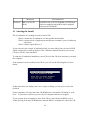
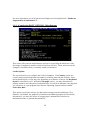
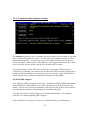
If the system boot successfully from CD #1, you will see the following Boot Source
menu;
If this menu does not display, there are a couple of things you can try to resolve the
problem.
Some computers will only check the CD-ROM drive for bootable CD during a "cold
boot". To perform a cold boot, power off your computer and turn it on again.
If your system does not attempt to boot from CD #1, check that your BIOS is set to
enable booting from the CD-ROM drive and that BIOS is configured to check the CD15
ROM before the hard disk. Consult the manual of your mainboard and/or computer for
instructions on how to access your computer's BIOS and adjust these settings.
Another thing to try is to press the PAUSE key as the CD-ROM drive starts to spin up.
Sometimes the BIOS attempts to access the CD-ROM before the CD is spinning fast
enough. PAUSE gives the CD time to spin up to speed. After the CD is spinning at full
speed, press ENTER.
On the Boot Source menu, the default option is to boot from hard disk. To boot the
installation CD, cursor down to the “Boot from eComStation CD-ROM” menu item and
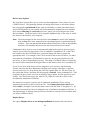
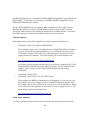
press ENTER; you will see the following Boot Options menu:
This menu allows you to boot either using default values or the values you select. On
most systems with IDE and or SCSI hard drives and CD-ROM's, it is sufficient to select
the “Boot with default values” option. To select the “Boot with default values” option,
press ENTER.
If you need to adjust the options, cursor down to the “Boot with menu for own values”
option and press ENTER.
When you select the “Boot with default values” option, the installer will be loaded and
started. The eComStation boot logo will display. The boot logo will be replaced by a
screen with a blue background and you will be asked if you want the CD Checker to
verify the CD content. If you do not respond to the prompt within 30 seconds, this
check will be bypassed. This check verifies that all files on the CD-ROM can be read
without errors. When the CD Checker completes, it will display a status report and list
any files that can not be read correctly. If you encounter freezes when the installer is
copying files to hard disk, we recommend you restart the installation and run the CD
Checker.
Some older equipment may have problems with some of the IDE driver performance
options. If the system freezes while the CD Checker is running, we recommend that
you restart the system and choose “Boot with menu for own values” and select a lower
performance driver on the Boot Options: Storage page.
16
To select a lower performance driver from the Pre-boot Menu, press PgDn (Page
Down) until you see the Boot Options: Storage page title. If an IDE controller was
detected, the controller option will be set to “(E)IDE/ATA(PI) Performance Mode”
(Danis506, DaniATAPI)”. First, try selecting “(E)IDE/ATA(PI) Compatibility Mode”
(Danis506, DaniATAPI)” and press F10 to accept the selection and retry the CD
Checker. If this fails, try selecting the “IBM1S506, IBMATAPI” driver in
“Performance Mode” or “Compatibility Mode”. See the section titled The Pre-boot
Menu below for more details on how to operate the Pre-boot Menu.
If you get the message “OS/2 cannot operate your hard disk” or if the Installation
Volume Manager status window (part of the graphical installer) does not show any disk
drives, we recommend that you try one of the other IDE drivers as described above. If
you still cannot boot from the CD, please see the next section which describes how to
make boot diskettes. (Boot diskettes are also useful if you need to supply an updated
IDE driver.)
After the CD Checker finishes, a message indicating that the eComStation installer is
being started will display.
If you get a message that PMSHELL cannot load a DLL, you most likely do not have
enough memory to load the installer. The installer requires a minimum of 96 MB of
RAM.
If you boot eComStation in a virtual machine, we strongly recommend that you read
The Pre-boot Menu section. The Pre-boot Menu contains several settings that are
specific to booting in a virtual machine.
2.2 The Pre-boot Menu
In addition to the cases described in the previous section, there are other situations
where you might want to use the “Boot with own values” option. For example, if you
want to boot CD #1 from an external USB CD-ROM drive, you will need to override
the default options.
To navigate through the Pre-boot Menu pages, use the PAGE UP and PAGE DOWN
keys. To move from field to field, press the TAB and SHIFT-TAB keys. To toggle an
option on or off, press the space bar. To select an item from a field that supports
multiple selections, use the up and down arrow keys. See the BOOT OPTIONS: Keys
help page for a full description of the available keyboard navigation features. This is
the first page that displays when the Pre-boot Menu starts.
17
2.2.1 eComStation BOOT OPTIONS: Target hardware
The first entry on this page is the Target hardware field which enables you to select
the target platform you will install to. The pre-boot menu will automatically pre-select
this field based on what type of hardware was detected. If you want to change the preselected option, you can override it.
Target hardware: "Virtual Machine":
This option is recommended if you install in a virtual machine. It is automatically
selected if you boot eComStation in Microsoft Virtual PC/Connectix Virtual PC,
Parallels workstation, VMware or VirtualBox. Only certain versions of VMware will
support eComStation, so please consult the documentation.
If the pre-boot menu has automatically set your Target hardware setting to “Virtual
machine”, do not modify any of the settings on the other pages of the Pre-boot Menu.
For virtual machines, the optimal selections have already been set. For example,
altering the hard disk drive controller, enabling USB, ACPI or changing the video driver
can result in stability problems.
VirtualBox is a virtual machine product that you can download free of charge from
www.virtualbox.org. Note that in order for VirtualBox to load eComStation, your
computer is required to have CPU virtualization. Without CPU virtualization,
eComStation may experience hangs or kernel TRAPs while running in VirtualBox.
•
CPU virtualization is typically referred to as AMD-V or Intel VT-x. Please
18
consult your computer/BIOS manual to see if your system supports this.
•
Make certain that CPU virtualization is enabled in your BIOS. Any time you
change this setting, finish by fully powering off your computer and turning it
back on again.
We recommend that you use VirtualBox version 3.2.0 or later, which includes fixes to
address stability issues with eComStation and OS/2.
Target hardware: "Legacy hardware":
It can sometimes be difficult to tell if a computer supports ACPI based on the
documentation that comes with your computer, but typically systems with a Pentium II
CPU or older, or systems with legacy ISA slots will not support ACPI.
In the event that ACPI support on your system is not detected, the Pre-boot Menu will
select “Legacy hardware” mode (with exceptions for some modern industrial
mainboards). Selecting “Legacy hardware” mode is also recommended for certain older
models of ThinkPad notebooks. However, selecting this mode on modern hardware
might result in hangs while booting from CD #1.
Target hardware: "Modern hardware, safe mode":
This mode is optimal for modern hardware. It will be selected by default when ACPI
support is detected, but it will not load the ACPI driver at startup. This mode will
prevent eComStation from loading certain drivers that can hang on a modern system.
Target hardware: "Modern hardware, ACPI mode":
This is the same as “Modern hardware, safe mode” except that ACPI is fully enabled
(by means of the CONFIG.SYS statement “PSD=ACPI.PSD”). This mode must be
selected manually. If you do not select it here, you can install ACPI either by selecting
it when booted from CD #1 in the installer or after eComStation is installed with the
help of the “ACPI Wizard”.
If you have a system with an AMD mainboard chipset (though not necessarily an AMD
CPU), then selecting ACPI might cause your system to hang at bootup. You should use
the “Modern hardware, safe mode” setting on this type of system.
If you select the option “Modern hardware, ACPI mode”, the menu option immediately
below this field, entitled Use Advanced Configuration and Power Interface (ACPI),
will be enabled automatically. Under this, you have the opportunity to select the
options Use debug version and Optional ACPI parameters. It is recommended that
you select these two options only if you are asked by eComStation support to debug
problems with ACPI.
19
For more information on ACPI, please read Chapter 4 of this QuickGuide: “Hardware
Supported by eComStation 2.1”.
2.2.2 eComStation BOOT OPTIONS: Miscellaneous
This screen offers various miscellaneous options for controlling the behaviour of the
first-stage eComStation installer (while booted from CD #1). These selections can be
changed or modified when you actually install eComStation.
Locale Options
The top section lets you configure the locale information. The Country option sets
certain country/region dependent information, including time and date formats. Since
the keyboard layout you use may vary depending on a number of factors, the Keyboard
layout is selectable as well. With the Code pages option, you may determine the
primary character encoding that eComStation uses, as well as an alternate code page that
you can select on a per-program basis after the Operating System has been started.
Start After Boot
This option controls the action to be taken after booting from the installation CD or
diskettes. By default, the graphical eComStation installation program will be started;
alternatively, you have the option of bringing up a command-line interface for
maintenance tasks or problem determination.
20
Drive Letter Options
The next three options allow you to control of the assignment of drive letters for your
CD/DVD drives. The Operating System will assign drive letters to all valid volumes
that correspond to partitioned media, such as hard disks or certain removable drives.
Any CD/DVD drives in your system will be automatically assigned the next available
drive letters following the reserved drive letter, which you can configure here in the
Pre-boot Menu. The drive letters will be assigned, alphabetically, in the order in which
the drives are detected by your computer.
Note: The letter assigned as the reserved drive letter cannot be earlier in the alphabet
than the last drive letter assigned by the Operating System to partitioned media
volumes. If the last partitioned-media volume drive letter is later in the alphabet,
that letter will automatically be used as the reserved drive letter instead.
Changing the drive letter to reserve automatically adjusts the value of the next option,
where you can select the drive letter of the eComStation installation CD. If the CD is
not located in the first CD/DVD drive, you must change this letter to match the
appropriate drive. For example, if the CD is located in the second CD drive, you must
increment the eComStation CD-ROM drive letter by one (by pressing either the UP
arrow key, or the corresponding letter key). The range of available values is limited by
the reserved drive letter and the assigned letter of the memory boot drive (normally 'Z').
If you do not know what letters will be assigned to your drives by the Operating
System, leave the Pre-boot Menu after selecting your storage controllers on the next
screen (see section 2.1.3) by hitting the ALT key together with F1. Hit the F2 key on
the screen that follows, and then run the program "ecsdrinf" on the command line. This
program will give you an overview of the drive letters, labels, and file systems in your
system. The drive letter next to the label "ECS_CDRUN" is the drive letter of the
eComStation installation CD-ROM.
The memory boot drive is used by the eComStation installation CD for storing
important system files while booted from CD. The Memory boot drive letter drive
should only be changed if you already have a drive with the letter 'Z' assigned to it. (If
you select the same drive letter as assigned to the eComStation installation CD drive, a
warning message is displayed and you will not be able to leave the Pre-boot Menu until
you select a different letter.)
Display Driver
The option Display driver to use during installation determines the video driver
21
which the installation program will use for your graphics display. We recommend that
you do not modify this, especially if you are installing in a virtual machine. In most
cases, the default selection will be adequate. You can choose GRADD, VGA and the
SNAP driver and Panorama video driver. By default, the video driver selected in this
menu will also be used for the installation of eComStation, although you will have the
opportunity to select a different video driver during the main phase of installation.
For more information on video drivers, please read Chapter 4 of this QuickGuide:
“Hardware Supported by eComStation 2.1”.
Remaining Options
The following seven options can be useful for problem determination, or for solving
potential startup issues.
1) Use Amouse driver: This option is recommended for systems with a USB
mouse and is also pre-selected if your system is detected as a modern machine.
We recommend that you do not select Amouse when installing eComStation in a
virtual machine.
When this option is selected in the Pre-boot Menu, it will be selected for
installation in the eComStation installer as well.
2) Skip hard disk integrity check: If this option is checked, the automatic hard
disk integrity check (the Disk Utility) will be skipped by the eComStation
installer. Generally, we recommend that you do not disable this option.
3) Edit CONFIG.SYS: This option allows you to modify the system startup
configuration file, CONFIG.SYS, used to boot from the eComStation
installation CD. When this option is selected, you will enter an editor screen for
CONFIG.SYS immediately after exiting from the Pre-boot Menu.
This is a powerful option and should only be used for resolving problems.
Modifying CONFIG.SYS without sufficient knowledge can result in failure to
boot the installation CD, or in problems later during the installation process.
4) Pause boot process when error occurs: If this option is selected and the
system detects a non-fatal error when booting the installation CD, it will ask you
if you want to continue. Write down the error message and pass it along to
support.
22
Note that this option suppresses the automatic reboot that some errors will
initiate. If you choose to continue in spite of the error, it is possible that the
eComStation installer will fail to load properly.
5) Display additional driver messages: Select this option to activate the verbose
mode which is supported by some drivers.
When using this option, we recommend that you use ALT-F4 to leave the Preboot Menu rather than pressing F10. When verbose mode is selected, the drivers
may generate a lot of output; using ALT-F4 will cause the drivers to load one at
a time so that you can read the messages.
6) Do not display boot logo: This option prevents the eComStation boot logo
from displaying when booting from the installation CD.
You should select this option if you opened a support ticket and support
requested that you check the Use debug version option for ACPI. Suppressing
the boot logo will make the additional debug messages from the ACPI driver
visible on screen.
This option is also useful if your system seems to hang at the boot logo. For
example, some SiS graphics controllers are known to hang when the boot logo is
loaded. Suppressing the bootlogo can avoid the hang. Note: if this option
resolves a hang that occurs when you boot from CD #1, you will need to modify
your installation manually after the installer has finished copying files from CD
#1 to your hard disk. To do this, check the Start management console on
completion checkbox when the installer starts copying files to your hard disk.
When copying completes, use the management console menu to open a
command line session and delete the file “OS2LOGO” from the root directory of
the installation boot drive.
7) Reserve the hardware resources listed below: Use this option to prevent
resources from being allocated by the wrong device driver. This should happen
rarely, and typically only for older ISA or PCMCIA (PC Card) adapters. To
reserve a resource, enable the option and then enter the resource reservations in
the field below.
Some typical resource reservations are:
/IO:x,y or /P:x,y
Reserves I/O ports, where 'x' is the base port address in hexadecimal and
23
'y' is the length/number of ports in hexadecimal. The 'x' and 'y' values are
separated by commas.
Example: /IO:340,4
/MEM:xxxx,y
Reserves memory, where 'xxxx' is the base memory address in
hexadecimal and 'y' is the length in hexadecimal of the address range.
The 'xxxx' and 'y' values are separated by commas. The memory address
'xxxx' represents the paragraph address xxxx:0 (which is the same as the
linear address xxxx0). The addresses that can be reserved are those
between C000 and DFFF.
Example: /MEM:CA00,1000.
/DMA:x
Reserves a DMA channel, where 'x' is the channel number in decimal.
Example: /DMA:2
/IRQ:x
Reserves an interrupt line, where 'x' is the interrupt line in decimal.
Example: /IRQ:10
/EXC
/MUL
/SHA
Modifies the reservations defined by /IO, /MEM, /DMA, or /IRQ. The
options are: EXClusive, MULtiplexed or SHAred. The modifier must
immediately follow the resource to which it applies. The modifiers are
mutually exclusive. Only one can be specified for a given resource. If a
modifier is not specified, the default is EXClusive.
24
2.2.3 eComStation Boot Options: Storage
The Storage page allows you to configure the drivers which will be loaded for the disk
drive controllers installed in your PC. In most cases, the installed controllers will be
detected automatically. You may select up to three different disk controller drivers,
which will then be loaded in the order displayed. Selecting the same driver more than
once is possible, but not useful: only the first instance will be loaded.
If you have multiple CD or DVD drives which are connected to different types of
controllers (for example, one connected to an onboard ATAPI controller and another to
an add-on SCSI host adapter), then the driver for the controller of the CD/DVD drive
which contains the eComStation installation CD must be loaded first.
ATAPI/(E)IDE Support
If an ATAPI or IDE host adapter is detected, “Extended ATA(PI)/(E)IDE Performance
mode (DaniS506, DaniATAPI)” driver will be preselected as the first controller by
default. (In this case, if SCSI host adapters were detected, they will be selected as the
second and third controllers depending upon the number detected.)
Currently the driver for AHCI support is not loaded automatically. See Chapter 6
section 6.3 for details regarding AHCI support.
If the installer does not start correctly or the installation fails, try switching the
25
(E)IDE/ATA(PI) driver to “Extended ATA(PI)/(E)IDE Compatibility mode (DaniS506,
DaniATAPI)”. If this fails, try switching to “(E)IDE/ATA(PI) Compatibility mode
(IBM1S506, IBMATAPI)” instead.
The ATA(PI)/(E)IDE drivers provided are not compatible with any of the software
RAID setups offered for some ATA/IDE RAID controllers such as HPT, Promise
FastTrack, AMI; however, the chipsets are supported in non-RAID mode. Verify that
the RAID features are disabled in the BIOS setup for these controllers.
Tekram Adapters
Host adapters that use the following disk controllers require special attention:
•
Tekram DC-310/U, DC-390F/U/U2B/U2W/W
These adapters require that you supply the driver TMSCSIW.ADD via diskette,
since the vendor did not grant permission for us to distribute this driver with
eComStation. Please refer to the end of this appendix for directions on how to
supply the driver on diskette. The driver archive can be downloaded from:
ftp://ftp.tekram.com/SCSI/390X/DC390FBW.zip
If you have trouble booting with this driver, try selecting "Symbios/LSI F-U2W
81x/825/860/87x/885/895 chips (SYM8XX)" instead. For DC-390U3D/U3W
adapters, select "Symbios/LSI U2W/U160 895A/896/1000/1010 chips
(SYM_HI)".
•
•
Tekram DC-305/315/395
Tekram DC-305E/I, DC-315U, DC-395F/U/UW
These adapters are NOT recommended for eComStation. If you choose to use
this adapter, you need to supply the driver TRM3X5.ADD from diskette since
the company did not allow distribution of their driver with eComStation. Please
refer to the end of this appendix for directions on how to supply the driver. The
driver archive can be downloaded from:
ftp://ftp.tekram.com/SCSI/3X5/DC3X5U.zip
Using Other Adapters
To select an adapter that is not listed in the controller list, select the entry that reads;
26
Use other driver from diskette (enter name below)
When you select this option, a red arrow will appear to the left of the field labeled:
Name of other driver from diskette (without extension):
Enter the name of the driver without the extension (.ADD); for example, “AIC7770”.
You will not be able to leave the Pre-boot Menu until you have either entered the driver
name or selected a different option from the controller list. Please refer to the end of
this appendix for directions on how to supply a driver on diskette.
Driver Parameters
Below each controller selection field, there is a Parameters field where driver-specific
options can be entered. Most drivers will not require any special options to boot
correctly. You can force the driver into verbose mode by typing /V into the parameters
field, causing the driver to display additional messages while it is loading.
If none of the other host adapter selections work properly, or if your host adapter is not
supported, you can try selecting the generic INT 13h driver. Selecting this driver forces
the values of the three controller selection fields to “None” since this option is mutually
exclusive with any other controller selection. Certain restrictions apply, and the usage
of this driver is not recommended. On most systems, this driver will either fail to work
or the system will run extremely slowly.
Optical Drives
If you experience problems starting the installer, or the installer appears to have
problems accessing the CD/DVD drive, try selecting the “Extended CD-ROM/CDRW/DVD Device Manager” from the optical drives selection list. For older hardware,
try selecting the “Standard CD-ROM Device Manager” (this Device Manager does not
support DVD drives).
27
2.2.4 eComStation BOOT OPTIONS: USB
If the Pre-boot Menu detects USB host controllers, it will preselect up to 8 controllers
for each detected controller type, as well as enabling support for USB keyboards and
pointing devices. To change the preselected number of any controller type, use the UP
and DOWN keys or type in a number (values 0-8 are supported). Note that you are
selecting the number of USB controllers, not the number of actual ports.
To successfully operate USB devices, the USB controllers must have hardware
resources assigned (IRQ, port, etc.). Please consult the manual for your computer or
mainboard for any special BIOS settings that might be required for the USB controllers.
The next three options control USB devices that might be needed for installation
(pointing devices, keyboard and/or external storage devices). You must select at least
one USB host controller before you will be able to activate any of these device types.
If at least one USB host controller is detected, "Support USB mass storage devices" will
be pre-selected.
Note: To install eComStation from a USB CD/DVD drive, set CD-ROM/-R(W)
drivers attached to 1 and select the Install from USB CD device option.
If you are installing eComStation 2.1 under a virtual machine, we recommend that you
do not activate USB support. Activating USB support can lead to instability.
28
2.3 Making Boot Diskettes or a Driver Diskette
If your system is not able to boot from CD #1 and you have a diskette drive, you can try
creating boot diskettes from CD #1. This is especially useful for legacy systems. The
drivers on these diskettes can not be updated.
You can also boot from CD-ROM and supply additional drivers on diskette, or provide
an updated version of an existing driver. (Section 2.2.3 describes how to use additional
disk controller drivers supplied on diskette.)
To create either kind of diskette(s), insert eComStation CD #1 into a PC which has a
working 3.5 inch floppy diskette drive, and is running either DOS/Windows, OS/2 or
eComStation. Then run the command “MAKEDISK” from the root directory of the
CD.
•
To create boot diskettes, press 1 to select Create 4 installation diskettes with
menu.
•
To create an additional driver diskette, press 2 to select Create 1 prepared
diskette to update the memory disk with your files.
29
3. Continuing the Installation Process
The eComStation installer runs in three phases.
•
Phase #1 occurs when you are booted from the eComStation installation CD
(CD #1). In this phase, you will select the items to be to installed, along with the
desired configuration options.
•
In Phase #2, eComStation will boot your system from the hard disk, and
continue to install selected components.
•
Finally, phase #3 consists of booting to the installed eComStation 2.1 desktop
and fine-tuning the system using the Post Installation Tasks wizard.
If you need additional assistance while the installer is running, you can use the online
help. To view the online help, press the “Help” button in the lower right-hand corner of
the graphical installer screen.
To access the online help after eComStation is installed, insert the eComStation 2.1 CD
#1 into your CD-ROM drive, open the Local system folder on your Desktop, select the
folder Drives and click on the drive letter of CD. Finally, go to the folder
\ECS\INSTALL and double-click on the file GUIDPROC.HLP.
The online help of the installer describes how to install eComStation 2.1 using either the
Easy or Advanced installation method, and explains how to handle a migration from a
previous version of OS/2 or eComStation.
After finishing the initial installation to hard disk, you can make yourself acquainted
with the system and use CD#2 to install additional features and software.
3.1 Integrated Software Products
eComStation comes with several software packages which are integrated into the main
Operating System installation. These packages are normally installed by default
(although they can be deselected using the Advanced installation option).
CAD Handler
CAD Handler gives you access to a powerful process manager that enables you to close
down a non-responding application that is preventing you from properly using your
computer. If you encounter a situation where this occurs, hold down the CTRL-ALTDELETE key combination briefly. You will be presented with a text mode menu.
30
Within the CAD Handler menu, press the letter 'T'. This will load the program TOP,
which shows all running programs sorted by their CPU utilization. To terminate a
misbehaving process, use the cursor keys to select the process in question, then press 'K'
while holding down the CTRL key. The process will be terminated, if possible. (Note
that the process will end without saving any data.)
You can return to your desktop by pressing the Esc button.
You can still use the key combination CTRL-ALT-DELETE to reboot your system by
pressing it twice, or by holding the keys down for more than a short moment.
If you want to install a different process manager like Process Commander or Watchcat,
you will need to disable CAD Handler first. To disable CAD Handler, remove the line
“BASEDEV=CADH.SYS” from your CONFIG.SYS file.
You may also consider disabling CAD Handler if you access your eComStation system
using a remote control package that has an option to send the CTRL-ALT-DELETE key
sequence to reset the system.
Screensaver
eComStation 2.1 ships with a screensaver called Doodle Screensaver. To enable and set
up the screensaver do the following:
•
Click mouse button 2 on an empty part of the desktop (where no icons or open
folders are displayed), and choose “Properties” to access the desktop properties
notebook (alternatively, you can also use the key combination CTRL-SHIFT-S).
•
Choose the "Sceen Saver" page.
•
Select the “Screen saving enabled” check-box. You can also configure the
amount of time that the system will wait before starting the screensaver.
•
Close the desktop properties notebook.
Further help regarding the screensaver's many features is available by pressing the Help
button on the respective pages of the notebook.
When the screensaver is active, you can hit the ENTER key to return to the desktop.
PMVNC
PMVNC is a remote control utility that allows you to access your eComStation desktop
remotely. Because PMVNC is not highly secure, you should only use PMVNC on an
internal network and not on a computer with a direct connection to the Internet. Also
31
note that PMVNC does not encrypt the data it transmits, including the login
information.
By default, PMVNC is installed but not activated.
Multimedia Features
A number of multimedia features are also integrated into eComStation 2.1, including:
•
Quickmotion 2.0
•
MainConcept MJPEG codec
•
Multimedia WPS classes and JPEG codec by Chris Wolgemuth
•
Multimedia codecs for OGG Vorbis and FLAC support,
•
Netscape OpenMPEG support and the Netscape Multimedia Plugin Pack.
3.2 Additional Software on eComStation 2.1 CD #2
To install the additional software and drivers provided with eComStation 2.1, insert CD
#2 into your CD or DVD drive. Then run the command “INSTALL.CMD” from the
top-level directory of the CD. An extensive menu of guides will be displayed.
Note: Before using CD #2 for the first time, please reboot your system.
What follows is a short list of software packages included on eComStation 2.1 CD #2:
Fully Functional Applications:
•
ClamAV virus scanner, a free virus scanner with regular updates and a graphical
user interface
•
PostgreSQL, an advanced relational database system
•
Stellar Frontier, a popular arcade game from Stardock
•
Mars, a game from eCo Software
•
IBM Mobile File System (MFS), a product for synchronizing files between your
notebook and desktop computers
•
IBM Works, a simple but functional office suite
•
VoiceType, a software system which allows you to control your desktop with
your voice, as well as perform high-quality voice dictation
•
The OpenWatcom C, C++ and FORTAN compilers (see Chapter 4)
The IBM Developer's Toolkit for developing new applications for eComStation
•
GCC, the GNU Compiler Collection
•
Free Pascal 2.0
•
The Java 1.3.1 and 1.4.2 runtime and SDK packages
32
•
Vyperhelp, a tool for creating online help files
Trial Applications:
•
Cool FM, a radio tuner with support for many hardware radio adapters
•
Graham Utilities, a suite of disk and system utilities
•
Maul Publisher, a powerful desktop publishing application
•
PM Downloader, a popular application for hassle-free Internet downloading
•
GNU Network Utilties for analyzing network problems
•
CD/DVD Toys for CD and DVD burning
eComStation 2.1 CD #2 also includes additional drivers for certain types of hardware
like ISDN adapters and multimedia devices.
Besides the products available on CD #2, you may want to install some of the
applications that you have previously been using on OS/2 and prior versions of
eComStation. Keep in mind, however, that eComStation 2.1 already includes many
popular applications out of the box. Before reinstalling your application(s), you may
wish to check whether it has already been installed by eComStation.
3.3 eComStation Maintenance Tool
The eComStation Maintenance Tool is intended to update an eComStation installation
with released fixes and selected features, as well as back out updates that have been
previously applied.
To use the eComStation Maintenance Tool, you need to register at the eComStation
website. Once you have registered, you can download the eComStation Maintenance
Tool.
33
4. Hardware Supported by eComStation 2.1
4.1 ACPI Support
ACPI support is a new component in eComStation 2.x. Before ACPI was introduced in
computer hardware, a lot of the hardware management (like IRQ assignment and power
management) was done by the BIOS. With ACPI, many of these tasks are taken over
by the Operating System.
ACPI support in eComStation is an extension of the Operating System kernel at the
deepest level possible, provided in the form of a so-called Platform-Specific Driver
(PSD).
When ACPI is enabled on eComStation, the following statement is placed in your
CONFIG.SYS file:
PSD=ACPI.PSD
The position of this statement with CONFIG.SYS does not matter, as eComStation will
always load this module before any other driver if it is present.
In addition, ACPI support uses its own special power-management driver. This is
installed by means of the following CONFIG.SYS statement:
BASEDEV=APM.ADD
Once again, the position of this driver within CONFIG.SYS is not important.
Note that the legacy power-management driver (APM.SYS) provided with earlier
versions of eComStation cannot be used in conjunction with ACPI.
The installation of ACPI can be enabled using the Pre-boot Menu (refer to Chapter 2 of
this manual), or by selecting it during the installation of eComStation on the hardware
page of the graphical install program. A third way of installing ACPI is to use the
ACPI Wizard after the system is installed; this program is available in the
Install/Remove folder located under Local System on the eComStation desktop.
Note: In order to activate SMP (multiprocessor or multicore) support, you need to run
the ACPI wizard and select the appropriate parameters. By default SMP, is not
enabled.
Not all computers require ACPI support.
34
There are three reasons to install ACPI. The first reason to install ACPI is for multiprocessor support, also known as SMP support. The eComStation kernel has
extremely high-quality SMP support. Large parts of the eComStation Operating System
are “threaded”. With SMP, the kernel can divide an application's processing across
multiple processors by distributing these “threads”, thereby improving the performance
of your computer.
The second reason to install ACPI is to enable support of APIC mode. In the past,
computers used to support up to 15 Interrupt Request lines (IRQs). This mode of
operating is known as “PIC” mode. However, more and more modern systems will only
run reliably if the IRQ management is set to “APIC” mode. This is made possible by
ACPI.PSD. With some notebook computers in particular, basic system functionality
may be possible without ACPI – so you can start the Operating System and run
applications – but functionality like wireless networking or sound might not be possible
without ACPI being installed and running in “APIC” mode. In some cases, ACPI also
has to be loaded in order to initialize hardware before a device driver can use the device.
The third reason to install ACPI is to make it possible to use suspend and resume with
modern computer systems. With most modern laptops, the classic APM mode of power
management is no longer present in the BIOS. ACPI, in conjunction with the new
power management driver APM.ADD, may enable power management to function on
such systems. Note, however, that the degree of success may depend on the hardware
you have.
Note: The first time you try to suspend and resume with eComStation 2.1, we
recommend that you save and close all open documents and files before you test
to see if your system can suspend and resume successfully.
To make suspend and resume work better, we provide a special version of the mouse
driver (MOUSE.SYS) that is needed for suspend and resume. This is installed if you
have power management support enabled. Also, on the line PSD=ACPI.PSD in
CONFIG.SYS, the option /VBE is added by default to improve suspend and resume
support. Finally, in the file \MPTN\ETC\ACPID.CFG the option “VBESave” is set to
'0'.
Usually, installing ACPI will not cause any system issues. What can cause problems is
when the /SMP mode and/or the /APIC switches are added to the ACPI driver. For
more information on the ACPI switches, please consult the document PSD_EN.INF
which can be found in the \ECS\ACPI\DOC directory of your boot drive. It offers
detailed information on ACPI and the switches available for the various ACPI drivers
and utilities.
35
Q: I installed ACPI or I allowed the ACPI wizard to add the suggested switches
/SMP /APIC to the PSD line in CONFIG.SYS, and now my system does not start.
What should I do?
A: Not all systems support ACPI equally well. On some systems, when you install
ACPI and enable the /SMP /APIC support, you might see pauses of up to 40 seconds for
your machine to start up and load the drivers. This can happen especially with USB
drivers and the UNIAUD audio driver, so try waiting for your system to boot.
Q: I installed ACPI and I see my system starting up, but then the screen remains black
when all device drivers seem to be loaded. I see no eComStation Desktop.
A: Restart your system with the key combination CTRL-ALT-DELETE and when you
see the little white “eCS” blob in the left hand corner of the screen, press the key
combination ALT-F4. This will allow you to select which device drivers and services to
load. Continue pressing the space bar until you see the line
“x:\OS2\ACPIDAEMON.EXE” (where x is your boot drive letter). Select to skip this
line. If your system starts successfully now, remove the line
“RUN=x:\OS2\ACPIDAEMON.EXE” from your CONFIG.SYS file. Instead, try
adding a program object or shadow of x:\OS2\ACPIDAEMON.EXE to your
eComStation Startup folder.
Q: I have enabled SMP support and my system seems to hang and in the part of the boot
process where text is displayed on the screen, no graphics are displayed. How can I fix
this?
A: From the line “PSD=ACPI.PSD /SMP /APIC” in your config.sys, remove the /APIC
option. Normally, this option is recommended, but some device drivers do not support
the /APIC mode of ACPI.
Q: I installed ACPI and I don't see COM.SYS loading the config.sys. Instead, I see
PSCOM.SYS. What is PSCOM.SYS?
A: The PSCOM.SYS driver is a serial port driver that supports IRQs above 15. This
driver is needed when ACPI is running in APIC mode and the serial port is assigned to
an IRQ above 15.
Q: I started up my system for the first time with ACPI installed and the eCenter CPU
graph reports that I have very high CPU consumption. What is going on?
36
A: In some rare cases the “Beer battery widget” that is installed in the eCenter on laptop
systems can slow down the system. Click on the battery icon with the right mouse
button and choose “Delete widget”.
Q: DOS and Win-OS/2 sessions will not start since I added the /SMP /APIC switches to
the “PSD=ACPI.PSD” line in my CONFIG.SYS file. Why is this happening?
A: On some systems, if you start a DOS or Win-OS/2 session when you booted
eComStation, it can take up to 30 seconds to start the first instance of such a session.
You can try to remove the /APIC option from the “PSD=ACPI.PSD” line in your
CONFIG.SYS file. If this does not help, you may need to install ACPI version 3.14.
This is often true if you have a Nvidia mainboard chipset. To do this, insert
eComStation CD #1 into your CD drive, then open the folder Local System→Drives
and select the CD drive. Go to the directory \CID\SERVER\ECSPKG and click on the
package ACPI314.WPI. The WarpIN installer will warn that you are going to install an
older version of the ACPI drivers. Ignore this warning and allow WarpIN to install the
driver.
Q: I have an AMD mainboard chipset and it hangs when I load ACPI. What can I do?
A: Some AMD chipsets do not work with ACPI because of the way that eComStation
boots. You need to install your system in the default install mode that CD #1 offers
“Modern hardware - Safe mode”. For more details, please read Chapter 2 of this
Quickguide. (Please note that ACPI does not affect AMD CPUs).
Q: My machine seems to get very warm. What can I do?
A: This can be caused by ACPI especially when the SMP mode is activated.
With eComstation 2.1 a tool is installed that throttles your processor (slows it down).
This conserves battery power and extends the live of your hardware. This throttle
support currently only works on Intel CPUs. AMD CPUs are coherently not supported.
Q: Since I added the switches /SMP /APIC, my system hangs at startup when loading
the USB host controller drivers, or else USB equipment does not work.
A: Try adding the /CD option to the ACPI.PSD line in your config.sys.
Q: My system is slow with ACPI in SMP mode. What could be the cause?
A: On some systems, hyperthreading does not work properly with ACPI.
Turn this feature off in your system's BIOS.
37
Q: I selected “shutdown” and my system does not switch off? What can I do?
A: Your system might not properly support power off via ACPI. Click with the right
mouse button on your eComStation Desktop in a spot where there are no icons, then
click on “Properties” in the menu. In the menu that pops up, select “eShutdown” and
disable the “Power off” option.
Q: I installed the latest build of XWorkplace and my system is having problems with
powering off with ACPI, but eWorkplace worked.
A: As of the eComStation 2.1 release, a version of XWorkplace with the required fixes
has not yet been released.
4.2 What Audio Cards/Chipsets are Supported?
eComStation 2.1 comes with drivers for a wide variety of supported audio chipsets.
ISA chipsets are not automatically detected, so you need to select ISA chipsets
manually from the driver list during installation. Most PCI/AC97/HDA chip sets
integrated on mainboards should be detected and supported by the Universal Audio
Driver (UNIAUD).
If an audio driver is not installed, go to the folder Local System → Install/Remove and
click on Multimedia Application Install. Choose “Add a Multimedia Feature”
followed by “Install a driver provided on the eComStation 2.1 CD”, and then select the
appropriate driver from the list.
Q: I am having trouble with the Universal Audio Driver (UNIAUD). Where can I get
support?
A: Go to http://svn.netlabs.org/uniaud for more information. Please note: eComStation
2.1 ships with a build of the UNIAUD drivers dating from March 2011. Over the past
12 months a great many changes have been made, especially for HDA audio support.
You should not backlevel to older builds of UNIAUD, as this could cause stability
issues.
Q: I have the Universal Audio Driver (UNIAUD) installed, but I hear barely any (or no)
sound. What is wrong?
A: Some systems have issues with the mixer settings. Go to the folder "Programs" and
38
then "Multimedia." Double click on the "UNIAUD Mixer" and move the sliders for
PCM Playback to adjust the volume.
Q: I have installed an audio driver and it does not work properly. How do I uninstall it?
A: Start the Multimedia Application Install program as described at the top of this
section, and choose “Uninstall an Installed Feature” from the main menu. This will
allow you to remove the selected audio driver. If you still have problems, you can also
select “Reinitialize your Multimedia Installation”. This will reset your multimedia subsystem to the state it was in when there was no audio driver installed. This can resolve
problems that may occur if the configuration files get corrupted. After reinitializing, try
to reinstall your audio driver and see if this fixes the problem.
Q: I have downloaded an updated version of the UNIAUD driver (UNIAUD16.SYS and
UNIAUD32.SYS). What do I do with it? There is no information or files with the
package that explain how to install the audio driver.
A: If you already have UNIAUD installed on your system, all you need to do is copy
UNIAUD16.SYS and UNIAUD32.SYS to the \MMOS2 directory on the boot drive and
reboot. We recommend that you back up the old UNIAUD drivers before overwriting
them.
Q: I have a SB Live! card in my system and the driver does not load. What do I do?
A: If you have more than 2 GB of memory in your system, switch over to UNIAUD.
The Soundblaster Live! driver does not work with more than 2 GB of RAM. Start the
Multimedia Application Install program as described at the top of this section, and
choose to install the Universal Audio Driver (UNIAUD), overriding the default
selection of the SB Live! driver.
4.3 What Video Cards are Supported by eComStation?
eComStation 2.1 supports four different types of video drivers.
The first is the SNAP video driver. This driver has support for hardware acceleration
which provides a high level of video performance. For a list of supported video
chipsets, look on eComStation 2.1 CD #1 in the file \CID\SERVER\SNAP\readme.txt.
Note that if you have ACPI installed, this driver will not function with suspend and
resume. You will need to use the Panorama video drivers in order for suspend/resume
to work.
39
In most cases, the Panorama video driver is installed by eComStation 2.1. This is a
driver that supports just about any video chipset. This is because it is a VESA driver and
the VESA interface on video cards is a generic industry standard. The Panorama driver
does have a few limitations:
•
The Panorama driver does not use video chipset specific features. For example,
some laptops have “wide screen” adapters, but these resolutions are not
supported by the Panorama driver. For some video chipsets, there are Panorama
wide screen enablers. For more information, see:
http://en.ecomstation.ru/projects/panorama/?action=down
•
If you experience performance issues with the Panorama video driver on your
system, please check the FAQ item for this at:
http://www.ecomstation.com/faq/555
•
With the Panorama driver, you cannot set the refresh rate for your screen. The
BIOS of the video card detects the capabilities of the screen and uses the best
possible settings.
The Generic GRADD video driver is similar to the Panorama driver, but it does not
provide the level of acceleration that the Panorama driver offers. The GRADD driver
does not work as well with some video cards as the Panorama driver does. On some
video chipsets, the GRADD driver will hang the system or crash it.
The VGA video driver is a basic driver that is normally not needed. It only supports a
resolution of 640 x 480 and 16 colors.
If you want to change the driver after installation, open the folder Local System →
Install/Remove and start the program Video Driver Wizard. You can choose to install
SNAP, Panorama, GRADD or the VGA driver.
Recovering from an Incorrectly Set Screen Resolution
This is a new feature in eComStation 2.x. If you accidentally set the screen resolution
too high and your screen no longer displays a video image, you need to reset to standard
VGA and then reinstall your video driver. If you do not see the eComStation desktop
after rebooting with the modified resolution, press CTRL-ALT-DELETE. When you
see the white “eCS” blob in the left hand corner of your screen, press ALT-F1. This
should display the recovery menu. From the recovery menu, select option “D Reset
GRADD based video driver to 800 x 600 64K colors.”
40
Q: When booting from eComStation CD #1, I get a hang or TRAP in SDDHELP.SYS.
What do I do?
A: Select the Panorama driver in the Pre-boot Menu of eComStation CD #1.
Q: On my system DOS and Win-OS/2 windows don't work correctly. I get a popup
message saying that the video mode is not supported.
A: You can try two things.
1. Edit your CONFIG.SYS file. On the line for which loads the device driver
VSVGA.SYS, add the following switch to the end of the line:
/int10textgrfxsafe
In your AUTOEXEC.BAT file, add the following lines to the end of the file:
mode co80
cls
2. If solution 1 does not work, change the VSVGA.SYS driver name in
CONFIG.SYS to “VVGA.SYS”.
4.4 Disk Storage Controllers
For a list of supported SATA and/or PATA disk controllers, please check the file
\ECS\DOC\DANIS506\CHIPLIST.TXT on an installed system.
If you have an AHCI disk controller, be aware that on some systems the controller's
default settings are not supported; if this is the case, you will need to switch the disk
controller to “compatibility mode” in the BIOS. Consult your BIOS documentation.
Be careful when switching an AHCI disk controller to compatibility mode if
you have Windows installed on the same computer. In some cases, switching
to compatibility mode may result in Windows failing to start.
For details on the AHCI driver included in eComStation 2.1, see Chapter 6 section 6.3
of this manual.
Q: I tried to install eComStation on a bootable JFS volume with a HP / Compaq DL360 server using CPQARRAY.ADD RAID driver or the LSI 320 driver. The system
does not start, or crashes.
41
A: The LSI 320 driver does not support bootable JFS. You must install to an HPFS file
system. The CPQARRAY.ADD driver has no problem accessing JFS data volumes.
Q: I have an Adaptec SCSI Adapter and a SCSI CD-ROM and I could not get it to boot
the eComStation CD #1. What should I do?
A: Try the following settings: in the Adaptec BIOS, set disconnect to "NO" for the CDROM device. Also, some CD-ROM's do not work properly in sync mode. You may
wish to try turning off “initiate sync negotiation” in the BIOS.
Q: My computer is beeping and the hard disk is spinning up and down all the time.
What is going on?
A: Most likely, you have a problem with reading from the hard disk. If eComStation
detects problems with reading from the hard disk, it tries to recover by resetting the disk
controller. A common reason for read problems is that a computer may not be properly
grounded. Please check the electrical grounding of your PC and/or hard drive.
4.5 What Network Card Chipsets are Supported?
For an extensive list of supported network cards, please visit either
http://www.ecomstation.com/faq/558 or http://svn.ecomstation.nl/multimac.
Q: Why are some chipsets that are supported by the GenMAC 2.20 driver not supported
in eComStation 2.1? For example, my Atheros wireless adapter is not supported.
A: Some drivers had to be removed due to licensing issues. To download the GenMAC
driver for your missing chipset, visit: http://genmac.netlabs.org/
4.6 What CPU/Mainboard Chipsets are Supported?
Most mainboard chipsets are supported by eComStation. For details, read the section
on ACPI earlier in this chapter. We generally recommend Intel-based motherboards
because they tend to be the most compatible. The CPU type or brand does not really
matter, as long as it supports the x86 architecture. You can purchase a multi-core CPU
and run eComStation in single core mode if the ACPI driver does not support the
motherboard in SMP mode.
42
4.7 USB / USB Peripherals Support
When you boot from eComStation CD #1, the correct number of USB 1.1/2.0
controllers should be automatically detected and the correct drivers installed. Support
for USB keyboards, mice and USB hubs should be not be a problem as most of this
equipment conforms to industry standards.
Many USB scanners are supported by the TAME package. If you did not select the
TAME package during installation of eComStation CD #1, you can install it by starting
TAME.EXE from the directory COMMON\CID\SERVER\ECSPKG\ on CD #1.
On some systems, the system load time will be longer because the USB drivers take a
long time to initialize. This can be up to 30 seconds or longer. This can sometimes
occur if ACPI is enabled in /APIC mode. See the ACPI section of this chapter for more
details.
If you have a USB mass storage device (flash drive/hard disk/etc/) that does not have a
drive letter assigned in eComStation, it may be because the existing device formatting
does not perfectly conform to the USBMSD standard. If the USB disk contains no data
that you wish to keep, we recommend that you reformat the device with the
eComStation “Disk Utility” tool. To do this, boot from eComStation CD #1 and
perform the following steps:
•
•
•
•
•
When the graphical part of the installer has started, click on the “Next” button
and agree to the eComStation 2.1 license agreement.
On the “Installation Type” screen, choose “Management Console”.
From the Management Console, go to the "Disk" menu and select “Disk Utility”.
Highlight the correct disk, then select “Disk” → “Wipe disk information” →
“MBR and partition table” from the menu-bar. You will be asked for
confirmation. After a countdown of 10 seconds, your disk will be erased.
Reboot the system when prompted.
Once you have rebooted, use the Installation Volume Manager or LVM to partition the
USB disk. (You can find the Installation Volume Manager in your System setup
folder.) It is best to format the USB key under Windows (any version) as FAT32, so
that you can use the key under Windows, eComStation and Linux.
This procedure is needed especially if your USB disk is larger than 512 GB and you
want to use it under eComStation. Most disks are pre-partitioned for Windows. The
same limits apply as described in Chapter 1 section 1.2, which provides instructions on
43
dealing with hard disks larger than 512 GB.
Q: Which USB network hardware is supported in eComStation?
A: eComStation has support for USB Ethernet adapters based on the Kawasaki
KL5KUSB101 chipset. You can install this driver via the Adapters and Protocols tool
(MPTS) which you can find in the System Setup → Network folder.
The following USB Ethernet network cards have been tested:
•
3COM USB Network Interface
•
D-Link Corp. USB Ethernet Adapter (DSB-650)
•
ADS Technologies Inc. USB Ethernet Adapter (USB-10BT)
Note: As of May 2011, USB 3.0 controllers are not supported by eComStation.
Development of a USB 3.0 host controller driver is planned.
4.8 Which printers are supported by eComStation 2.1?
Open the folder Local System → Printers and click on Install Printer. If you select
the option “Standard Printer”, you will see a button labelled “Install new printer driver”.
You can click on this button to see a list of printers which are supported out of the box.
Printer drivers shipped with eComStation
Printers need two drivers in order to function. One driver, the printer driver, sends the
printable data to the printer. The other driver is called a port driver, and controls how
the printer is connected to your computer. If you want to install a printer that uses LPR
printing (a TCP/IP protocol), for example, first choose to install a “Standard Printer”
and select your printer from the list. Click the right mouse button on the “LPT1” icon
and then select “Install...” from the popup menu. Select “SLPR” for LPR printing.
Another option is “SMB”, for access to a network printer using Samba.
Importing a PPD file
If your printer is not supported by the drivers shipped with eComStation 2.1, check the
manual of your printer or the website of your printer manufacturer to see if the printer
supports the Postscript printer language. If it does, look for the PPD file for your
printer. A PPD file is a text file that describes the features of your printer; it can
normally be found on the driver disk or website of your printer vendor. If you cannot
find the PPD file, try searching for it using your favorite search engine. (You can also
44
try checking the website http://www.openprinting.org/download/PPD/.) Once you have
a PPD, you can import it by opening the folder Local System → Printers and starting
the Printer Driver Import Utility program.
CUPS Printer Support
As an alternative, you can download the CUPS printer package for eComStation. This
is an Open Source printing system which has been ported to eComStation. It supports a
wide variety of printers. Almost every printer sold for Apple's Mac OS X is supported
by CUPS on eComStation because Mac OS also uses CUPS. (There are some
exceptions, however: a small percentage of printers are only supported on Mac OS X.)
For more information on how to install CUPS, how to download it and which printers
are supported, please visit the website: http://svn.netlabs.org/ecups/wiki/HowTo.
4.9 What Video Capture/TV Tuner Cards are Supported?
On eComStation CD #2, you will find a set of legacy drivers for ISA/PCI TV tuner and
video capture devices, including the popular Brooktree 848 chipset. However, these
drivers do not support current hardware.
The commercial application Emperoar TV supports modern USB and PCI DVB/MPEG
capture cards. For more information on which models are supported, please visit the
website: http://www.s-t.de/emperoar/
4.10 How Do I Burn CDs/DVDs with eComStation?
eComStation 2.1 comes with a trial version of RSJ CD Writer. For more information,
visit http://www.rsj.de. RSJ should work with just about any IDE, SCSI or USB/DVD
burner. An alternative you can try is DVD Toys from eCo software. A trial version of
DVD Toys can be found on eComStation CD #2 under the eCoSoft tab. Go to:
http://en.ecomstation.ru/projects/dvdtoys/ for more information.
4.11 More Information on Supported Hardware
There are two good websites with more background information on which hardware is
supported by eComStation. The website http://www.os2warp.be holds a lot of
background information on how hardware works. The web page from eCo Software has
a large catalog of currently supported hardware, laptops, desktop machines, etc. For
more information visit http://en.ecomstation.ru/hardware.php
45
5. Network Connectivity
This chapter contains useful suggestions regarding connecting to the both Internet and
to local network resources like shared files and printers.
5.1 Connecting to the Internet
Before you are able to access the Internet, you will need to configure your connection.
The list below gives an overview of the possibilities available in eComStation:
•
Modem (analog/ISDN)
•
Cable
•
ADSL/DSL
•
LAN
General Information Required
Before you start to configure your Internet Access, make sure you have the following
information on hand:
•
For ISDN and modem connections: your ISP's dial-in telephone number
•
The user name and password required to login to your ISP, if applicable
•
The IP addresses of your ISP's nameserver(s). Some ISPs will provide addresses
for two nameservers - a primary DNS and a secondary DNS
•
For direct (LAN) connections: the IP address of the gateway or router
•
If you will be using a proxy server for your web browser, you should have this
information as well.
5.1.1 eCSCoNet
eCSCoNet is an OEM version of a program called ISDNPM which is designed to
support both analogue and digital data connections.
eCSCoNet supports the following interfaces:
•
Analogue modems: up to four serial (COMx) interfaces
•
ISDN: up to eight CAPI interfaces (both version 1.2 and 2.0)
•
(A)DSL: one xDSL connection the PPP over Ethernet network protocol (PPPoE)
•
(A)DSL: one connection using the Point to Point Tunneling Protocol (PPtP)
A short list of interesting features:
•
Dial On Demand (eCSCoNet will connect to the Internet if you request a
46
•
•
•
document which is not locally available)
NAT (Network Address Translation) supports up to 253 computers on your
LAN sharing the same Internet connection
Supports dial-in, dial-back and can be used as a remote access server
Built-in firewall with extensive rulesets
Installing eCSCoNet
eCSCoNet is optionally installed as part of the ComStation 2.1 install process. If you
opted to instal eCSCoNet, a folder called Internet Assistant for eComStation and
another called eCSCoNet v1.00 will have been created in your Internet folder.
Configuring your Internet Connection
Double Click the icon Configure eCSCoNet with Internet Assistant! located in the
eCSCoNet v1.00 folder in order to start configuring your Internet connection. You will
be guided step-by-step to configure your dialer (eCSCoNet or IBM Dial In program)
and your installed web browser.
Internet Assistant can configure all of the connections that eCSCoNet offers:
Analogue Modem
To configure an analogue modem most default settings can be used, with the notable
exception of port-speed: please set this to 57,600 baud. Setting it higher will not have a
positive effect, but a lower setting will seriously slow down your connection.
ISDN Card
Internet Assistant will detect and configure a properly-installed ISDN card. This
requires you to install your ISDN driver before starting Internet Assistant. To install
your ISDN card, please use the ISDN SmartGuide from CD #2. All the drivers included
are licensed for distribution with eComStation. In addition, there may be other drivers
suitable for your ISDN adapter which are not included on the CD.
PPPoE xDSL Connection
If you select this option in Internet Assistant, you will be asked which network adapter
your DSL modem is connected to. Select the correct one and check the “eCSCoNet”
checkbox in the next screen.
PPtP xDSL Connection (KPN MxStream)
Currently, connections to DSL modems using PPtP cannot be configured by eCSCoNet
directly. In order to use such xDSL modems:
47
1. Configure a dummy serial connection with the correct parameters from your
provider (userid, password, etc.)
2. Finish installing with Internet Assistant
3. Find the cfgenable script in the eCSCoNet package (normally
\ECSCONET\BIN\CFGENABLE.CMD in your program directory) to migrate
that connection to use PPTP.
4. Run the script as follows:
cfgenable pptp '<connectionname>'
where <connectionname> is the name you entered in the first page of Internet
Assistant.
Note: There is extensive documentation available on eCSCoNet and advanced
configuration options. Please see the Online Help icon in the eCSCoNet folder.
5.1.2 LAN Connection
Using your Local Area Network to access the Internet is possible when the TCP/IP
protocol is installed and configured. You do not require Internet Assistant for this type
of connection.
The main thing you need to know is whether your LAN uses DHCP to assign IP
addresses to workstations, or uses static IP addresses. Consult your network
administrator if in doubt. You can set up your IP configuration in detail by using the
TCP/IP Configuration (local) object located under Network → TCP/IP in your
System Setup folder
5.1.3 Cable Internet Connection
Direct Internet access through a cable modem or the equivalent is by far the easiest to
use and setup in eComStation. All that is required is that you install and configure your
TCP/IP settings. You can set up your IP configuration in detail by using the TCP/IP
Configuration (local) object located under Network → TCP/IP in your System Setup
folder .
5.2 Local Networking
eComStation has the ability to communicate in almost any networking setup available.
However, there are some caveats which will be discussed briefly in the following
sections.
48
Note: If you do not use your eComStation workstation in a network, you can skip
the following section.
In eComStation, all networking (including both Internet and Local Networking) is
handled by the “Multi-Protocol Transport Services” (MPTS). Support for both
hardware adapters and software protocols is provided by drivers which are loaded
during boot. Network communication is provided to and from the adapters and
protocols using the Network Driver Interface Specification (NDIS). A very extensive
online book entitled “MPTS Configuration Guide” has been placed in the Online
Information folder in the Help Center of your desktop.
When properly configured, eComStation is able to communicate with other networked
machines running:
•
eComStation
•
OS/2
•
Windows 95/98/Me and DOS
•
Windows NT/2000/XP/Vista/7
•
Linux and other systems running Samba
•
Novell Netware
•
...and more
On a computer network, you can share printer and drive resources between multiple
computers. The standard for this type of networking is called “SMB” or “CIFS”, which
historically runs on top of a language called NetBIOS.
The “File and Printer Sharing” features of eComStation 2.1 are responsible for this type
of networking. These features are installed by default.
File and Printer Sharing in eComStation
If you installed eComStation with the default options, you will have a folder on your
desktop called Local Network. Inside this folder you will find 3 sub-folders. Under
Help, you can find a help file called Introduction to Local Network Services, which
describes in detail the differences between the other two folders: IBM File and Print
Client and File and Directory Connections (Samba).
The services available through the IBM File and Print Client folder are for accessing
shares on servers and workstations running older systems: including Windows 2000,
Windows NT, and OS/2 LAN server. You can also use these services to set up a peer
share so that these other systems can access eComStation shared folders and printers.
49
Note: It is not recommended to try and access an eComstation peer share with
Windows Vista/7, as this seems to be extremely difficult to set up.
The Samba client can be used to access modern equipment like a NAS (Network
Attached Storage) or a Linux server running Samba. Under the right circumstances it is
also possible to use the Samba client to connect to network resources on Windows
Vista/7 systems (see below for details).
Note: It is not recommended to use the Samba client to access shares on OS/2 systems
(either Peer or IBM LAN Server), as Samba does not support all of the native
features of IBM LAN services. It is recommended to use the IBM File and
Print Client to connect to such systems instead.
5.2.1 Networking Interoperability: Windows
It is easy to get eComStation to interoperate with a Microsoft Network if you know the
tricks involved.
Note: The "File and Print Client Guide" is placed in the Online Information folder of
the Help Center when you installed File and Printer Sharing. It contains a brief
section on interoperability with Microsoft Networks.
The three protocols generally needed to interoperate with Microsoft Networks are
TCP/IP, NetBIOS (also called NETBEUI), and NetBIOS over TCP/IP (also called
TCPBEUI). The NetBIOS protocol can only be used on a local subnet because it
contains no routing information. The advantage of this is that it can never be
approached from the Internet. NetBIOS over TCP/IP can see past a router and this
protocol is generally used by Microsoft Windows. Since by default Microsoft installs
NetBIOS over TCP/IP for file and printer sharing (which it calls “Microsoft
Networks”), the most convenient way for eComStation to communicate with Windows
machines in a network is using NetBIOS over TCP/IP.
In order to properly configure your network with Windows, you need to address several
issues, which are explained in more detail below.
Connecting to Windows Vista or Windows 7
To exchange data over a network between eComstation and Windows Vista/7 it is
recommended to create a share on the Windows Vista/7 machine and use the following
procedure:
50
1. Click on Network Center
2. Choose Advanced Sharing Settings
3. In this menu you must change some settings:
Network Discovery:
File and Printer Sharing:
Public Folder:
File Sharing For Devices Using 128 Bit Encryption:
(You can set this to 40 or 56 as well.)
Password Protected Sharing:
4. You can then use the Windows Explorer to create shares.
on
on
on
on
off
On your eComStation system you can now use the Samba client to access the Windows
Vista/7 shares. For more information on Samba and Windows 7 visit:
http://wiki.samba.org/index.php/Windows7
Connecting to Windows NT, 2000 or XP
An eComStation client can take advantage of Microsoft Networks in one of two ways.
The eComStation client can log onto an NT domain, or log on locally. However,
browsing is severely limited on a Microsoft Network if the servers have been configured
with the default settings (more on this in a later section). Either method will achieve the
desired results of using the resources in a Windows NT/2000 server domain.
One precaution: when logging onto the network under eComStation, your logon ID
must exactly match the logon ID on the NT/2000 domain controller. In addition,
NT/2000 server allows lower case in passwords whereas eComStation is caseinsensitive for passwords.
In a segmented network architecture where the eComStation client is separated from the
NT/2000 server via a router, and where a WINS server is not available, domain
authentication is impossible with the default configuration of the eComStation client. In
order for the eComStation client to be authenticated by the NT/2000 domain controller,
the IP address will have to be added to the \IBMCOM\RFCBCST.LST file. This is
because only the NetBIOS servers in RFCBCST.LST are initially notified of the
appearance of a new machine on the network.
Other NT/2000/XP resources can be added to the \IBMCOM\RFCNAMES.LST file.
This list can be compared with the host file of the DNS and has its analogue under
Windows in the file \WINNT\SYSTEM32\DRIVERS\ETC\LMHOSTS.
51
These files may be updated by editing the NetBIOS over TCP/IP protocol settings using
the Adapters and Protocols program (located under System Setup → Network), or by
editing the files directly with a text editor.
If you are using a single-segment network – that is, all machines are within the same
“subnet” – you only need to add the highest IP address of the network range that you are
part of (e.g. “192.168.0.255”) to the Broadcast list (RFCBCST.LST), and the IP
addresses of the Windows clients to the Names list (RFCNAMES.LST).
After these files have been modified, the RFCADDR command can be run from a
command prompt, which will update the system (and avoids having to reboot
eComStation).
Connecting to a Network with WINS Available
WINS (Windows Internet Name Service) is a combination of a Domain Name Server
and a NetBIOS Name Server. eComStation clients can take full advantage of the
NT/2000 WINS NetBIOS Name Server. In this case editing the Broadcast and Names
list files is not necessary. The only thing you have to do is to configure NetBIOS over
TCP/IP with the WINS IP address. (If you are using DHCP, you can request these IP
addresses and view them from the TCP/IP DHCP monitor program.)
You can configure the WINS address by editing the NetBIOS over TCP/IP protocol
settings using the Adapters and Protocols program (located under System Setup →
Network), or by editing the file \IBMCOM\PROTOCOL.INI directly with a text editor.
(When editing PROTOCOL.INI directly, locate the NBNSADDR and
NBNSBACKADDR lines under the TCPBEUI section. Place the IP address(es) inside
double-quotes.)
Configure the NetBIOS over TCP/IP settings as follows:
NODETYPE:
Change this to “H-Node” when operating in a segmented network.
NBNSADDR:
This is the NetBIOS Name Server Address. Enter the IP address
of the WINS server.
NBNSBACKADDR: This is the NetBIOS Backup Name Server Address. If your
network has a backup WINS server, enter its IP address here.
Network Performance
To enhance the performance of an eComStation workstation in a Windows NT/2000/XP
Network, you can change the default settings of MAXIN and MAXOUT from 1 to 3 in
the NetBIOS over TCP/IP settings.
52
Windows Network Browsing
To enable your eComStation client to browse your Windows Network resources, you
need to take into account the fact that eComStation clients cannot see the resources of
Microsoft TCPBEUI Servers in the File and Print Client Resource Browser, if the
Windows servers have their LAN Manager parameter LMANNOUNCE turned off.
Unfortunately, this is Microsoft's default. This parameter defines the response to LAN
Manager 2 browser broadcasts. The default response is to ignore these broadcasts.
However, the “net view” command can show resources when the resource is specified
(as in “net view \\resourcename”). If the command “net view” is used without
parameters, no shared Windows resources will be listed. (Even putting the server name
in the broadcast list does not change this.) Windows servers and workstations will need
to have their default settings changed as outlined below in order to enable browsing
from eComStation.
Windows for Work Groups:
The parameter "lmannounce=yes" will must be added to the [network] section of
the Windows SYSTEM.INI file.
Windows 95/98/ME:
The parameter "LMAnnounce" is in located in Network settings under File and
Print sharing properties.
Windows NT 4.0 Server:
In Network settings, Services, Server, select “Make Browser Broadcasts to LAN
Manager 2.x clients” at the bottom of the dialog page.
Windows NT/2000/XP Workstation:
Users will have to manually modify the LMANNOUNCE entry in the registry. The
entry is as follows:
\HKEY_LOCAL_MACHINES\System\CurrentControlSet\
Services\LanmanServer\Parameters
This setting will have to be changed from 0 (the default) to 1. The REGEDIT program is
used for the above procedure (use Start → Run → “regedit”). From the “View” menu,
choose “Find key” and search for "lmannounce". Double-click on the highlighted
“lmannounce” setting and change the DWORD value 0 to 1.
Note: Windows needs to be restarted before the LMAnnounce setting takes effect.
53
6. Getting Support/Resolving Problems/General FAQ
6.1 Getting Support
eComStation Home & Student users are not entitled to receive support via telephone
from Mensys B.V. (Other eComStation resellers may decide to support these users on
their own terms.) To get support, you need to open a support ticket. Please visit
http://www.ecomstation.com/support and click on the option: Create a support ticket.
When you create a support ticket, we need to know which edition of eComStation you
are using. You can determine what edition of eComStation you have by checking your
registration key. The eComStation registration key consists of a username and a passcode. The username will look similar to “ML20HW-XYZ123”. The 5th character
indicates the edition: 'H' indicates Home & Student, 'B' indicates Business and 'S'
indicates Server edition.
Before opening a ticket, please read this section of the manual carefully, and also
section 6.2 Resolving Problems. By following these steps, you will provide us with the
information we need to efficiently resolve your issue. Opening a support ticket without
this information will delay the processing of your support request.
Please describe the problem as clearly as possible. If possible, include the exact error
message. In many cases, a seemingly insignificant error message will make it possible
to resolve your issue.
The most important thing we need from you is the file INSTLOG.ZIP, which is created
by the eComStation installer (even if the installation process was interrupted). This file
contains a record of all of the choices you made during installation of eComStation 2.1,
together with logs of important information including your drive layout and system
hardware. Find the file \VAR\LOG\INSTLOG.ZIP on your boot drive, and include it
along with the files noted below when seeking support.
If possible, please also attach these files:
\CONFIG.SYS
\POPUPLOG.OS2
The files will be on your boot drive, if they exist. Also include the following, if present:
\IBMCOM\LANTRAN.LOG
\IBMCOM\protocol.ini
\IBMLAN\IBMLAN.INI
54
These files will be located on the drive where you installed eComStation's networking
components (which is usually the same as your boot drive).
Please use the following terminology in your ticket, as this will make it easier to for
support to identify and track your problem(s):
CD boot problem – refers to the process of booting from eComStation CD #1 into the
graphical installer where you define your disk partitions and the features you want to
install.
Phase 1 install problem – use this term if the first portion of the eComStation
installation (while the system is still booted from CD #1) terminates or hangs while
copying files to the hard disk.
Phase 1 reboot problem – use this term to describe problems that occur when booting
from the hard disk after the installer has completed copying the core files to the hard
disk. This boot phase will display device driver names as they are loading and, after the
device drivers are loaded, will continue with the next phase of the installation.
Phase 2 installation problem – use this term to describe crashes, hangs or other
problems that occur after the core files have been copied to disk and the system has
successfully rebooted from hard disk for the first time and the graphical installer has
resumed copying files. When the graphical installer appears again, it will display the
progress indicator and the elapsed time counter. Depending on the speed of your
system, this installation phase should take no more than 40 minutes. If it takes longer,
you probably have an installation hang that needs to be resolved. (Note that, because
the installation process depends in part on separate processes which run in the
background, the graphical progress indicator will not necessarily stop moving even if
one of these other processes hangs or experiences a problem.)
Installed System problem – use this term if your system is fully installed and you are
experiencing stability issues or application issues. If you have made any modifications
since the initial installation completed, please report what you have modified.
Please also refer to Chapter 4: “Hardware Supported by eComStation 2.1”. It could
help to resolve problems that you might have after configuring ACPI, enabling USB
support, or adding a sound driver.
When a support ticket is opened, we will try to respond within two business days.
Response time may longer if extensive research is required.
55
Once you have reported a problem, please continue to check the problem ticket
periodically (every couple of days at least). You may be asked to provide further
information, run tests, or take other actions by support. In addition, please remember
that no system is perfect, and communcations may occasionally get lost or mislaid; if
you feel that your problem is not being responded to in a timely manner, by all means
add an update request to the ticket.
Online Help
Once your system is installed, you will find all support documents conveniently located
in the help center folder. Open this folder from Local System → Help Center.
Additional Tools on CD #2
The Graham Utilities included with the software provided on eComStation 2.1 CD #2
includes a Filesystem Recovery and System Tools which can be useful for
troubleshooting and diagnostics. The documentation for the Graham Utilities is located
in \BONTRIAL\TRIAL\GRAHUTIL\GRAHAM20.INF on CD #2.
Please note that the Graham Utilities can be run directly from CD to provide
maintenance functions for your system.
Community Support
Community support can be found by pointing your newsreader to
news://news.ecomstation.com/.
56
You can also access the news server with a web browser by going to:
http://news.ecomstation.com/
6.2 Resolving Problems
If you are having problems installing eComStation 2.1 because your system is hanging
during boot (at any phase of the install), do the following;
When eComStation boots you will see a little white blob that says “eCS” in the upper
left corner of your screen. When this blob displays you can:
•
Press the key combination ALT-F2. This will display the name of each driver as
it loads.
•
If you are an advanced user, you can try pressing ALT-F4. This will allow you
to select which drivers to load.
Knowing exactly which driver is hanging can often be extremely helpful in determining
what needs to be done to resolve the hang.
When booting from CD #1, you can also use the Pre-boot Menu (described in Chapter
2 of this Quickguide) to modify the CONFIG.SYS that is used to boot from the CD. On
the BOOT OPTIONS Miscellaneous page, toggle on the “Edit CONFIG.SYS” option
in order to enter the CONFIG.SYS editor after leaving the Pre-boot Menu. (See Section
2.2.2 in Chapter 2 for more information.)
6.3 General FAQ
Some problems are not specific to eComStation 2.1. They are what we would call
generic problems. Please review the following section if you have not yet identified any
specific hardware problems.
Q: When I boot from eComStation CD #1, I am asked to insert the eComStation
installation CD even though it is already inserted. In this case I am told to read Chapter
6.3
A: eComStation was unable to continue booting from the install media. This can caused
by a multitude of reasons:
•
If your system has an AHCI disk controller you need to check your BIOS if it is
57
possible to switch to "Legacy" or “Compatibility” mode.
If you cannot switch your controller in “Legacy” mode you can try to load the
new OS2AHCI driver which is included in eComStation 2.1. You need to go
into the Pre-boot Menu (see Chapter 2) and manually select the “AHCI SATA
driver” on the “storage” page.
The AHCI driver is currently not loaded automatically in this version of
eComStation. With the new OS2AHCI.ADD driver no drivers like
DANIATAP.FLT or IBMIDECD.FLT are needed for CD ROM support.
However, please note that on some systems it may be required to manually
select both the OS2AHCI.ADD driver and the DANIS506.ADD driver for CD
ROM support. This is because these systems have a mixed controller
environment that supports both AHCI and IDE emulation mode.
•
Your disk controller is supported, but not properly set up by the disk controller
driver. Go into the Pre-boot Menu and try selecting the Danis506 driver in
"compatibility mode". If that doesn't help, try using the IBM1S506 driver.
•
You are booting from a external USB CD drive. You need to enable this in the
“USB” page of the Pre-boot Menu (see Chapter 2, section 2.2.4 for details).
Q: I boot from CD-ROM to install eComStation and my system seems to “hang”.
A: On some systems, the USB drivers can take a long time to initialize. When you start
your eComStation system with the ALT-F2 and see the system “hanging” on the last
device driver displayed, this may not be an error loading the last device driver. It could
be an error switching eComStation into full protected mode operation. See the section
that discusses ACPI configuration for troubleshooting hints.
Q: My machine locked up during installation or the install process stopped. How can I
restart the installation?
A: Try the following. on your hard disk, go to the directory \ECS\INSTALL\RSP and
start RESUME.CMD. This may not always solve the problem.
Q: My system hangs when booting from a hard disk and I use a bootable JFS volume. I
see on the screen CHKDSK process with a message indicating it can not continue.
What can I do?
A: Boot from eComStation 2.1 CD #1. When the installer has started, press SHIFT-F3
58
and type in the command “CHKDSK x: /F” where x: is the drive letter of your boot
volume.
Q: I set the JFS cache size with the option /CACHE: in the config.sys to 512,000 KiB.
Why is my system unstable?
A: We recommend that you limit the JFS cache to a maximum of 128,000 KiB
depending on the amount of RAM that you have installed.
Q: I'm trying to run a DOS application and it does not work. It gives an error when I try
to open a file from the DOS application, or else the application will not even start. What
is wrong?
A: There is a problem with the JFS file system that prevents some older DOS
applications from functioing properly. We recommend that you create a HPFS partition
and install the application there.
Q: I am certain that my system works with APM.SYS to provide suspend and resume,
but APM was not installed. How can I resolve this?
A: The APM files are installed to your hard disk by default. If you are certain that your
system supports APM, add the following lines to your config.sys:
DEVICE=x:\OS2\BOOT\APM.SYS
DEVICE=x:\OS2\MDOS\VAPM.SYS
RUN=x:\OS2\APMDAEMN.EXE
(where x is the drive letter of your boot drive)
Q: I installed the IPX protocol to support a legacy Netware environment. Do I need to
add anything on my Netware install?
A: You need to add a file called NET.CFG to the root directory of your boot drive with
the following content:
NETWARE REQUESTER
PREFERRED TREE "DIX_HILLS"
CACHE BUFFERS 30
PACKET BURST OFF
LARGE INTERNET PACKETS NEGOTIATED
NAME CONTEXT "NEW_YORK.RR"
The keyword “PREFERRED TREE” is used if you use an NDIS Netware environment.
If you use binary only mode, replace the keyword “PREFERRED TREE” with
“PREFERRED SERVER”.
59
Q: I installed the IPX protocol to support a legacy Netware environment. I get a TRAP
during the installation of eComStation in the module "RTSND." How can I fix this?
A: The Realtek 8139 network card is not supported by the IPX/Netware client.
Q: I have an IBM XSeries 345 server. When I boot from eComStation CD #1, I get a
black screen trap in the module "RESOURCE". What do I do?
A: Boot from eComStation CD #1, again. In the Pre-boot Menu, select “Legacy
hardware” from the menu option Target hardware.
Q: I migrated a previous installation of OS/2 or eComStation to eComStation 2.1. On
volumes other than the install volume, folders sometimes do not open when I doubleclick on them. How do I fix this?
A: This occurs if you have been using the XWorkplace Split View folders feature for
these volumes in your previous eComStation installation. Out of the box, eWorkplace
does not support the Split View folders; only XWorkplace supports them. To solve this
problem, open the settings notebook of the specific volumes and go to the Menu tab and
change the “Open As” properties of the volume to “Icon View”. Sub-folders will
automatically inherit the “Open As” behavior from the parent.
Q: When I load Firefox 4 that is included with eComStation 2.1, the application crashes
or the display is corrupted.
A: In your CONFIG.SYS file, add the statement “SET MOZ_ACCELERATED=0”.
This will disable DIVE (accelerated video) support.
Q: With eComStation 2.1, Java in the Firefox 4 web browser no longer works. I need
Java; I how can I resolve this issue ?
A: In Firefox 4, the code to support the browser plugins for Java has been removed by
the Mozilla Foundation. Firefox 4 was included by default in eComStation 2.1 because
it features improved performance, fixes important memory leaks, and supports direct
printing (which was not supported in Firefox 3). If you need Java plugin support, you
can install Firefox 3.5.2 from eComStation 2.1 CD #2.
60
6.4 Developing for eComStation
Included with eComStation are the basic tools needed to develop new programs. On
CD #2 you will find the Toolkits for Java (Java 1.4.2. and Java 1.3.1) and the IBM
Developer's Toolkit (version 4.52). Also part of the base system is the powerful REXX
language, which can be used to create text mode applications, and with some extensions
can also be used to develop Presentation Manager applications (see below). If you want
to get started with development, it is advisable to install the toolkits, which will give
you extensive information on all aspects of programming for eComStation. If you are
not interested in native application development, but only Java development, installing
the Java Toolkit would suffice.
Open Watcom 1.9
Open Watcom C/C++/FORTRAN is a suite of advanced, easy to use cross-platform
compilers and development tools. Supported platforms include DOS, Windows, OS/2
and Netware. Included are an Integrated Development Environment, graphical
debugger, profiler and a class browser. Open Watcom 1.9 is developed by the Open
Source development community. To learn more about the OpenWatcom project,
download new releases, or make a donation to support the effort, please visit
www.openwatcom.org. You can install the compilers using the installer in the
Developer SmartGuide of CD #2 (use INSTALL.CMD to invoke the main guide).
The Developer SmartGuide on eComStation 2.1 CD #2 also allows you to install the
IBM Developer Toolkit 4.52, and contains information by Daniela Engert on writing
device drivers. Also included are Vyperhelp, the GCC compiler and Free Pascal 2.0.
Other tools available
Besides the included tools, there are several other developer tools available for
eComStation:
•
EMX GCC the GNU Compiler Collection, including the EMX runtime libraries
that implement part of the standard UNIX functionality, for more information
visit: http://os2ports.smedley.info/
•
Pascal Compilers:
◦ WDSibyl, a free, highly Borland Pascal/Delphi-compatible compiler with a
Borland Pascal like development environment
◦ EMX GNU Pascal, part of the GNU Compiler Collection mentioned above
61
◦
Free Pascal: A free, Turbo Pascal 7 compatible compiler
•
BASIC Interpreters:
◦ QBasic, DOS version is included with eComStation. QBasic is a BASIC
interpreter only, it doesn't compile into executables
◦ Liberty Basic, a commercial BASIC for Windows and OS/2, which can also
produce standalone executable programs
•
REXX extensions:
◦ VX-REXX: REXX extensions to develop PM applications with REXX
◦ DrDialog, Rapid Application Development (RAD) tool for REXX which
allows you to develop PM applications, available on the IBM Developers'
Toolbox.
Next to these there are several commercial development tools like VisualAge for Java,
VisualAge C++, Simplicity for Java, VisPro REXX, etc., and there are certainly more
free and shareware products out there which are not included in this list. A good place to
start looking for these is the /pub/os2/dev directory of the Hobbes archive.
Links
eComStation Developer Portal
eCoSoft Developer Connection:
OpenWatcom:
EDM/2 programmer's magazine:
Netlabs:
WDSibyl:
Free Pascal:
Liberty BASIC:
Hobbes FTP Archive:
http://dev.ecomstation.com/
http://en.ecomstation.ru/projects/developer/
http://www.openwatcom.org/
http://www.edm2.com/
http://www.netlabs.org/
http://www.wdsibyl.org/
http://www.freepascal.org/
http://www.libertybasic.com/download.html
http://hobbes.nmsu.edu/
62
7. License Agreement/Trademarks/Acknowledgments
7.1 eComStation 2.1 End User License Agreement
READ THE TERMS AND CONDITIONS OF THIS LICENSE AGREEMENT
CAREFULLY BEFORE INSTALLING AND USING THIS COMPUTER
SOFTWARE AND THE ACCOMPANYING USER DOCUMENTATION (THE
"PROGRAM"). THE PROGRAM IS COPYRIGHTED AND LICENSED (NOT
SOLD). BY INSTALLING THE PACKAGE CONTAINING THE PROGRAM, YOU
ARE ACCEPTING AND AGREEING TO THE TERMS OF THIS LICENSE
AGREEMENT. IF YOU ARE NOT WILLING TO BE BOUND BY THE TERMS OF
THIS LICENSE AGREEMENT, YOU SHOULD PROMPTLY RETURN THE
PACKAGE TO THE PLACE OF PURCHASE TO ARRANGE FOR A REFUND OF
YOUR PURCHASE. THIS LICENSE AGREEMENT REPRESENTS THE ENTIRE
AGREEMENT CONCERNING THE PROGRAM BETWEEN YOU AND Mensys
B.V. AND IT SUPERSEDES ANY PRIOR PROPOSAL, REPRESENTATION OR
UNDERSTANDING BETWEEN THE PARTIES. NOTE: IF YOU ARE USING A
PREVIEW COPY OF THIS SOFTWARE, YOU ARE REQUIRED TO INSTALL THE
GENERALLY RELEASED PRODUCT. AT THAT TIME, NO FURTHER USE OF
THE PREVIEW SOFTWARE IS AUTHORIZED.
Product versions:
The following eComStation 2.1 versions are available:
•
eComStation 2.1 Home & Student
•
eComStation 2.1 Business Edition
•
eComStation 2.1 Server Edition
The Home & Student version can be used by any private or small office user. As a
private or small office user, you are allowed to have up to 5 licenses installed for
production usage. If you need to install more than 5 licenses, you are required to
purchase the Business Edition.
License Grant:
Licensor hereby grants to you, and you accept, a nonexclusive license to use the
Program and the computer programs contained therein in machine readable, object code
form only (collectively referred to as the "Software", see Information About Your
Software, later on this document) and the accompanying User Documentation, only as
authorized in this License Agreement. A license for each copy of eComStation is
63
required for each computer owned, leased, or otherwise controlled by you; or in the
event of the interoperability of that computer, on a backup computer selected by you.
Neither concurrent use on two or more computers nor use in a local area network or
other network is permitted without separate authorization and the payment of other
license fees.
In addition to your primary computer, eComStation may be stored on secondary
machine, such as a home or portable computer, provided that eComStation is not in
active use on both machines at the same time. This would expressly prohibit running
VNC eComStation on the primary computer from the secondary machine, a home or
portable computer. You agree that you will not assign, sublicense, transfer, pledge,
lease, rent, or share your rights under this License Agreement without permission from
Mensys B.V. You agree that you may not reverse assemble, reverse compile, or
otherwise translate the Software.
A program is considered in use when it resides in memory or is otherwise stored in the
machine. A program stored on a network server solely for the purpose of being
distributed to other machines is not considered to be in use, but your use may not exceed
the total number of users authorized. You may transfer all your rights and obligations
under this license to another party. To transfer such rights and obligations, you must
transfer an unaltered copy of this license agreement.
Upon loading the Software into your computer, you may retain the Program Media for
backup purposes. In addition, you may make one copy of the Software on a second set
of media for the purpose of backup in the event the Program media is damaged or
destroyed. You may make one copy of the User's Manual for backup purposes. Any
such copies of the Software or the User's Manual shall include Licensor's copyright and
other proprietary notices. Except as authorized under this paragraph, no copies of the
Program or any portions thereof may be made by you or any person under your
authority or control.
Licensor's Rights:
You acknowledge and agree that the Software and the User's Manual are proprietary
products of Licensor protected under European Union copyright law and other countries
as appropriate. You further acknowledge and agree that all rights, title and interest in
and to the Program, including associated intellectual property rights, are and shall
remain with Licensor. This License Agreement does not convey to you an interest in or
to the Program, but only a limited right of use revocable in accordance with the terms of
this "License Agreement."
64
License Fees:
The license fees paid by you are paid in consideration of the licenses granted under this
License Agreement. Payments must be made to Mensys B.V., or designated distributors
and resellers from whom you acquired eComStation. You agree to notify Mensys B.V.,
or its distributors or resellers and pay any applicable charges if you change the number
of users.
Term:
This License Agreement is effective upon your installation and use of this package and
shall continue until terminated. You may terminate this License Agreement at any time
by returning the Program and all copies thereof, save one copy which may be kept for
your archive and extracts therefrom to Licensor. Licensor may terminate this License
Agreement upon the breach by you of any term hereof. Upon such termination by
Licensor, you agree to return to Licensor the Program and all copies and portions
thereof.
Limited Warranty:
Licensor warrants, for your benefit alone, for a period of 90 days from the date of
commencement of this License Agreement (referred to as the "Warranty Period") that
the Program media in which the Software is contained are free from defects in material
and workmanship. Licensor further warrants, for your benefit alone, that during the
Warranty Period the Program shall operate substantially in accordance with the
functional specifications in the User's Manual. Mensys B.V. does not warrant
uninterrupted or error-free operation of eComStation.
If during the Warranty Period, a defect in the Program appears, you may return the
Program to your distributor for either replacement or, if so elected by distributor, refund
of amounts paid by you under this License Agreement. You agree that the foregoing
constitutes your sole and exclusive remedy for breach by Licensor of any warranties
made under this Agreement.
EXCEPT FOR THE WARRANTIES SET FORTH ABOVE, THE PROGRAM AND
THE SOFTWARE CONTAINED THEREIN, ARE LICENSED "AS IS," AND
LICENSOR DISCLAIMS ANY AND ALL OTHER WARRANTIES, WHETHER
EXPRESS OR IMPLIED, INCLUDING, WITHOUT LIMITATION, ANY IMPLIED
WARRANTIES OF MERCHANTABILITY OR FITNESS FOR A PARTICULAR
PURPOSE.
65
Limitation of Liability:
Licensor's cumulative liability to you or any other party for any loss or damages
resulting from any claims, demands, or actions arising out of or relating to this
Agreement shall not exceed the license fee paid to Licensor for the use of the Program.
In no event shall Licensor be liable for any indirect, incidental, consequential, special,
or exemplary damages or lost profits, even if Licensor has been advised of the
possibility of such damages. THE LIMITATION OR EXCLUSION OF LIABILITY
FOR INCIDENTAL OR CONSEQUENTIALDAMAGES, MAY BE CONTROLLED
BY LOCAL REGULATION, SO THE ABOVE LIMITATION OR EXCLUSION
MAY NOT APPLY TO YOU.
Trademark:
eComStation, eComServer are trademarks of Licensor. No right, license, or interest to
such trademark is granted hereunder and you agree that no such right, license, or
interest shall be asserted by you with respect to such trademark.
Governing Law:
This License Agreement shall be construed and governed in accordance with the laws of
the applicable jurisdiction.
Costs of Litigation:
If any action is brought by either party to this License Agreement against the other party
regarding the subject matter hereof, the prevailing party shall be entitled to recover, in
addition to any other relief granted, reasonable attorney fees and expenses of litigation,
as appropriate under applicable jurisdiction.
Severability:
Should any term of this License Agreement be declared void or unenforceable by any
court of competent jurisdiction, such declaration shall have no effect on the remaining
terms hereof.
No Waiver:
The failure of either party to enforce any rights granted hereunder or to take action
against the other party in the event of any breach hereunder shall not be deemed a
waiver by that party as to subsequent enforcement of rights or subsequent actions in the
66
event of future breaches.
Information About Your Software:
eComStation 2.1 includes a license to use the following products with eComStation:
•
•
•
•
•
IBM OS/2 Warp V4, IBM Product Number 31L0480M
Note: eComStation upgrade product users are required to supply their own valid
license for OS/2 V4
IBM OS/2 Warp Convenience Pak, IBM Product Number AS6Y5NA
eWP - an OEM version of XWorkplace
eCSCoNet - an OEM version of ISDNPM
Third Party Work:
eComStation contains driver(s) and application(s) belonging to a Third Party,
hereinafter referred to as Third Party Work (TPW). TPW is licensed to Mensys B.V. for
distribution with eComStation from the following companies and or persons (hereinafter
referred to as the licensor):
•
•
•
•
•
•
•
•
•
•
•
•
•
•
•
•
•
•
•
•
3Com Corporation
Abbotsbury Software Ltd.
Artem GmbH
AVM GmbH for International Communications Technology
Analog Devices
Broadcom
Creative Technology Ltd.
Cirrus Logic Inc.
Christian Langanke (Internet Assistant).
DAWICONTROL Computersysteme GmbH
Eicon Networks Corporation
Elsa AG
HST High Soft Tech Gesellschaft fur Telekommunikation GmbH
Intel
Mainconcept
Marvell Yukon (also covers:Syskonnect(Schneider & Koch) and Galileo
Technology Ltd)
Ralink
Realtek
Teles AG TCS
Network card drivers from Yanagihara Nobuyuki (GOMI NDIS drivers)
67
In accordance with the agreements with HST, and Eicon, we must inform you that:
The HST and Eicon ISDN drivers you receive with eComStation may
not be installed on systems without a valid eComStation license.
In accordance with the agreement with Creative Technology Ltd., we must inform you
that:
The supplied SB 16 and SB AWE 32/64 may only be used with Creative
products. All copyrights, patents, trademarks belong to the respective
licensor(s) of the TPW. The TPW is provided on an "AS IS" basis. No
warranty of any kind is offered, and no claim of suitability for use on any
system should be assumed. None of the drivers that come with
eComStation can be redistributed, and may not be uploaded to FTP
servers.
eComStation 2.1 contains the Doodle Screen Saver.
This software has been tested and found stable. However this screen saver should not be
used on mission critical systems such as MEDICAL, NUCLEAR, AVIATION,
NAVIGATION, MILITARY, OR OTHER HIGH RISK APPLICATIONS.
The screen saver displays animations. These animations may contain certain flashing
lights and/or light patterns. A very small percentage of people may experience epileptic
seizures when exposed to certain patterns or backgrounds. Certain conditions can trigger
previously unnoticed epileptic symptoms even with people who have no history of prior
seizures or epilepsy. If any of the people for who this computer is accessible and/or
visible and has an epileptic condition, consult your physician prior to using the screen
saver.
If you experience any of the following symptoms (after or while looking at the screen
saver) - dizziness, eye and/or muscle twitches, altered vision, loss of awareness, being
disorientated, or convulsions - IMMEDIATELY switch off the Doodle screen saver and
consult your physician.
eComStation 2.1 contains Quickmotion 2.0 and the Anpo video codecs.
In accordance with the agreement with Andreas Portelo, we must inform you that:
The Quickmotion 2.0 binaries have been licensed from Andreas Portelo
by Mensys B.V. for inclusion with eComStation. These Quickmotion
binaries that come with eComStation may only be used on systems with
68
a valid eComStation 2.1 license (or higher). This product is covered by
the Mensys B.V. End User License Agreement. This software is
Copyright (c) Andreas Portelo. Support is not provided by Andreas
Portelo to customers. For support issues customers must contact
http://www.ecomstation.com/support.
eComStation 2.1 contains network card drivers from Intel:
Usage of these drivers is under the following conditions:
This Software is licensed for use only in conjunction with Intel component products.
Use of the Software in conjunction with non-Intel component products is not licensed
hereunder. You may not reverse engineer, decompile, or disassemble the Software.
NO OTHER RIGHTS. No rights or licenses are granted by Intel to You, expressly
or by implication, with respect to any proprietary information or patent, copyright,
mask work, trademark, trade secret, or other intellectual property right owned or
controlled by Intel, except as expressly provided in this Agreement.
OWNERSHIP OF SOFTWARE AND COPYRIGHTS. Title to all copies of the
Software remains with Intel or its suppliers. The Software is copyrighted and
protected by the laws of the United States and other countries, and international treaty
provisions. You may not remove any copyright notices from the Software. Intel may
make changes to the Software, or to items referenced therein, at any time without notice,
but is not obligated to support or update the Software. Except as otherwise expressly
provided, Intel grants no express or implied right under Intel patents, copyrights,
trademarks, or other intellectual property rights. You may transfer the Software only if
the recipient agrees to be fully bound by these terms and if you retain no copies of the
Software.
EXCLUSION OF OTHER WARRANTIES. EXCEPT AS PROVIDED ABOVE, THE
SOFTWARE IS PROVIDED “AS IS” WITHOUT ANY EXPRESS OR IMPLIED
WARRANTY
OF
ANY
KIND
INCLUDING
WARRANTIES
OF
MERCHANTABILITY,
NONINFRINGEMENT,
OR
FITNESS
FOR
A
PARTICULAR PURPOSE.
Intel does not warrant or assume responsibility for the accuracy or completeness of any
information, text, graphics, links or other items contained within the Software.
LIMITATION OF LIABILITY. IN NO EVENT SHALL INTEL OR ITS SUPPLIERS
BE LIABLE FOR ANY DAMAGES WHATSOEVER (INCLUDING, WITHOUT
LIMITATION, LOST PROFITS, BUSINESS INTERRUPTION, OR LOST
69
INFORMATION) ARISING OUT OF THE USE OF OR INABILITY TO USE THE
SOFTWARE, EVEN IF INTEL HAS BEEN ADVISED OF THE POSSIBILITY OF
SUCH DAMAGES. SOME JURISDICTIONS PROHIBIT EXCLUSION OR
LIMITATION
OF
LIABILITY
FOR
IMPLIED
WARRANTIES
OR
CONSEQUENTIAL OR INCIDENTAL
DAMAGES, SO THE ABOVE
LIMITATION MAY NOT APPLY TO YOU. YOU MAY ALSO HAVE OTHER
LEGAL RIGHTS THAT VARY FROM JURISDICTION TO JURISDICTION.
eComStation contains Network drivers from Ralink:
RALINK SOFTWARE END USER LICENSE AGREEMENT
Copyright (C) RALINK TECHNOLOGY, CORP. All Rights Reserved.
SOFTWARE PRODUCT LICENSE
The SOFTWARE PRODUCT is protected by copyright laws and international
copyright treaties, as well as other intellectual property laws and treaties. The
SOFTWARE PRODUCT is licensed, not sold.
1.GRANT OF LICENSE.
This End-User License Agreement grants you the following rights:
(1)Installation and Use. You may install and use an unlimited number of copies of the
SOFTWARE PRODUCT. (2)Reproduction and Distribution. You may reproduce and
distribute an unlimited number of copies of the SOFTWARE PRODUCT; provided that
each copy shall be a true and complete copy, including all copyright and trademark
notices, and shall be accompanied by a copy of this EULA. Copies of the SOFTWARE
PRODUCT may be distributed as a standalone product or included with your own
product.
2.DESCRIPTION OF OTHER RIGHTS AND LIMITATIONS.
Limitations on Reverse Engineering, Decompilation, and Disassembly. You may not
reverse engineer, decompile, or disassemble the SOFTWARE PRODUCT, except and
only to the extent that such activity is expressly permitted by applicable law
notwithstanding this limitation. Hardware Requirements: You must have a RALINK
Wireless product.
The Ralink Drivers are provided with eComStation on an AS-IS basis
70
eComStation 2.1 contains network card drivers from Marvell Yukon:
The Proprietary Deliverables are proprietary to Marvell and Mensys B.V. Subject to
Mensys B.V. compliance with the terms and conditions of this agreement, Marvell
hereby grants Mensys B.V., during the term of this Agreement, a worldwide, nontransferable, non-exclusive, revocable, royalty-free limited license to (i) use and
reproduce the Proprietary Deliverables solely for development of Mensys B.V. and/or
Mensys B.V.; and (ii) reproduce, have reproduced, display, perform, transmit, license,
import, export, rent, lease and distribute through multiple tiers of distribution the
Proprietary Deliverables, in binary or executable form, solely as incorporated into
Mensys B.V. Product and/or Mensys B.V. Software or distributed solely for use with
Mensys B.V. Products. No license is granted in any human readable (source) code of the
Marvell network card drivers. The Marvell Drivers are provided with eComStation on
an AS-IS basis. All rights remain owned by Marvell.
eComStation 2.1 contains the MMIO FLAC codec (multimedia):
Copyright 2001-2003 by Josh Coalson and Russell O'Connor. This library is free
software; you can redistribute it and/or modify it under the terms of the GNU Lesser
General Public License as published by the Free Software Foundation; either version 2.1
of the License, or (at your option) any later version. This library is distributed in the
hope that it will be useful, but WITHOUT ANY WARRANTY; without even the
implied warranty of MERCHANTABILITY or FITNESS FOR A PARTICULAR
PURPOSE. See the it under the terms of the GNU Lesser General Public License for
more details.
eComStation 2.1 contains the MMIO OGG Vorbis codec (multimedia):
This program is Copyright 2001-2003 by Xiphophorus and Russell O'Connor.
Redistribution and use in source and binary forms, with or without modification, are
permitted provided that the following conditions are met:
Redistributions of source code must retain the above copyright notice, this list of
conditions and the following disclaimer. Redistributions in binary form must reproduce
the above copyright notice, this list of conditions and the following disclaimer in the
documentation and/or other materials provided with the distribution. Neither the name
of the Xiphophorus nor the names of its contributors may be used to endorse or promote
products derived from this software without specific prior written permission.
THIS SOFTWARE IS PROVIDED BY THE COPYRIGHT HOLDERS AND
CONTRIBUTORS “AS IS” AND ANY EXPRESS OR IMPLIED WARRANTIES,
71
INCLUDING, BUT NOT LIMITED TO, THE IMPLIED WARRANTIES OF
MERCHANTABILITY AND FITNESS FOR A PARTICULAR PURPOSE ARE
DISCLAIMED. IN NO EVENT SHALL THE REGENTS OR CONTRIBUTORS BE
LIABLE FOR ANY DIRECT, INDIRECT, INCIDENTAL, SPECIAL,
EXEMPLARY, OR CONSEQUENTIAL DAMAGES (INCLUDING, BUT NOT
LIMITED TO, PROCUREMENT OF SUBSTITUTE GOODS OR SERVICES; LOSS
OF USE, DATA, OR PROFITS; OR BUSINESS INTERRUPTION) HOWEVER
CAUSED AND ON AN THEORY OF LIABILITY, WHETHER IN CONTRACT,
STRICT LIABILITY, OR TORT (INCLUDING NEGLIGENCE OR OTHERWISE)
ARISING IN ANY WAY OUT OF THE USE OF THIS SOFTWARE, EVEN IF
ADVISED OF THE POSSIBILITY OF SUCH DAMAGE.
The full source code of the the two above codecs can be downloaded from:
http://math.berkeley.edu/~roconnor/MMAudioPak/
eComStation contains components of the Netscape 4.61 plugin pack.
The components covered by this are the OpenMPEG codec in MMeCS and the browser
plugins. These components are not supported by IBM.
72
7.2 Trademarks
The following terms, are trademarks of Mensys B.V. in the United States, or other
countries, or both: Managed Client, eComStation, eCS
The following terms, are registered trademarks of International Business Machines
Corporation in the United States, or other countries, or both:
IBM, LAN Distance, OS/2, WebSphere, WIN-OS/2, Micro Channel, ServeRAID
The following terms are trademarks of other companies:
Approach, Freelance Graphics, Lotus, Lotus Notes, Lotus Organizer, Lotus SmartSuite,
and WordPro are trademarks of Lotus Development Corporation in the United States,
other countries, or both. Tivoli is a trademark of Tivoli Systems Inc. in the United
States, other countries, or both.
Java and all Java-based trademarks and logos are trademarks of Sun Microsystems, Inc.
in the United States, other countries, or both.
Microsoft, Windows, Windows NT, Windows XP,Vista,7 and the Windows logo are
trademarks of Microsoft Corporation in the United States, other countries, or both.
Other company, product, and service names may be trademarks or service marks
of others.
7.3 Acknowledgments
Abbotsbury Software has been so kind to license their Hauppauge drivers so these could
be included with eComStation. These drivers allow the use of Hauppauge TV boards to
function under eComStation. For any commercial request regarding these drivers, please
contact:
Abbotsbury Software Ltd.
(+44)-(0)1305-871543
web: http://www.abbotsbury.com
MainConcept GmbH has been so kind to license their OS/2 MJPEG codec for inclusion
with eComStation. For more info on MainConcept, please have a look on the following
web address: http://www.mainconcept.de
rev 1.2
© 2011, Mensys B.V. Printed in the Netherlands
73