1
1
Contents
1 CONTENTS........................................................................................................................................................3
2 ABOUT „WHERE IS“.......................................................................................................................................5
3 INSTALLING „WHERE IS“............................................................................................................................5
4 WORKING WITH „WHERE IS“....................................................................................................................5
4.1 P REPARATIONS......................................................................................................................................................5
4.2 B ASIC STEPS.........................................................................................................................................................6
4.3 MORE TIPS............................................................................................................................................................6
5 THE APPLICATION WINDOW.....................................................................................................................6
5.1 T HE PREFIX FIELD.................................................................................................................................................7
5.2 T HE „FIND WORDS IN ...“ SECTION.........................................................................................................................8
5.3 T HE INDEX LIST....................................................................................................................................................8
5.4 T HE „LIST ITEMS“ BUTTON....................................................................................................................................8
5.5 T HE DATABASE SECTION........................................................................................................................................8
5.6 T HE RESULT AREA................................................................................................................................................9
5.7 T HE FILE VIEW.....................................................................................................................................................9
5.8 T HE LOGICAL VIEW.............................................................................................................................................12
5.9 T HE PREVIEW BUTTON.........................................................................................................................................13
5.10 T HE FIND HISTORY...........................................................................................................................................13
5.11 T HE „ALT. FILES“ FIELD...................................................................................................................................13
5.12 T HE FILENAME FIELD.........................................................................................................................................13
5.13 T HE CONTEXT FIELD.........................................................................................................................................13
5.14 T HE PREVIEW WINDOW.....................................................................................................................................13
5.15 T HE „ALT. FONT“ FIELD...................................................................................................................................14
5.16 T HE „FIND SELECTION“ BUTTON.........................................................................................................................14
5.17 T HE COPY BUTTON...........................................................................................................................................14
5.18 T HE SAVE BUTTON...........................................................................................................................................15
5.19 T HE „SHOW LOG“ BUTTON................................................................................................................................15
5.20 T HE „INFO...“ BUTTON......................................................................................................................................15
5.21 T HE „BEHAVIOR“ BUTTON.................................................................................................................................15
5.22 T HE „SINGLE CLICK ON INDEX LIST“ FIELD (IN THE BEHAVIOR DIALOG)..................................................................15
5.23 T HE „SINGLE CLICK ON ITEM LIST“ FIELD (IN THE BEHAVIOR DIALOG)....................................................................15
5.24 T HE „OPEN IN EDITOR“ FIELD (IN THE BEHAVIOR DIALOG)....................................................................................15
5.25 T HE „TOPMOST WND“ FIELD (IN THE BEHAVIOR DIALOG)......................................................................................15
5.26 T HE „RESCAN...“ BUTTON ................................................................................................................................15
6 THE SETTINGS DIALOG.............................................................................................................................16
6.1 T HE „APPLICATION WINDOW“ SECTION.................................................................................................................16
6.2 T HE SEARCH SECTION..........................................................................................................................................17
6.3 T HE EDITOR SECTION..........................................................................................................................................18
7 THE RESCAN DIALOG.................................................................................................................................20
8 THE INFO DIALOG.......................................................................................................................................20
9 THE TIPS DIALOG........................................................................................................................................20
10 DATABASES..................................................................................................................................................22
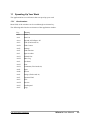
11 SPEEDING UP YOUR WORK....................................................................................................................23
11.1 ACCELERATORS.................................................................................................................................................23
http://www.abego-software.de
Where Is User Manual
3