1
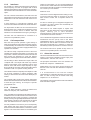
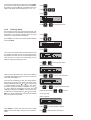
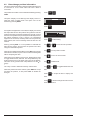
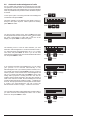
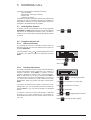
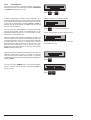
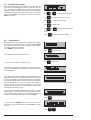
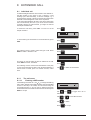
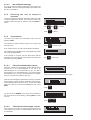
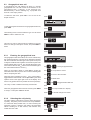
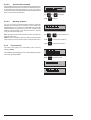
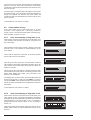
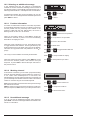
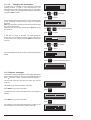
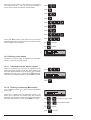
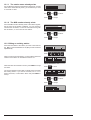
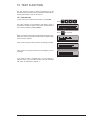
An example is the selection of time zone: Press FUNC,
move the cursor until Time is flashing and press NEXT.
By pressing the and keys, the flashing time zone
option in the lower line be changed from -12 to +12.
Press
FUNC
Press
Press
NEXT
Press
3.2.2
or
to change time zone
Entering digits
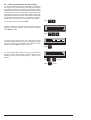
Some menus require you to input numerical data. This
is for example the case with MID-numbers and position
information. The following example shows the input
sequence for ships' position information.
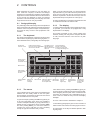
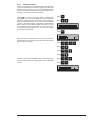
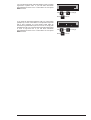
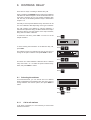
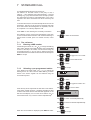
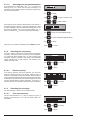
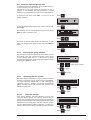
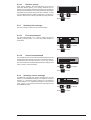
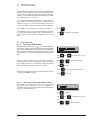
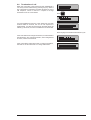
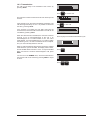
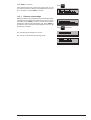
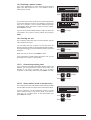
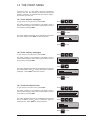
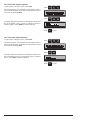
Press LAST, move the cursor until Position is flashing
and press NEXT.
Press
LAST
Press
Press
NEXT
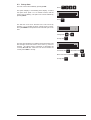
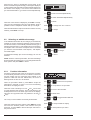
The cursor is now flashing which indicates that an input
is expected; this case you have to enter the time when
the position was valid. Use the numerical keyboard to
enter the time. If you enter an incorrect digit, you can
delete the digit by pressing the < key.
YZ-
Use
0
to
9
to enter the time when
the position was valid.
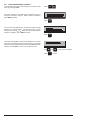
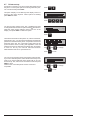
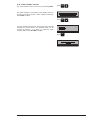
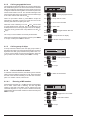
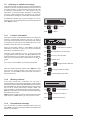
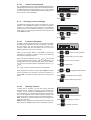
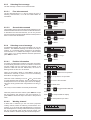
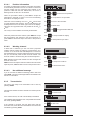
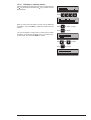
When you have filled in the time, the cursor is flashing
on the last digit of the time field. To move on to the next
input field, press ENT or >.
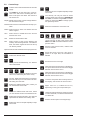
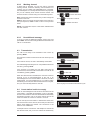
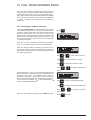
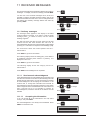
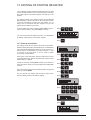
The cursor is now flashing on N/S. The small up/down
arrow symbol is shown in the lower right corner of the
display symbolizing that the and keys can be used
to toggle between N(orth) and S(outh). The arrow
symbol is only present when it is possible to use the
or keys. When the hemisphere is correct, just start
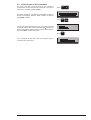
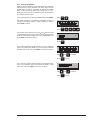
entering the latitude. Press ENT or > to move the cursor
to E/W (can be changed with the and keys). Press
ENT or > to enter the longitude. You have now entered
the entire position information.
STOP
Press
ENT
Use
or
and
to move to the next field.
to toggle between N and S.
STOP
Enter latitude and use
ENT
or
to move
to the next field.
Enter longitude
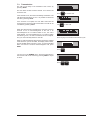
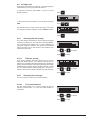
Press
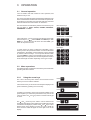
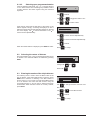
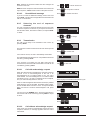
Press NEXT to accept and store the input or press
LAST to discard the input and return to the previous
menu.
3-2
Use
NEXT
LAST
to accept all data in display.
to leave position input menu.
RM2042 - OPERATION