1
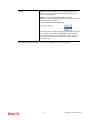
function.
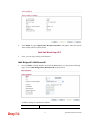
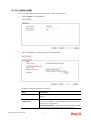
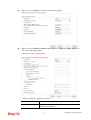
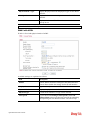
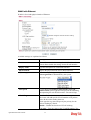
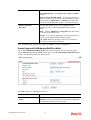
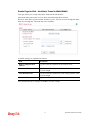
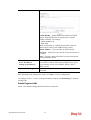
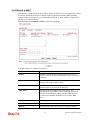
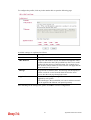
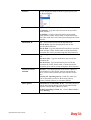
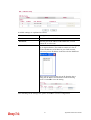
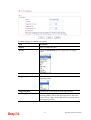
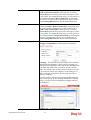
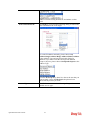
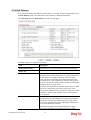
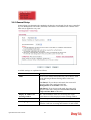
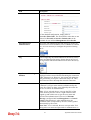
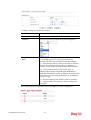
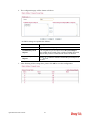
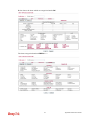
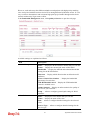
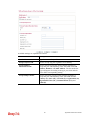
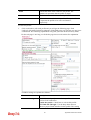
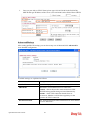
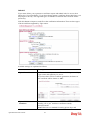
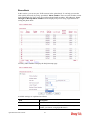
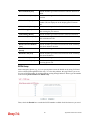
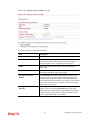
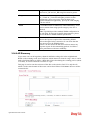
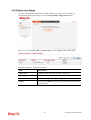
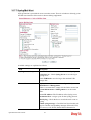
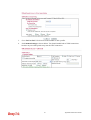
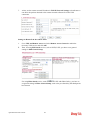
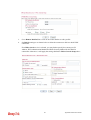
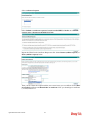
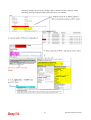
IP Address - Type in private IP address for connecting to a
local private network (Default: 192.168.1.1).
Subnet Mask - Type in an address code that determines the
size of the network. (Default: 255.255.255.0/ 24).
RIP Protocol Control –
Disable - Deactivate the RIP protocol. It will lead to a
stoppage of the exchange of routing information between
routers. (Default)
Enable – Activate the RIP protocol.
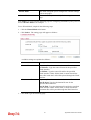
DHCP Server
Configuration
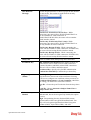
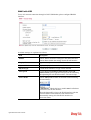
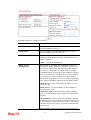
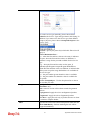
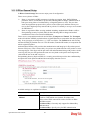
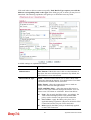
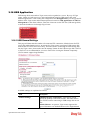
DHCP stands for Dynamic Host Configuration Protocol.
The router by factory default acts a DHCP server for your
network so it automatically dispatch related IP settings to
any local user configured as a DHCP client. It is highly
recommended that you leave the router enabled as a DHCP
server if you do not have a DHCP server for your network.
If you want to use another DHCP server in the network
other than the Vigor Router’s, you can let Relay Agent help
you to redirect the DHCP request to the specified location.
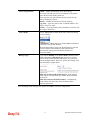
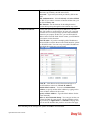
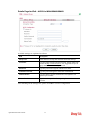
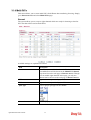
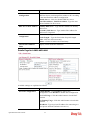
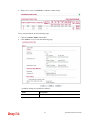
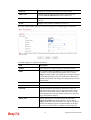
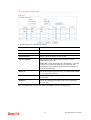
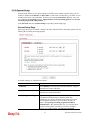
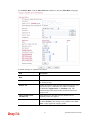
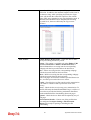
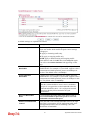
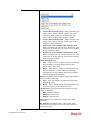
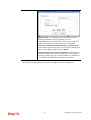
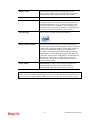
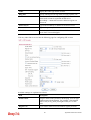
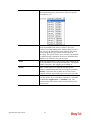
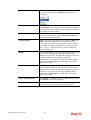
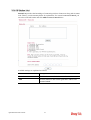
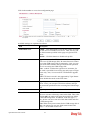
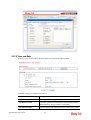
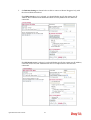
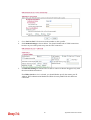
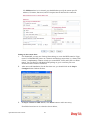
Start IP Address - Enter a value of the IP address pool for
the DHCP server to start with when issuing IP addresses. If
the 1st IP address of your router is 192.168.1.1, the starting
IP address must be 192.168.1.2 or greater, but smaller than
192.168.1.254.
IP Pool Counts - Enter the maximum number of PCs that
you want the DHCP server to assign IP addresses to. The
default is 50 and the maximum is 253.
Lease Time - Enter the time to determine how long the IP
address assigned by DHCP server can be used.
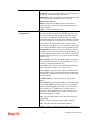
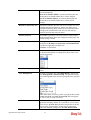
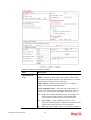
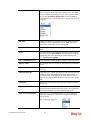
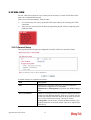
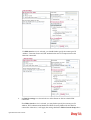
Use LAN Port – Specify an IP for IP Route Subnet. If it is
enabled, DHCP server will assign IP address automatically
for the clients coming from P1 and/or P2. Please check the
box of P1 and P2.
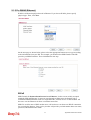
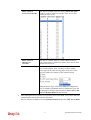
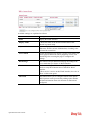
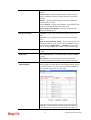
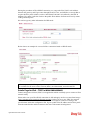
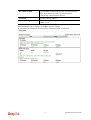
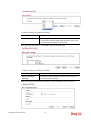
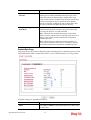
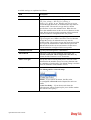
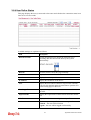
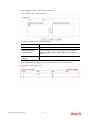
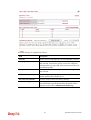
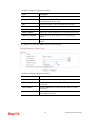
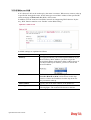
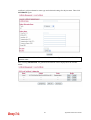
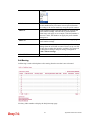
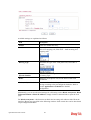
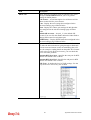
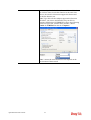
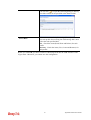
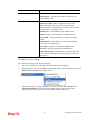
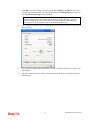
Use MAC Address - Check such box to specify MAC
address.
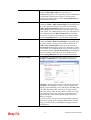
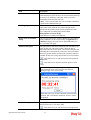
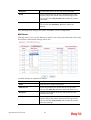
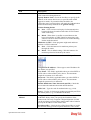
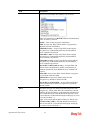
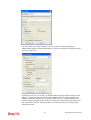
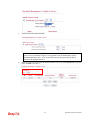
MAC Address: Enter the MAC Address of the host one by
one and click Add to create a list of hosts to be assigned,
deleted or edited IP address from above pool. Set a list of
MAC Address for 2nd DHCP server will help router to
assign the correct IP address of the correct subnet to the
correct host. So those hosts in 2nd subnet won’t get an IP
address belonging to 1st subnet.
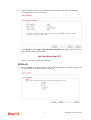
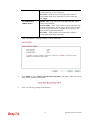
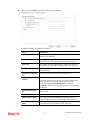
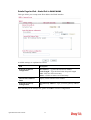
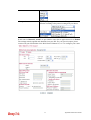
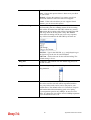
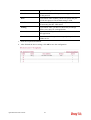
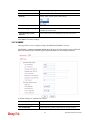
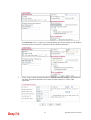
Add – Type the MAC address in the boxes and click this
button to add.
Delete – Click it to delete the selected MAC address.
Edit – Click it to edit the selected MAC address.
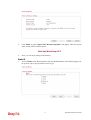
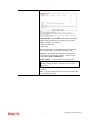
Cancel – Click it to cancel the job of adding, deleting and
113
Vigor2830 Series User’s Guide