1
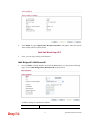
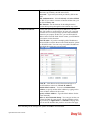
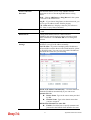
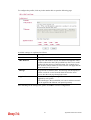
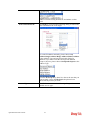
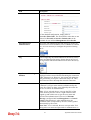
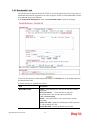
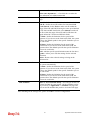
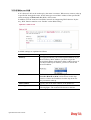
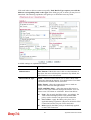
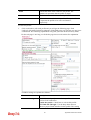
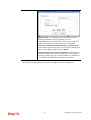
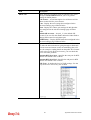
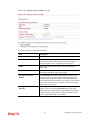
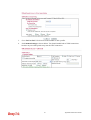
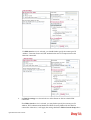
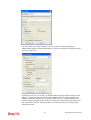
keywords within a frame are separated by space, comma, or
semicolon. In addition, the maximal length of each frame is
32-character long. After specifying keywords, the Vigor
router will decline the connection request to the website
whose URL string matched to any user-defined keyword. It
should be noticed that the more simplified the blocking
keyword list is, the more efficiently the Vigor router
performs.
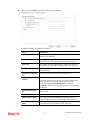
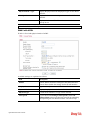
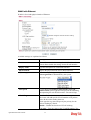
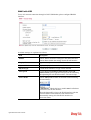
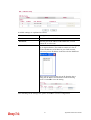
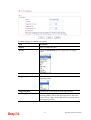
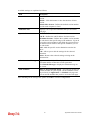
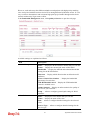
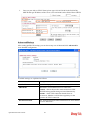
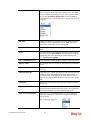
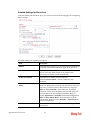
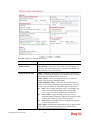
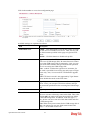
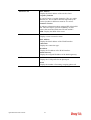
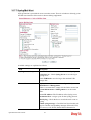
Web Feature
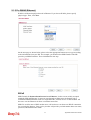
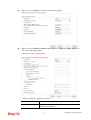
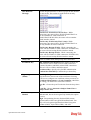
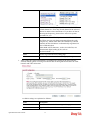
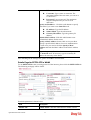
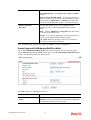
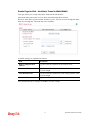
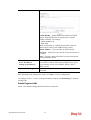
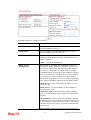
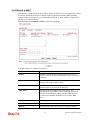
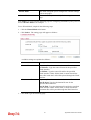
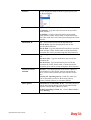
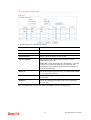
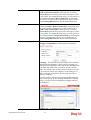
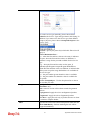
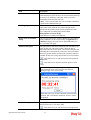
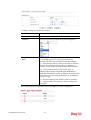
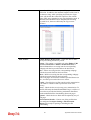
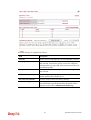
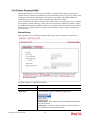
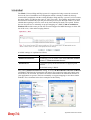
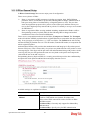
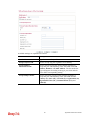
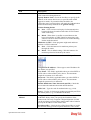
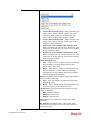
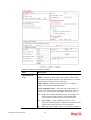
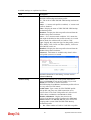
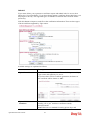
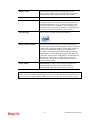
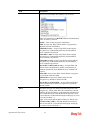
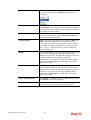
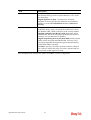
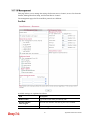
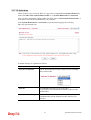
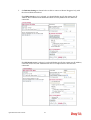
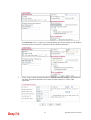
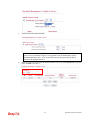
Enable Restrict Web Feature - Check this box to make
the keyword being blocked or passed.
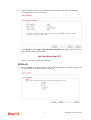
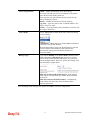
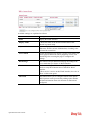
Action - This setting is available only when Either: URL
Access Control First or Either: Web Feature Firs is
selected. Pass allows accessing into the corresponding
webpage with the keywords listed on the box below.
Pass - Allow accessing into the corresponding webpage
with the keywords listed on the box below.
Block - Restrict accessing into the corresponding webpage
with the keywords listed on the box below.
If the web pages do not match with the specified feature set
here, it will be processed with reverse action.
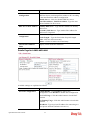
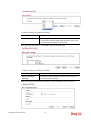
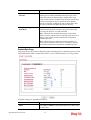
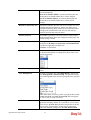
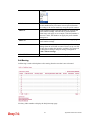
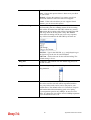
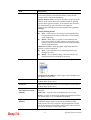
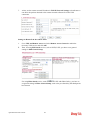
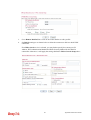
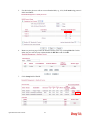
Cookie - Check the box to filter out the cookie transmission
from inside to outside world to protect the local user's
privacy.
Proxy - Check the box to reject any proxy transmission. To
control efficiently the limited-bandwidth usage, it will be of
great value to provide the blocking mechanism that filters
out the multimedia files downloading from web pages.
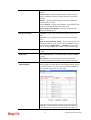
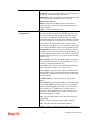
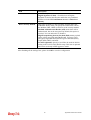
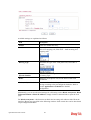
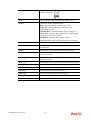
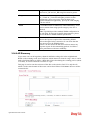
Upload – Check the box to block the file upload by way of
web page.
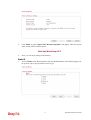
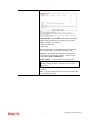
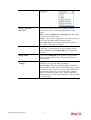
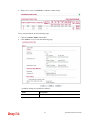
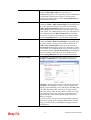
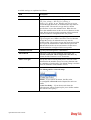
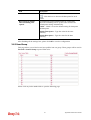
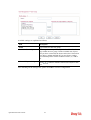
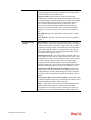
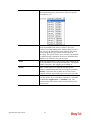
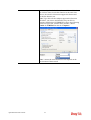
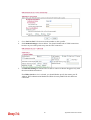
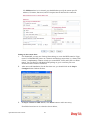
File Extension Profile – Choose one of the profiles that
you configured in Object Setting>> File Extension
Objects previously for passing or blocking the file
downloading.
203
Vigor2830 Series User’s Guide