1
Prepare Your Camera for use
Install battery
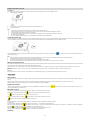
Your digital camera requires 3 AAA batteries for power, please refer to the following illustration as correct installation method:
1.
Slide and open the battery door.
2.
3.
Note:
1.
2.
3.
4.
5.
6.
Insert the battery correctly as the correct polarity facing up with the battery cover.
Close the battery door.
“Low battery” will show on the LCD when battery is insufficient and your camera will be off.
Please uninstall your battery when you don’t intend to use your camera for a long time to forbid them leakage and corrosion.
Your digital camera will be off when the battery is insufficient.
The photos will be lost when the camera off or open the battery door, transfer the test photos/videos to PC as often as possible.
Do not mix old and new batteries.
Do not mix alkaline, standard (carbon-zinc), or rechargeable (nickel-cadmium metal hydride) batteries.
Install SD memory card
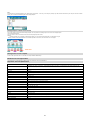
This camera supports any compatible SD memory card up to 8GB. Limited internal memory is only for you to take test photos, these photos will be lost when you turn off your camera or
remove the batteries. For normal use, an SD memory card needs to be inserted. Please refer to the below diagram for correct installation method:
Locate the SD memory card slot, insert an SD memory card as above, until you feel and hear a “Click” sound. When the
card is installed correctly.
Note:
1.
2.
3.
4.
icon appears on the LCD screen this indicates that your SD
After the SD memory is inserted successful, “Move to SD card” will appear on the screen, the photos you have taken will be stored on the SD memory card.
Formatting will delete all data on the SD memory card including protected data.
Don’t remove the SD card during formatting as this may damage the card and render it unusable.
Download the photos/videos to your PC and delete the photos and videos from your SD Card in order to continue using your camera.
Starting Your Digital Camera
Your digital camera has 3 modes - Camera mode, Video mode and Playback mode.
Camera mode is for you to take still photos. You can shoot video files while in Video mode. In Playback mode you can preview photos/videos, delete, protect, and print your photos.
Power on
Press the Power button once to turn on your camera. The LCD will light up and it will sound a “beep”, this indicates your camera is turned on and ready for use.
Power off
Press the Power button once to turn off your camera. When there is insufficient battery power, your camera will be off automatically after a moment.
Camera Mode
Taking Photos
You can compose your shot using the LCD screen. Hold the camera steady and press the shutter button to take the photo. There will be a short delay while the camera saves the photo to
memory.
After each photo is shot (when the camera returns to icon mode) the numbers of photos left to shoot at this resolution is displayed on the top right of the LCD screen.
When the camera's memory (photo capacity) is full, the LCD screen will display a message “ Card Full ”
Digital Zoom function
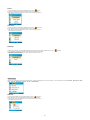
You can magnify your subject using the digital zoom. Use the T and W buttons to adjust the zoom. The icon
subject. Push the W button to zoom back out.
will show on your LCD screen. Press the T button to zoom in on your
Macro/Far shooting
The camera has the function that capture object in very near distance or very far distance per your request.
Macro shooting: slide the Macro/Far switch to
icon
position which is on the left side of the camera, until
appears on the LCD screen, it indicates the macro shooting is on.
Far shooting: slide the Macro/Far switch to
position which is on the left side of the camera, until icon
appears on the LCD screen, it indicates that the far shooting is on.
Flash
In low light conditions it is best to use the built-in flash. You can also use the flash to compensate for backlight conditions.
To set the flash:
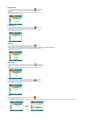
Press the Up button repeatedly until the
icon shows on the LCD screen. This will activate the automatic flash.
Press the Up button repeatedly until the
icon appears on the LCD screen. This means the flash function has been "forced on" (manual flash).
up and the
icon will flash repeatedly - wait until the flash is ready before taking a photo.
icon shows on the LCD screen. The red eye reduction is open.
Press the Up button repeatedly until the
Press the Up button repeatedly until the
icon appears. This will turn off the flash function.
Self-Timer :
2
If the flash is not ready, a LED will light