1
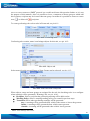
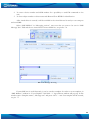
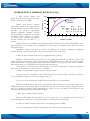
2) And you will jump to table ‘Details’ where you must type information about your new group (pic.
8.3):
Pic. 8.3. New Group Description
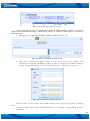
3) Push
‘Save’ icon.
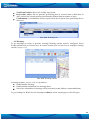
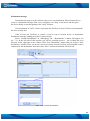
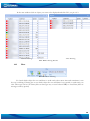
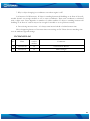
4) Result (pic. 8.4):
Pic. 8.4. Created Groups
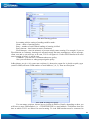
First decide which created users will be available for a User. Power User is allowed to
create groups. Each user can be assigned to different groups. Power User can create a simple user
logins for TAVL application (click Users button in the toolbar and select 'New'). Each simple user can
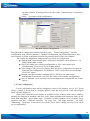
be assigned to different groups. User grouping is available from Tools -> Grouping -> Users. The new
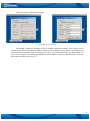
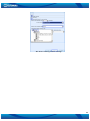
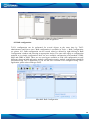
user will be able to see only those objects that match his group, see pic. 8.5.
Pic. 8.5. User Grouping
31