1
5
5.1
Clustering
Selecting a Clusterer
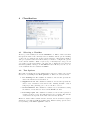
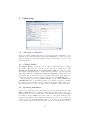
By now you will be familiar with the process of selecting and configuring objects.
Clicking on the clustering scheme listed in the Clusterer box at the top of the
window brings up a GenericObjectEditor dialog with which to choose a new
clustering scheme.
5.2
Cluster Modes
The Cluster mode box is used to choose what to cluster and how to evaluate
the results. The first three options are the same as for classification: Use
training set, Supplied test set and Percentage split (Section 4.1)—except
that now the data is assigned to clusters instead of trying to predict a specific
class. The fourth mode, Classes to clusters evaluation, compares how well
the chosen clusters match up with a pre-assigned class in the data. The dropdown box below this option selects the class, just as in the Classify panel.
An additional option in the Cluster mode box, the Store clusters for
visualization tick box, determines whether or not it will be possible to visualize
the clusters once training is complete. When dealing with datasets that are so
large that memory becomes a problem it may be helpful to disable this option.
5.3
Ignoring Attributes
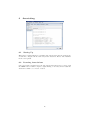
Often, some attributes in the data should be ignored when clustering. The
Ignore attributes button brings up a small window that allows you to select
which attributes are ignored. Clicking on an attribute in the window highlights
it, holding down the SHIFT key selects a range of consecutive attributes, and
holding down CTRL toggles individual attributes on and off. To cancel the
selection, back out with the Cancel button. To activate it, click the Select
button. The next time clustering is invoked, the selected attributes are ignored.
14