1
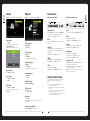
Lock
Media Play Function (DMP)
Thank you very much for your purchase of this product. Please read this manual carefully and keep it safe for reference.
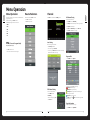
Press MENU button on the remote and ◄/► use to cycle to LOCK page:
Note: All options are initially greyed out until password is entered (see below)
Access media files (Photo’s, Music, Movie’s and Text) via the TV’s USB port.
Lock System:
Picture:
Please use the power cord designated for the product. When an extension cord is required, use one with the correct power rating. The cord must be grounded. The product should be
installed on a flat surface to avoid tipping. Space should be maintained between the back of the product and the wall for proper ventilation. If you would like to mount the TV to the wall,
please see “Preparing the LCD for Wall Mounting” below for additional information. Avoid installing the product in the kitchen, bathroom or other places with high humidity.
Preparing Your LCD TV For Wall Mounting
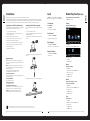
Installing the LCD TV Base Assembly
Set TV system time settings
The HDTV can either be kept on the stand or mounted to the wall for viewing. If you choose
to mount the HDTV to the wall, please follow the instructions below .
If you choose to mount the HDTV on the supplied base, please follow the instructions
below .
»» Select Lock System
»» Unplug all the cables and cords from your LCD TV.
»» Unplug all the cables and cords from your LCD TV.
»» Place the LCD TV face down on a soft and flat surface (blanket, foam, cloth, etc) to prevent any damage to the display.
»» Place the LCD TV face down on a soft and flat surface (blanket, foam, cloth, etc) to
prevent any damage to the display.
Set Password:
»» Remove the stand screws allowing the stand to be removed.
»» Connect the base support to the metal axle from the rear using 2 of the supplied
4x10 screws.
»» Change password from factory default (above):
»» The mounting bracket is made up of two parts - the wall bracket and the TV bracket. Attach the TV bracket to the TV via the included screws.
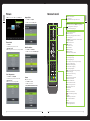
Press MEDIA button on the remote.
Supported picture formats include .jpg/jpeg and .gif
The image should be no bigger than 3000 x 3000 pixels.
»» Enter factory default password (0000)
»» From the LOCK menu select SET PASSWORD
Block Program:
»» Using the supplied mounting template, mark the location for the mounting bracket.
»» Attach the wall bracket to the wall with appropriate screws. Ensure the wall is suitable to hold the weight of the TV.
»» From the LOCK menu select Block Program.
»» Select Photo source
»» Select channels to block and require password to watch.
»» Use ◄ or ► to select disk and press ENTER to view photo list
»» Slide the TV bracket into the wall bracket.
Parental Guidance:
»» Secure the base support using the final 4x10 screw through the bottom of the
base support.
»» Select age restriction
»» Select the desired Photo/s
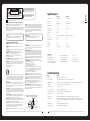
Important Notes
»» Press PLAY to view
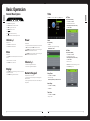
RESET: Like any product controlled by microprocessors this TV may hang or become
unresponsive, in the unlikely event this occurs simple disconnect the power and reconnect
after 10 seconds.
»» Press EXIT to remove OSD
Music:
REMOTE: To prevent leakage which may result in bodily harm or damage to the remote:
1. Install AAA batteries correctly, and make sure polarities are correctly aligned with the
battery compartment markings.
2. Do not mix batteries (OLD and NEW or CARBON and ALKALINE ,etc)
3. Remove batteries when the remote is not used for a long time.
Supported music formats include .mp3
»» Select Music source
»» Use ◄ or ► to select disk and press ENTER to view music list
»» Select the desired music track/s
My music, movie or image files do not display?
Due to the large variation of file sizes, compression formats and codec available, playback
of all files cannot be guaranteed.
I cannot record onto my USB flash drive?
FAT 32 formatted flash drive is required.
»» From the LOCK menu select Parent Guidance.
»» Press PLAY to begin playback
»» Press EXIT to remove OSD
»» Affix the base to the base support and secure with 2 of the supplied 3x8 screws.
Movie:
Time Shift functionality does work work?
FAT 32 formatted flash drive is required.
Supported movie formats include .mpg, .vob, .avi, and .mp4
The maximum matrix is below MPEG2 MA/ML.
Warning! Do not keep images on the screen for a long time
To prevent the screen from burn in, do not leave static images including menu screens
displayed for a period of time. Burn in is not covered under warranty provision.
»» Select Movie source
ATTENTION: Do not try to update the TV unless directed by a service technician.
Product misconfigured by an incorrect update is not covered under warranty.
»» Use ◄ or ► to select disk and press ENTER to view movie list
»» Select the desired movie.
»» Press PLAY to begin playback
»» Press EXIT to remove OSD
Text:
Supported text format is .txt
»» Select Text source
»» Use ◄ or ► to select disk and press ENTER to view text list
»» Select the desired text.
PUBLISHED BY FUSION ELECTRONICS LIMITED. © Copyright 2010 by FUSION Electronics Limited. All rights reserved. Specifications and design are subject to change without notice.
YOU CAN HELP PROTECT THE ENVIRONMENT Please remember to respect the local regulations: Hand in the non-working electrical equipment to an appropriate waste disposal centre. v3.2
»» Press PLAY to view text file
»» Press EXIT to remove OSD
011
002
Installation