1
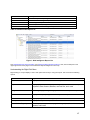
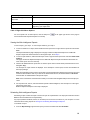
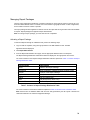
Figure 4: Drill Filters Toolbar
Filtering Options for reports are explained in detail in the documentation for each report package.
Note: The Drill Filters at the top of the report table may limit the data that is displayed even though the report
execution retrieved all the data. Set the Drill Filters to All Values and then filter as needed based on the specific
report.
Also, for help specific to using the Web Intelligence Reports click the Help icon in the upper right section of the
page.
Using the Drill Feature in Web Intelligence Reports
You can drill down or up by Time in the reports. For example, you can click any cell item that is underlined to drill
down from the week view to the day view; and you can drill down from the day view to the hour view. From the
lower levels, you can drill up by clicking the up arrow in the Day or Week column.
Note: This feature is not available in all reports.
Linking to Detailed Records in ProTrace
You can view the detailed records in ProTrace for each report.
1. In the Report View, click the report tab with the report name.
The report is displayed.
2. Click View Details on the right side of the page, just above the report table.
ProTrace is opened to the detailed records for the current report. See the ProTrace User Guide
for information about ProTrace.
Note: If the report was executed far enough in the past (weeks), the original detail records might
have expired according to the configured lifetime for the protocol session.
Note: The View Details link to ProTrace is not available on all report views. It is generally
available only on the first tabular report view. Also, it will only produce detailed records for the
Hour table.
Saving and Forwarding Web Intelligence Reports
You can save Web Intelligence Reports and Sub-Reports to InfoView folders or to your computer. A
high-level view of available options is provided here. For more detailed help in saving and forwarding
Web Intelligence Reports, click the Help icon in the upper right section of the page to access
Business Objects Enterprise on-line help.
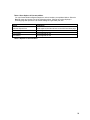
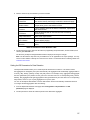
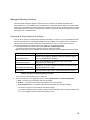
Select the Document menu and choose one of the following options:
Option
Explanation
Save as
Saves to InfoView folders and categories
Save to my computer as
Save report to my computer as
Saves a file containing all Sub-Reports to your computer
Saves the currently selected Sub-Report to your computer
21