1
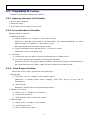
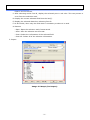
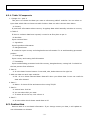
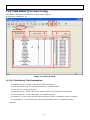
A. Search – Use to search data. Result will appear on display
B. Show All - It is to see all the data again after finishing searching
NOTE: It will not show up when selecting Tax Rate & PCS Unit
4. Part D :
A. Status –It shows IP list and ststus when using TCP/IP network
Note: It will not show up when you set to serial communication
5. Part E :
A. Save –Use to save or register data
6. Part F :
A. Upload –To bring data from scale to PC
7. Part G :
A. Download –Use to download data from PC to scale
8. Part H :
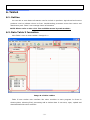
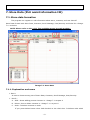
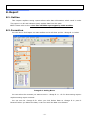
A. It shows seleted content data on display. This editing dialog can register or edit data
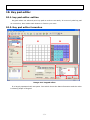
5.2. Data Table 1 instruction
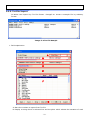
Exlpains all about editing Data Table I
5.2.1. Starting new work
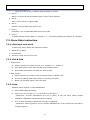
To start new work, follow the instruction below
1. Selete File in Menu
2. Choose New
3. Screen is ready for the new work
NOTE: It only applies to seleted content on at part A
5.2.2. Edit & Add
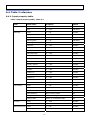
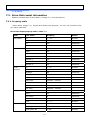
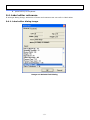
This chapter explains edit & adds data. If it is Barcode you want to work on.
1. Adding process
A. Select contents you want to work on the menu
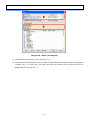
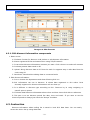
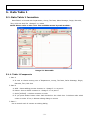
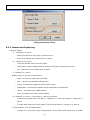
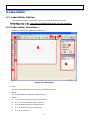
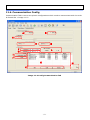
B. Click ADD button on <Image 5-1>. New data will add in grid dialog below
C. Write detail information on data you want to add
2. Edit process
A. Select contents you want to edit and press Enter or double-click it
B. It turns to editing state like input state or choosing list state
C. When you finishing inputs, save the data
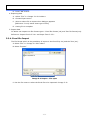
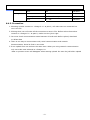
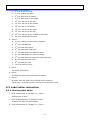
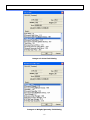
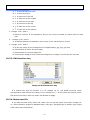
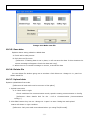
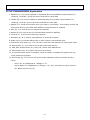
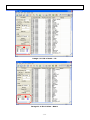
3. Add or edit barcode
A. Select Barcode on at part A
−
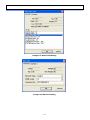
Click ADD button
−
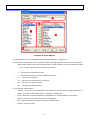
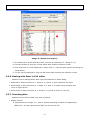
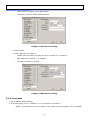
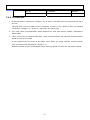
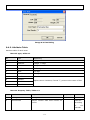
When barcode input dialog appears like wirte barcode data in
-33-