1
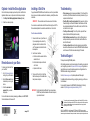
Optional—Install the Stora Application
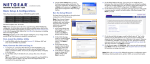
Installing a Disk Drive
Once the initial setup is complete, you have the option to install the Stora
Application software now, or anytime once the initial setup is complete:
1. Click Step 2 Install Desktop Applications Software (Optional).
2. Follow the on-screen prompts.
If you purchased a NETGEAR Stora with no disk drives, or with only one installed
drive, and you want to add a second drive for redundancey, carefully follow these
instructions.
•
IMPORTANT! The second drive must be the same size as the first drive.
•
Troubleshooting
You can insert a second disk drive into the Stora without turning the unit off. The
Stora automatically detects the second drive and builds it as a “mirror drive.”
To add or remove a disk drive:
1.
2.
Remote Access to your Stora
To remotely copy files to and from
your new Stora:
1. Go to http://www.mystora.com
and log in to your Stora device.
2. Enter the Stora name that you
created when you set up your
device.
3. Enter the user name and
password that you created
during setup.
3.
For more information about remotely accessing your Stora, see the NETGEAR®
Stora User Manual on the Resource CD.
January 2011
Remove the front cover of your Stora unit.
If you are replacing a drive, unlock it by
pulling down the latch on the back of the
unit. This releases the hard drive from the
locked position.
Insert the new hard drive.
a. The label on the drive needs to face the
outside of the unit.
b. Slide the disk into place in either slot
until it locks.
c. Replace the front cover.
The green LED on the front of the Stora
blinks continuously until the installed drive
build process is complete.
WARNING!! Stora formats hard drives differently than a computer does.
DO NOT swap hard drives between a Stora and a computer,
or your data will be lost.
•
•
•
CD error message. An error message could display if 1) the Power LED is
not solid blue, 2) the Ethernet cables are not securely connected, or 3) your
computer is behind a firewall.
Check the LEDs to verify correct operation. When powered on, the blue
Power button light is on. Green LEDs labeled 1 and 2 indicate which hard
drive is installed and detected. If the drive LED is amber, turn off the Stora
unit, and then turn it on again.
Turn off your Stora correctly. To turn off your Stora, press the Power
button until the blue LED blinks (about 5 seconds).
Verify the Ethernet connection. Make sure that your Ethernet cable is
securely connected to your router and to the Stora, and the LEDs on the
back of the Stora are lit.
Turn off your firewall. Make sure that the computer accessing the Stora
does not have its firewall turned on. See the NETGEAR® Stora User Manual
on the Resource CD for information about turning off the firewall.
Technical Support
Thank you for selecting NETGEAR products.
After installing your device, locate the serial number on the label of your product and
use it to register your product at http://www.NETGEAR.com/register. Registration is
required before you can use the telephone support service. Registration via the
NETGEAR website is strongly recommended.
Go to http://kbserver.netgear.com for product updates and Web support.
For additional information about setting up, configuring, and using your Stora, see
the User Manual.
For complete DoC please visit the NETGEAR EU Declarations of Conformity
website at: http://kb.netgear.com/app/answers/detail/a_id/11621/
This symbol was placed in accordance with the European Union Directive 2002/96 on the Waste
Electrical and Electronic Equipment (the WEEE Directive). If disposed of within the European Union,
this product should be treated and recycled in accordance with the laws of your jurisdiction
implementing the WEEE Directive.
©2009-2011 by NETGEAR, Inc. All rights reserved. NETGEAR and the NETGEAR logo are registered
trademarks of NETGEAR, Inc. in the United States and/or other countries. Other brand and product names are
trademarks or registered trademarks of their respective holders. Information is subject to change without notice.