1
1 Tour the Interface
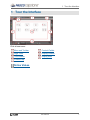
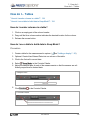
Tour the Scope
Tour the Scope
Overview
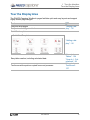
The scope is designed to view high-frequency oscillating data or single high-speed
events that the graph display may not be able to capture. Maximum Sampling Rate: The maximum supported sampling rate is a function of the
computer-sensor interface that is connected to the computer (for example: 850 Universal
Interface → 10 MHz, ScienceWorkshop 750 → 250 kHz).
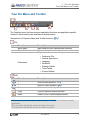
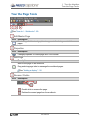
Features
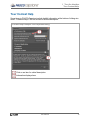
Continuous Mode and Fast Monitor
Mode
Single shot
Multiple triggers
Pre-trigger
Image freeze
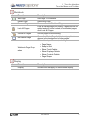
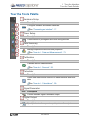
See "What is Continuous Mode?": 168
"What is Fast Monitor Mode?": 169
"What does the Single Shot button do?": 178
"How do I select the scope trigger?": 131
"How do I pre-trigger?": 134
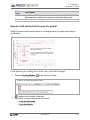
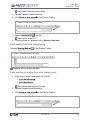
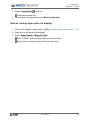
"How do I freeze and record the scope display?": 135
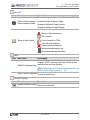
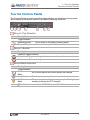
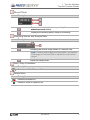
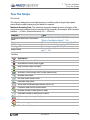
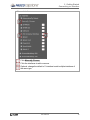
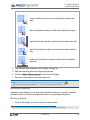
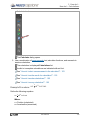
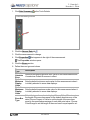
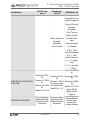
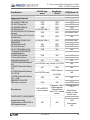
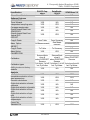
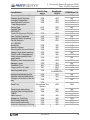
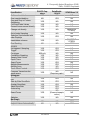
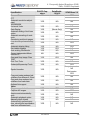
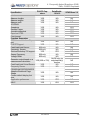
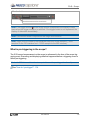
Toolbar
Icon
Description
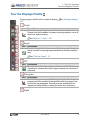
Adjust y-axis scale to fit data
Activate and control scope trigger
Stop collection after one trace
Automatically adjust sample rate based on time-axis scale
Activate to view multiple runs; Select visible run(s)
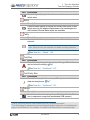
Increase trace offset
Set trace offset value to zero
Decrease trace offset
Show data coordinates and access Delta Tool
Creates a data set from active traces
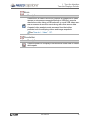
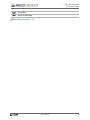
Increase number of data points in trace
Decrease number of data points in trace
Add new y-axis to scope display
Remove active element or axis
Allow rearrangement of axes
Pin toolbar to display
012-14016A
15