1
Windmill User Manual
4
Using DDE Links with Graphics
DDE applications are often referred to as either Clients or Servers.
A Server always responds to instructions from a Client. The standard
Windows programs only act as Servers but Graphics can act as a Client or a Server. As Graphics is more powerful and therefore slightly
more complicated than the other Windmill programs, a summary of
using DDE with Graphics is given here. (For more on Graphics see
http://www.windmill.co.uk/graphics.html)
4.1
Enabling DDE Support
Graphics cannot make DDE conversations unless it has a unique
DDE Service Name. The first instance of Graphics loaded will automatically be given the service name “Graphics”. To change this, or allocate
a service name to another instance of the program, use the DDE option
from the Graphics File menu.
4.2
Sending DDE Commands to Graphics
Graphics recognises nine DDE Execute commands: Destroy,
Interval, Load, Minimize, Move, Print, Restore, Start and Stop. These
may be sent by other Windows applications such as Excel, other in stances of Graphics, or even by Graphics to itself. Graphics is here
acting as the Server and receiving commands from the Client. For
more details of the Execute commands see Section .
4.3
Sending DDE Commands to Other Applications
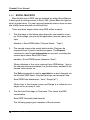
When Graphics sends commands to other applications it is acting
as a Client. To send commands you must insert a DDE output button
as follows.
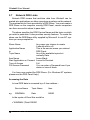
1.
2.
3.
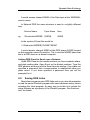
Select Execute Command as the command type.
Select the Service name of the application to which you want to
send commands.
If you’re sending commands to non-Windmill applications enter
a Topic name. This is often the name of a file—see the Manual
of your chosen target (server) application for details. If you are
not sure use “System” (without quotes).
22Dynamic Data Exchange