1
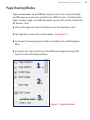
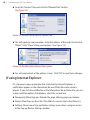
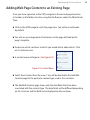
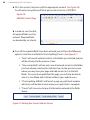
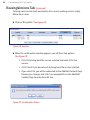
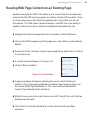
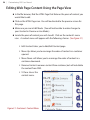
20 | Dotmarketing CMS User Manual Fill in the content structures with the appropriate content. (See Figure 2.6) To add content using Microsoft Word, please refer to Section I: WYSIWYG Figure 2.6: Add/Edit Content Page In order to save Content, all required fields must be entered. Required fields are denoted by an asterisk. Once all the required fields have been entered, you will have the following options: Save/Save and Publish/Check Spelling/Cancel. (See Figure 2.7) “Save” will save all entered content in the folder you selected and you will be returned to the preview screen. “Save and publish” will not only save all entered content in the folder you have already selected, but will direct you to the preview screen where you may view your page and add content to it in the Edit Mode. Since you have published this page, you will also be able to view it in Live Mode and it will be visible to your website users. “Check spelling all fields” will launch a pop-up spell check window which you will be able to close when your spell check is complete. “Cancel” will cause you to lose all information entered in the fields above. Figure 2.7: Adding New Content Submit Actions