1
FRANÇAIS
SHARE WIFI SETTINGS
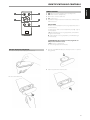
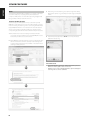
WiFi connection can also be achieved by directly connecting your iOS
device to the DOCK input of the D 7050. Follow below procedure for
automatic network detection and connection.
1 Using applicable Apple USB cable (not supplied), connect iOS device to
DOCK input at the rear panel of D 7050 to share WiFi settings.
2 Short press WPS button located at the real panel of D 7050. A flashing
signal strength bar indicator
appears in the upper right corner of
the D 7050 display.
3 A Share Wi-Fi Settings notice will pop-up.
ESPAÑOL
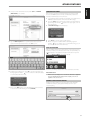
4 Select your local network from the drop down SSID list - NADLAB
(WPA2 CCMP) in this example.
ENGLISH
OTHER FEATURES
4 Select Allow to complete sharing of WiFi settings.
5 Wireless connection is established when the flashing signal bar
indicator
turns to solid bar. Upon successful WiFi sharing, you can
disconnect the iOS device from the D 7050.
PORTUGUÊS
5 Type the WPA Passphrase (if it is password protected) of your local
network in the field provided and then select Go to join in.
AIRPLAY PLAYBACK
DEUTSCH
ITALIANO
After your AirPlay-enabled device and D 7050 are connected to the same
network, the Airplay source will detect the D 7050. Select the AirPlay icon
( ) that appears in the application display and select the unique ID of
your D 7050 (D7050 00EBC8 in the example below).
Audio from your AirPlay-enabled device will be streamed to the D 7050.
IMPORTANT NOTE
When a connected Airplay source is activated to broadcast or playback
a song, the D7050 will immediately switch to Airplay source mode
regardless of the current source.
NEDERLANDS
6 A Warning notice will pop-up. Select OK to save the new settings. The
flashing signal bar indicator
turns to solid bar. Your iOS device (iPad)
is now interfaced with the D 7050.
CONNECT TO BLUETOOTH DEVICE
Pair Bluetooth device with the unique device ID of D 7050 (D7050 BT
010DB6 in this example). Start playback of Bluetooth device upon
successful pairing.
РУССКИЙ
SVENSKA
7 Return to the Wi-Fi settings of your iOS (iPad) device and ensure that it
is set to the same network setting as above (NADLAB).
9