1
QBox Installation & Operation Guide
SECTION 4:
QBox Configuration and
Operation
QBox is the innovative output engine that is the world’s only IP-based prompting
solution providing a number of unrivalled benefits for those seeking the next
generation of prompting software.
QBox is the new prompting standard, challenging previously accepted
boundaries allowing you to control the prompt output from the QBox itself, or
using a computer in another room, building or country.
4.1: QBox operating system
QBox includes its own customised operating
system based on Linux.
4.1.1:
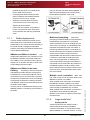
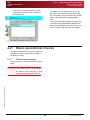
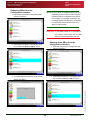
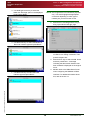
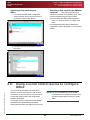
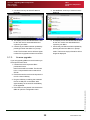
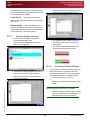
The diagram below outlines the steps to follow
depending on the type of monitor you use.
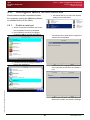
QBox onscreen menus
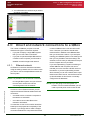
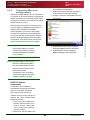
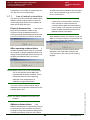
QBox includes onscreen menus for checking and
updating configurations. The onscreen menus
are also used for key functions including loading
scripts and rundowns from a source.
Accessing menus.
Onscreen menus are
displayed in prompt mode by pressing the F1 to
F5 function keys on the keyboard connected to
the QBox. When the unit is not in prompt mode,
press the F8 function key.
4.1.2:
•
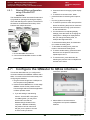
If your monitor accepts only a composite
video signal then follow the “Composite
Only” path.
Configure and test the QBox
Supply power.
©2003-2008 Autocue Group Ltd
Connect the supplied
QBox power cable to the IEC socket on the
QBox back panel. If the QBox does not start
automatically when connected to a power
source, press the P o w e r button.
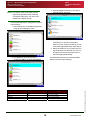
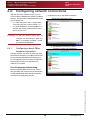
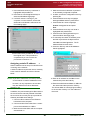
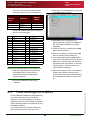
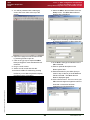
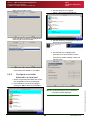
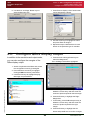
Configure the monitor settings.
Issue #: 230215
To
achieve the best performance from your prompter
monitor you should ensure that you have selected
the appropriate video setting on the QBox.
13
www.autocue.com