1
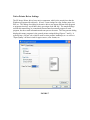
the native driver is set to print in black and white, this option will convert the image to
the appropriate color format but cannot produce real colors or gray scale. Printing in
color with the native driver and then converting to black and white is much slower, which
is why the native driver has the option for black and white (great for documents). If you
want any color format besides black and white, make sure to choose 'Color' from the
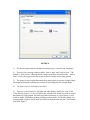
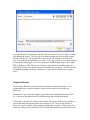
native driver settings (Figure 8).
6)
Abort On Recoverable Error – Sometimes the driver can detect certain types
of errors with individual files and ‘recover’, or basically skip, those files and continue on
to the next ones. If this flag is checked, the driver will attempt to do this. If not, the first
error will cause the driver to abort and not continue.
7)
Launch Default Viewer – If this flag is checked, after all the images are
produced by the driver, the default Windows program will be launched to view/handle
the images.
8)
Pass All Files to Default Viewer – This flag works in conjunction with the
‘Launch Default Viewer’ flag. It only applies when the ‘Launch Default Viewer’ flag is
checked. If this flag is checked, all files are passed as multiple separate parameters to the
Windows program. Some programs may be able to handle these multiple parameters
causing all the images to be opened/viewed instead of just the 1 st image.
9)
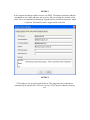
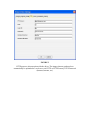
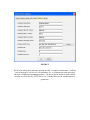
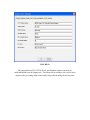
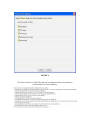
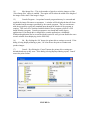
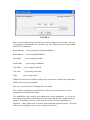
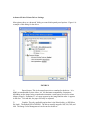
Show Settings Dialog – If this flag is checked, the dialog displayed in
Figures 1-6 will be displayed at print time to allow a user to control and change settings
on the fly. Sometimes, especially in businesses, administrators may not want this to
prevent the users from making a mistake and causing an error. If that is the case, this flag
should not be checked so the settings are automatically used and no dialog is presented.
10)
Store Files Locally – If this flag is checked, the images will be saved
permanently in the specified location, even after all functions are performed (such as
emailing, launching default viewer, HTTP post, etc). If it is not checked, the images will
be removed after being processed through all the functions.
11)
Auto Number Files – If checked, duplicate file names are detected and
assigned an auto number (incremented by 1). If unchecked, the file name is reused and
any existing file will be overwritten.
12)
Force Image Size – If checked, all images that are larger than the specified
max image size will be scaled down. This is useful for making thumbnails or small,
consistent image sizes.
13)
ZIP Files – If checked, all printed files will be batched up and compressed
into a single ZIP file. This can be handy when emailing, archiving, or uploading many
files and want to treat them as a single batch.