1
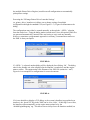
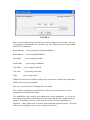
supply with the SOAP message. This is mainly used to uniquely identify a client sending
the message.
7)
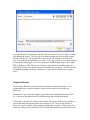
ID Value – The actual value to send through the SOAP message. The tags
should be utilized here if desired. The default is ‘%host.name%’ which sends the host’s
name.
8)
Server URL – The HTTP/HTTPS URL to the SOAP receiver. This will
typically be a Web Service.
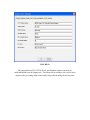
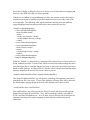
About
The about tab is simply for informational purposes about the product. It has no settings
or options.
Displaying the Printer Driver Settings Dialog
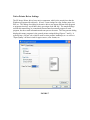
As mentioned earlier, the printer driver settings dialog will be displayed every time when
a print takes place if the ‘Show Settings Dialog’ checkbox from Figure 1 is checked. If it
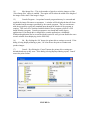
is not checked, you can still display the dialog by clicking ‘Start->Programs->Everlast
Software->ES Image Printer Driver Settings’. This will display the settings and even
allow the re-checking of the ‘Show Settings Dialog’ checkbox so that it will be displayed,
once again, at print time.
Advanced Printer Driver Settings
There is an advanced way in which system administrators, power users, etc., may edit the
settings without using the printer driver settings dialog. This is possible through
modifying XML files. The printer driver utilizes several engines (self-configuring code
modules) which each have their own XML file for settings. They are all located in the
installation directory area. More specifically, if the default installation directory was
used: ‘C:\Program Files\EverlastSoftware\ES Image Printer Driver’.
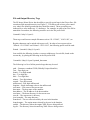
The only files of importance (or usage) here are: ‘Printer Driver Engine.xml’, ‘Image
Directory Import Engine.xml’, ‘File Transfer Protocol Engine.xml’, and ‘Email
Engine.xml’.