1
Operation
ECA 450
2.11 Downloading Data to a Personal Computer
Test data that was stored in memory can be downloaded to a personal
computer in ASCII text, comma-delimited format, which can then be
imported into most spreadsheet programs for analysis.
The following describes how to download data to a computer that is running
Windows®95/98, using HyperTerminal as the communications program. If a
different operating system and/or communications program is being used,
then consult the appropriate instruction manuals for those products.
Tip: To install HyperTerminal, first insert the Windows 95/98 CD, then click
Start, point to Settings, click Control Panel, double-click Add Remove
Programs, click Windows Setup, double-click Communications, select the
HyperTerminal check box, click OK twice.
1. Install serial data cable P/N 0104-4027 (straight through, 6 foot, DB9
male to DB9 female) between the computer’s COM port and the
analyzer’s RS232 connector. (For computers having a 25-pin COM port,
either use a 25-pin to 9-pin adapter, or use a serial cable with appropriate
connectors on each end.)
2. At the computer, start HyperTerminal by doing one of the following:
• If HyperTerminal has already been set up to communicate with the
ECA 450, then click Start, point to Programs, point to Accessories,
point to Communications, click HyperTerminal, and double-click
the file name or icon that has been associated with the ECA 450.
• If HyperTerminal has never been run in association with the ECA 450,
then a new HyperTerminal connection needs to be made as follows:
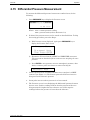
a) Click Start; click Run. In the Run box type “hypertrm.exe” and
click OK. The New Connection dialog box should appear.
b) Type in a New Connection Name such as “ECA450”. Click OK to
select the default icon (if desired, select a different icon before
clicking OK). The Connect To dialog box should appear.
c)
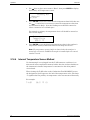
Click the Connect using drop-down menu and choose the COM
port to which the analyzer is connected. Then click OK to display
the COM Properties dialog box for that COM port.
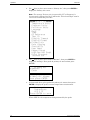
d) Set Port Settings to:
- Bits per second: 19200
- Data bits: 8
- Parity: None
- Stop bits: 1
- Flow control: None
Then click OK to display HyperTerminal’s main window.
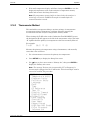
e) Click File; click Save. This creates a file with an .ht extension in
the folder C:\Program Files\Accessories\Hyper Terminal, using
the name that was entered in Step b.
20
Instruction 0024-9400