1
Appendix
4.7.2
04.03
Practical Ideas
In principle, there is virtually no limit to the customization options due to the
numerous functions provided by Graphics Designer. The following sections
therefore offer just a few ideas for frequent applications.
Further information about the exact procedure can be found in the WinCC manual
or in the Online Help of the "Graphics Designer".
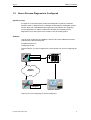
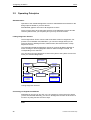
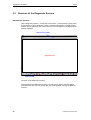
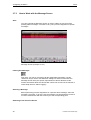
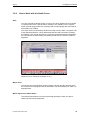
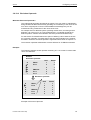
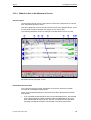
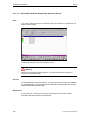
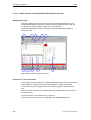
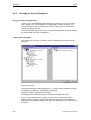
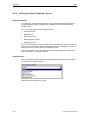
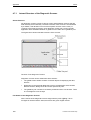
ProAgent's User Screen
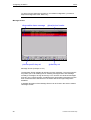
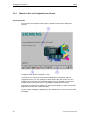
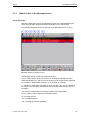
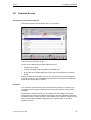
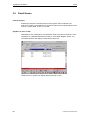
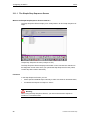
On the ProAgent user screen you can replace the Siemens logo, for example, with
your own company logo and embed additional symbols in your system.
To do this, open the screen called "UserScreen" in Graphics Designer and perform
your modifications.
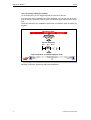
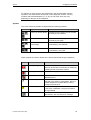
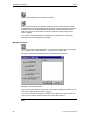
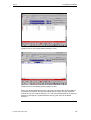
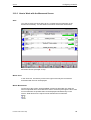
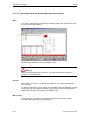
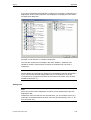
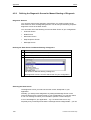
Global Screen Header
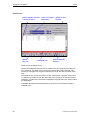
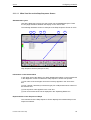
In the global screen header, for example, you can add a company symbol or
modify the way in which the date and time are displayed.
To do this, open the "@Diag_Start" screen in the Graphics Designer, select the
object in question and carry out your modifications.
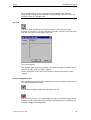
Font Size and Character Set
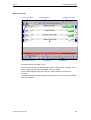
You can change the font size and character set of the diagnostic screens. If you do
so, you must observe the basic rules relating to text design and layout. The size of
the text should, therefore, be matched to the importance of the information
contained in the text, but also to the distance the user will probably be away from
the screen. The font should be the same as that used in the rest of your installation
screens.
If you use a large font size, make sure that longer texts still have sufficient room.
To make changes to the font size or character set, open the screen in question in
the Graphics Designer, click the object with the right mouse button, select the
"Configuration" command from the context menu and edit the font and font size
there.
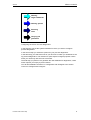
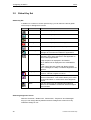
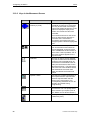
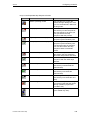
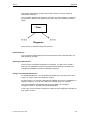
Key Symbols
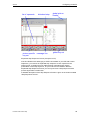
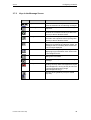
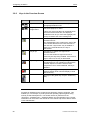
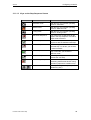
You can modify the symbols on the global and screen-specific keys by editing the
bitmap linked to the key in a graphics program. To learn the name of the bitmap,
right-click the key in Graphics Designer and choose "Properties" from the shortcut
menu. Make sure the key remains linked to the bitmap of that name.
Note
If possible, do not make any changes to the key assignments, since the keys are
not just linked with a simple screen exchange. Other actions can be linked to every
key.
170
Printout of the Online Help