1
Tutorial
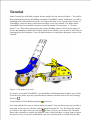
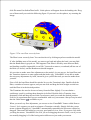
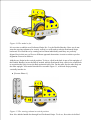
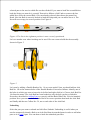
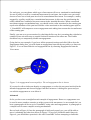
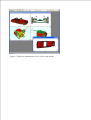
In this Tutorial you will build a simple Scooter model, the one shown in Figure 1. You will be
driven through the process of building a complete VirtualMEC model. Sometimes you will be
reminded to save the model built so far. You can do this only if you own the retail version of
VirtualMEC, since the demo version does not allow you to save models. The folder where
VirtualMEC has been installed contains several files named "Scooter phase 1", "Scooter
phase 2", etc. These files correspond to the various building phases of the Scooter model. If
you are not planning to follow the whole Tutorial in one session, you can refer to these files as
a starting point for each phase. You will find references to each phase during the course of the
Tutorial.
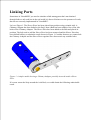
Figure 1. The model to be built.
If you have just started VirtualMEC, you should have a blank document window open. If this
is not the case, please close any open document windows and then open a new one selecting
File New .
Verify that Flat Colour Rendering button
is pressed.
Let's start with the first part we want to add to the model. You can choose any part you like to
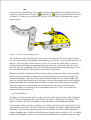
start with; in this case we will start with the central Trunnion No. 126. The Parts Bar should
be visible on the right. If not you can click to show it. Now you can locate the Trunnion.
Please take a moment to explore the different views of the Parts Bar; you may want to choose
the type of view you are more comfortable with. You can also dock or undock the Parts Bar,