1
Player
At any time you can playback the whole building process of a model. Select Model Player to
show the Player bar. It is a familiar VCR-style console.
Press
to watch a complete animation. You will see your model growing one part at a time
from the first part to the last one. Press to watch it from the end to the beginning. You can
press
at any time to stop the animation. You can advance or go back one "frame" at a time
by pressing or respectively.
Press
to "rewind" the animation to the beginning (no parts will show) or to go directly
to the end (the actual state of the model). Pressing will also exit Player mode.
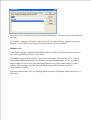
During playback you can look at the rightmost pane of the Status bar. It will show an
indication in the form xxx/yyy. For example, if it shows 100/500, it means that your model
contains 500 parts and you are currently watching the first 100 parts.
While not in Player mode, the rightmost pane will show just 500, meaning that your model
contains 500 parts and you are not in Player mode.
Using the slider you can quickly move to the desired point.
You can temporarily pause the animation by pressing
animation.
. Pressing it again will resume the
Animation normally advances one part at a time (e.g. each new "frame" will show a part more
than the previous one, if you are playing forward). During an animation or when the
animation is paused, you can press P to increase the number of new parts shown at each
frame. Press Shift+P to decrease the number. Pressing , or will reset the rate to one
part at a time.
You can save the current point by pressing
pressing .
. Later you can go to the last saved point by
Please note.
It may happen that you stop in the middle of an animation and realize that you need to add a
new part to the model. If you actually add a new part you will not see it. Why? Let's suppose
you are watching the first 100 parts of a model made of 500 parts. If you add a new part it will
become the 501st part, but you are still watching the first 100 parts!
Thus, to avoid confusion, it is recommended to exit Player mode (by pressing ) each time
you need to modify your model. As said before, looking at the status bar's rightmost pane is
an easy way to know if you are in Player mode or not.