Download iVision+ Users Manual
Transcript
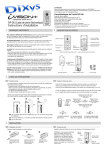
4. How to Use Basic Features 4-1. Answering to a Door Camera Unit (1) When a visitor presses the PUSH button on a Door Camera Unit, all other iVISION+ devices in the system make a chime sound. The Handheld Monitor Units will automatically display a video image from the Door Camera Unit. (2) Press “ANSWER” button to talk to the visitor. The call will automatically be terminated after 60 seconds* unless ANSWER button is pressed again during the conversation to “ANSWER” to talk extend for another 60 seconds. *Conversations are limited to a 60 second duration to conserve battery life or for when it is forgotten to manually end the conversation by pressing the “OFF” button. (3) While in a conversation with a Door Camera Unit, if additional Gateway Chime Unit has been installed, you can press the “OPEN DOOR” to open a electric door lock or activate an additional third party equipment. “OFF” to end (4) Press the “OFF” button to end the conversation. Handheld Monitor Units allow 60 seconds before answering a call manually and engage in a conversation with a visitor. Unless disabled (ref: SEC. 5), number of images captured by the Door Camera Unit will be stored into a memory of the main Handheld Unit untill the call is answered. In order to see if there is a missed call please press any button to exit STANDBY MODE. PLAY button on the main Handheld Unit will blink when there is a new captured image from a time no one answered a call. Please refer to Sec. 6 “Handling Stored Images” for more options. Answering to an additional call from another Door Camera Unit If another Door Camera Unit calls during ANSWER/BROWSING MODE, pressing RIGHT function key within 60 seconds, switches monitor to the incoming call. Note: Pressing ANSWER button, instead, extends current session without switching to the incoming call. -7-