1
1. What you can do with iVISION+
1-1. Basic features of iVISION+
Knowing who is/was at your door
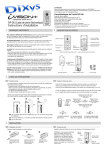
iVISION+ is a wireless video intercom system with multi unit expansion capability.
When someone comes to your door and presses the button on the Door
Camera Unit (Max. 2 units), the Handheld Monitor Unit (Max. 4 units) rings a chime
and displays a video image from the camera. The Handheld Monitor Unit will store
still images even if no one is there to answer the call.
Replace an old door bell with video
If you already have a door bell with 10-24VAC/DC power supplied, enable
Door Camera Unit for a browsing feature and actively view from a Handheld
Monitor Unit anytime you like. Gateway Chime Unit adds a extra chime to
let you know someone is at the door.
1-2. Expanding iVISION+ with additional units
Operate third party equipments (e.g. Door lock)
Connecting a third party equipment such as a door lock or a garage door activator
to a relay output of Gateway Chime Unit (IVP-GU) can enable “OPEN DOOR” function
on a Handheld Monitor Unit.
Up to two units* of IVP-GU can be hosted in a iVISION+ system.
* One IVP-GU can only be associated with one of two Door Camera Unit at all times.
Capture* images triggered by motion detectors: OPTEX TD-20U
Addition of OPTEX Wireless2000 TD-20U** enables a sensor triggered call from a
Door Camera Unit with image capturing function.
* The Door Camera Unit must be powered by an external power source.
** WSS2000 device is available for a purchase in an indivisual package.
-2-