1
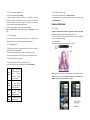
32.0.2 Selectable channel
Select the icon
course.
or
by pressing ok keys, you can fine-tune on the radio or
32.0.3 Adjust the volume
Press the menu key, select mute, the radio will be muted.
Press the menu key, select speaker, the radio will play through the external speaker
32.0.4 Scan & Save
Press the setting key, select scan & save, If you select ok button, all the presets will
be removed, then it will scan available channels.
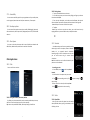
33.0 Calendar
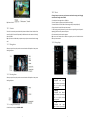
Calendar makes it easy to stay on schedule. You can view
individual calendars, or several calendars
at once. You can view your events by day, by month, or in a
list. You can search the titles, invitees, locations, and notes
of events. If you enter birthdays for your contacts, you can
view those birthdays in Calendar.
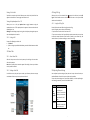
Day: To display the calendar in days.
Week: To display the calendar in weeks.
Month: To display the calendar in months.
Daily: Display the calendar in the certain period of time within the region.
Today: "Day", "Week", "month", under the circumstances of the agenda click Today, a
variety of display format selection boxes will jump to the "today".
More: Create a new event, view the currently selected calendar, setting.
35.0.2.2
Bookmarks
35.0.2.3
History
35.0.2.4
More
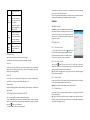
Press menu key to find the “bookmark”, you can add your favorite websites.
By bookmarks you can go to your website rapidly.
The browser will record the websites you have visited. By history, you can find the
websites you want. Also you can delete all the history.
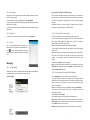
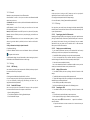
1. Search
Tap in the words you want to search.
2. Select the text
You can select text you need, and there will be a tip “Text has been copied to the
clipboard”. You can touch and hold on the address bar or text to attach.
3. Website message
You can see the name and address of the current website.
4. Share website page
You can share the current page via message or email with your friends.
5. Download
You can see all the things you have downloaded and now downloading.
6. History
Show all the websites you have visited.
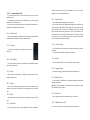
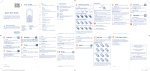
34.0 Calculator
Tap numbers and functions in Calculator just as you
would with a standard calculator. When you tap the
add, subtract, multiply, or divide button, a code
appears around the button to let you know the
operation to be carried out.
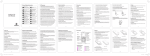
35.0 Browser
35.0.1 Open browser
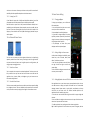
Browser is used for internet surfing. Press “HOME”,
then tap
, find Browser.
35.0.2 Basic operations
35.0.2.1
New window
1. Touch the address bar, tap in the words you are interested in, then tap “Go”.
2. When you are tap in the words in history, it will show up automatically.
27
28