1
6.8 The Main EasyView screen
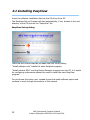
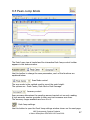
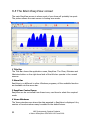
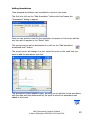
The main EasyView screen is where most of your time will probably be spent.
The picture shows the main screen in Analog scan mode.
1
7
2
9
8
10
6
4
3
5
1 Title Bar
The Title Bar shows the application name, EasyView. The Close, Minimize and
Maximize button on the right-hand side of the title bar operate in the normal
manner.
2 Menu Bar
EasyView is no different to other Windows programs, all the available function
are available via the menu bar.
3 EasyView Control Icons
EasyView can be controlled from these icons, use them to select the required
mode.
4 Views Windows
The Views windows are where the data acquired in EasyView is displayed. Any
number of trend windows many be added to the default views.
52
MKS Instruments, Spectra Products
e-Vision & EasyView SP104018.102 June 2006