1
Analyzing Patient Data
Users Guide
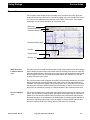
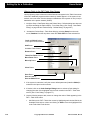
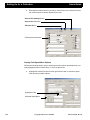
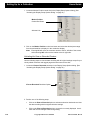
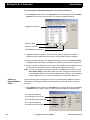
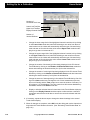
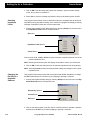
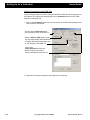
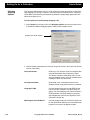
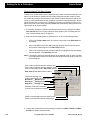
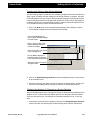
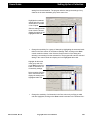
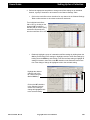
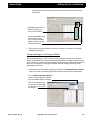
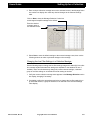
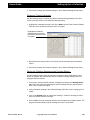
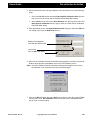
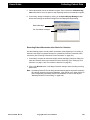
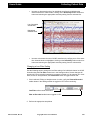
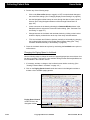
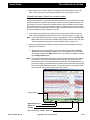
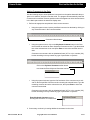
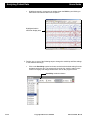
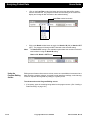
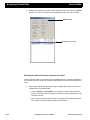
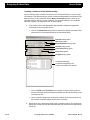
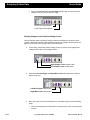
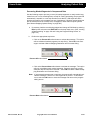
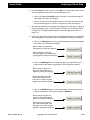
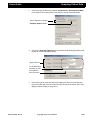
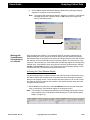
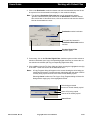
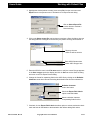
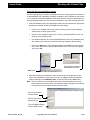
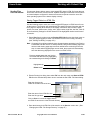
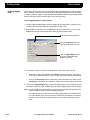
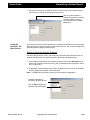
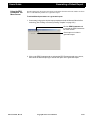
3. Release the left mouse button to display only the selected area in the video window
display.
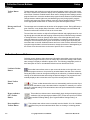
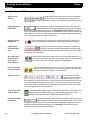
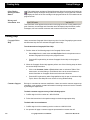
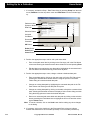
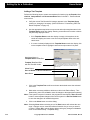
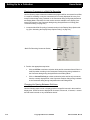
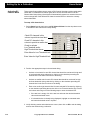
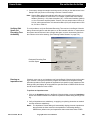
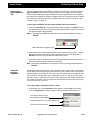
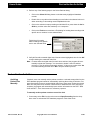
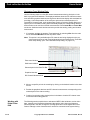
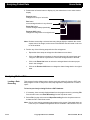
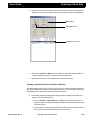
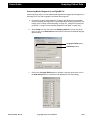
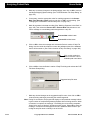
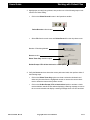
Zoom In button
enlarges an area up to 3x its size
Pan button
moves enlarged section in any direction
Zoom Out button
reduces enlarged data proportionally
Zoom to 100% button
changes the image back to its original state
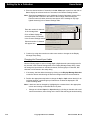
Note: Borders surrounding a selected area may change slightly to maintain the correct
aspect ratio of the image, but the center of the defined area will remain in the center of the window.
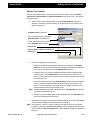
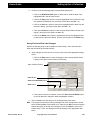
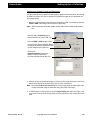
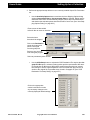
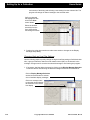
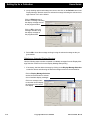
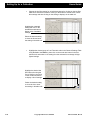
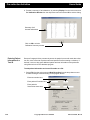
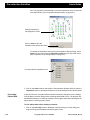
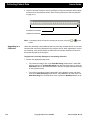
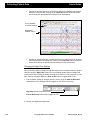
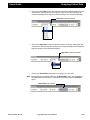
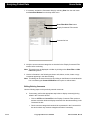
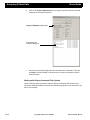
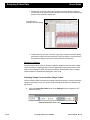
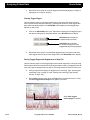
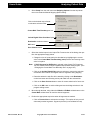
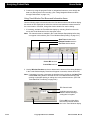
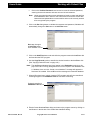
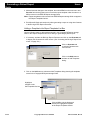
4. Perform any of the following steps after the first enlargement.
•
Repeat the above steps to enlarge the video data two more times.
•
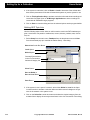
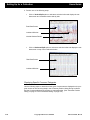
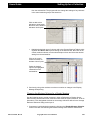
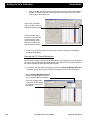
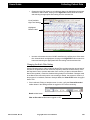
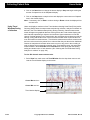
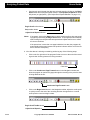
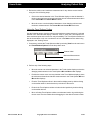
Click on the Pan button to depress it, then hold down the left mouse button and
"drag" the video data in any direction to view other enlarged areas of the data.
•
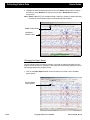
Click on the Zoom Out button to reduce the enlarged data in the same proportions it was enlarged.
•
Click on the Zoom to 100% button to change the altered image back to its original
state.
Analyzing Patient Data
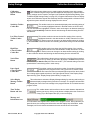
Loading a Data
Recording
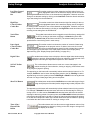
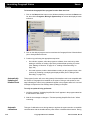
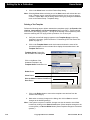
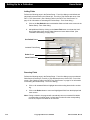
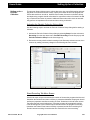
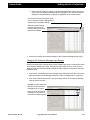
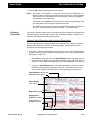
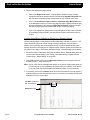
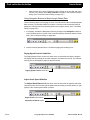
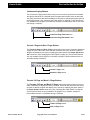
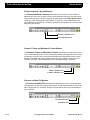
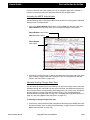
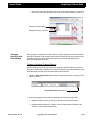
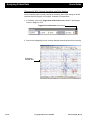
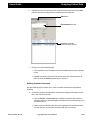
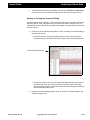
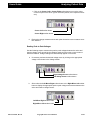
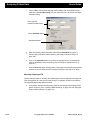
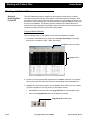
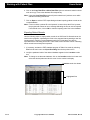
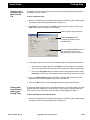
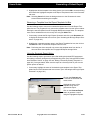
This program function allows users to load a previously existing file from the P&TI database program in order to analyze the data, strip segments to a separate file or create a
report.
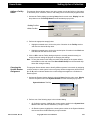
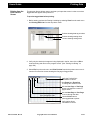
To load an previously existing file from a P&TI database:
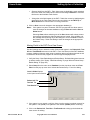
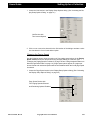
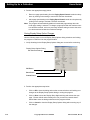
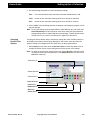
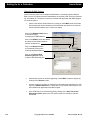
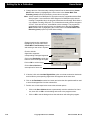
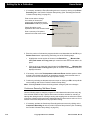
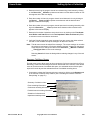
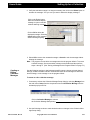
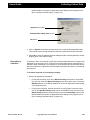
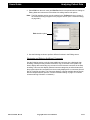
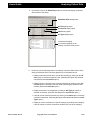
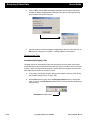
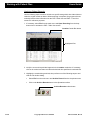
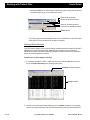
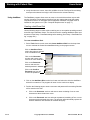
1. If necessary, clear currently displayed data from the program screen by selecting File
from the main menu and Close Recording from the drop-down menu.
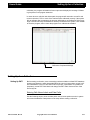
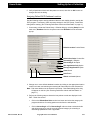
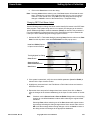
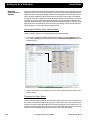
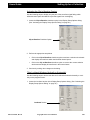
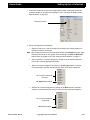
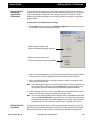
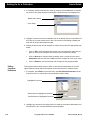
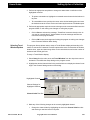
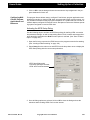
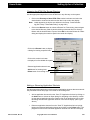
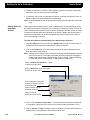
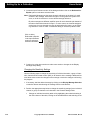
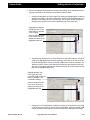
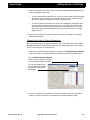
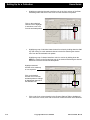
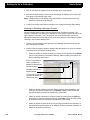
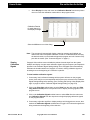
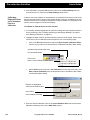
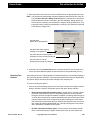
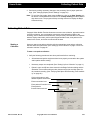
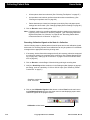
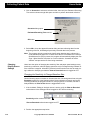
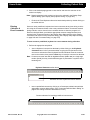
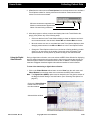
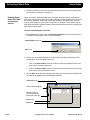
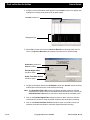
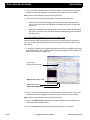
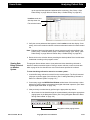
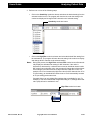
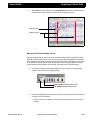
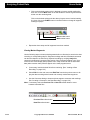
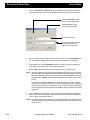
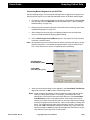
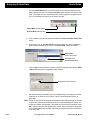
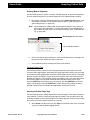
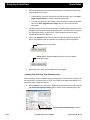
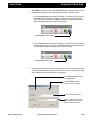
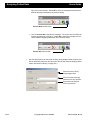
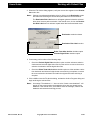
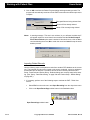
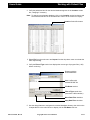
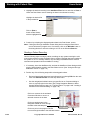
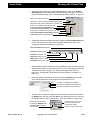
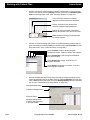
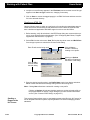
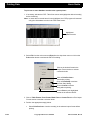
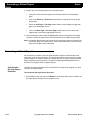
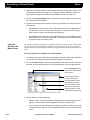
2. Select File from the main menu and Open Recording from the drop-down menu to
activate the P&TI Table View screen.
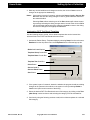
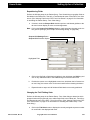
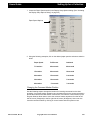
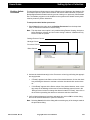
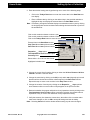
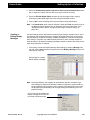
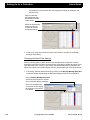
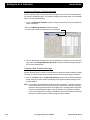
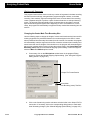
Note: One or more warning messages may appear on the screen if data paths have not
been set up or a database configuration file isn’t available. If this should occur, set
2-122
Ceegraph Vision Users Manual
590-CGVUM1, Rev B