1
BNS Solutions
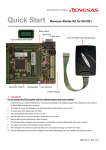
Quick-Start Guide
QSK62P Plus
RS-232 Port
Link LED
8-character x 2-line LCD
Expansion Port (2)
Reset Switch
Power LED
Thermistor
I/O Ring (4)
M16C MCU
Analog Adjust Pot
MCU Crystal
Expansion Port
User LEDs (3)
User Pushbuttons (3)
32kHz Crystal
(under board)
Figure 1:
QSK Board
Important Notes
Do NOT plug the QSK board into your USB port
until instructed to do so in Section 2: In-Circuit
Debugger USB Driver Installation.
Also, during the installation process, you may be
prompted to restart your computer. Do NOT restart
until the installer has completed installation of all
the software items.
1
Development Tools Software Install
Please insert the enclosed CD into your computer’s CDROM drive. The CD should auto-start, displaying the
install Window. This QuickStart Guide and the Installation
CD cover the BNS Solutions QSK62P Plus kit. From the
opening Window click <Install…>. Follow the directions
in the installation windows to install the QSK software tools
for your kit.
uDuring the installation process, the AutoUpdater
installer will launch. Allow this to proceed.
uIf the installation screen does not appear, please
browse the CD root folder and double-click
on “QSK-Installer.exe”.
2
In-Circuit Debugger USB Driver Installation
Your QSK board features on-board circuitry for in-circuit
debugging (ICD) and programming. The board is powered
via the USB bus and does not require any external power
supply. The ICD portion of the circuit is located on the back
side of the PCB and connects to your PC via a USB cable. It
requires the installation of a USB driver on your PC. When you
connect the QSK board to your computer for the first time,
Windows will recognize the new device and request the driver.
The green Link LED (D5) and the red Power LED (D1)
indicate operating status of the QSK board
(as shown in the following table).
2 of 8
QSK Status
Link LED
(green)
Off
Blinking
No Power (USB cable disconnected)
Connected, USB not enumerated
(driver not installed)
Connected, USB enumerated
On, Solid
M16C E8 Debugger Software running On, Solid
Power
LED (red)
Off
On
On
On
Follow the steps below to install the driver for the QSK.
Administrator privileges are required to install the driver on
a Windows 2000/XP machine.
a) Connect one end of the mini USB cable to the QSK,
and the other end to your PC’s USB port. The green
“Link” LED on the QSK will start to blink,
indicating that Windows has not enumerated
the USB connection (as there is no driver
installed yet).
Mini USB Cable
b) If using Windows 98, 2000, or Me, no
intervention by the user is needed. When the QSK is
plugged in, Windows automatically loads the correct
driver for your device and it is ready to use. Skip to
Section 3.
PC with Windows®
2000, XP or Vista
(Figure 2)
c) If using Windows XP, the first time a QSK board is
plugged into a different USB port, the Windows XP
“Found New Hardware Wizard” window will appear.
d) Select the option “Install the software automatically
(recommended)”. Windows will then begin installing the
USB driver.
i) Another screen will probably appear stating that this
driver has not been XP certified by Microsoft. Click the
<Continue Anyway> button. (We did not participate
in the Microsoft XP driver certification program.)
ii) After the driver has installed, you will be able to click
<Finish> to close the wizard.
NOTE: If you have problems installing the drivers, or if
3 of 8
your PC will not recognize the QSK, please see the
“Troubleshooting” section of the QSK User’s Manual
for help.
3
Demo Program
The kit ships with a demo program that runs on the
board when connected to the PC’s USB port.
a) If not already done in step 2a), plug one end of the
USB cable into the QSK board and the other into a
USB port on your PC.
b) Press the Reset Switch to run the demo program.
i) The LCD on the board will display a welcome
message. After a few seconds, “RT1: xxxx,
AN0: xxxx” will be displayed on the LCD.
ii) The three User LEDs will blink sequentially
(back and forth).
iii) The LED flash rate is controlled by the Analog
Adjust (R11) potentiometer (which is connected
to the MCU analog-to-digital converter’s
(ADC) AN0 input).The 10-bit ADC value of
AN0 is also shown on the LCD as a decimal
number. The input, AN1 value Thermistor R20
is shown on the “RT1:” line of the LCD.
c) Turn the potentiometer clockwise or counterclockwise. This alters the flash
rate of the LEDs, and increases or
decreases the AN0 value shown
on the LCD.
d) Press the pushbutton switches
SW1, SW2, or SW3. This will
change the LCD to read “Button
x” (x= 1, 2, or 3).
4 of 8
4
HEW (IDE) QuickStart
The High-performance Embedded Workshop software
(HEW) integrates various tools such as the compiler,
assembler, debugger, and editor into a common Graphical
User Interface.
a) Launch HEW from the Start menu (Start > (All)
Programs > Renesas > High-performance Embedded
Workshop > High-performance Embedded Workshop).
b) In the “Welcome!” dialog box:
i) Verify “Create a new project workspace” is selected.
ii) Click <OK>.
c) In the “New Project Workspace”
dialog box:
i) Verify the “CPU family” is set to
“M16C”.
ii) Select your Starter Kit from
the “Projects Window”
iii) Enter any name for the
Workspace Name (the Project
Name will auto fill).
iv) Click <OK>.
d) In the “QSK – Step 1” window:
i) Select “Tutorial”
ii) Click <Next>.
e) In the “QSK – Step 2” window,
click <Finish>.
Figure 3
f) In the “Project generator information” window, Click
<OK>.
g) Click the “Build” icon
to compile, assemble
and link the project. After the build is complete, the
HEW Build window will look similar to
Figure 4.
Figure 4: HEW with
the qsktest Project
5 of 8
h) After ensuring there are no errors, proceed to 5: HEW
(Debugger) QuickStart.
NOTE:To learn more on how to use HEW, open the
HEW Manual Navigator on your computer (Start > (All)
Programs > Renesas > High-performance Embedded
Workshop > Manual Navigator).
5
HEW (Debugger) QuickStart
a) If not already done, plug one end
of the USB cable into the QSK
board and the other into a
USB port on your PC.
b) Use the Session pull-down box and
select “SessionM16C_E8_System” as shown.
If requested to save the session, click <Yes>.
c) Click the <Connect> tool button; The “Emulator
Settings” dialog box opens. In this dialog, you need
to select if the downloaded program will run under
debugger control or “stand alone”:
i) Click <Erase Flash and Connect> to use the
debugger. Click
<Program Flash> to
allow the program to run
independently.
ii) In the “Power Supply”
section, check <Power
Target from Emulator>
and click <3.3V>.
Note: The board is
already powered up. The
purpose of this selection is
to let the reduced function
debugger located on the
board “see” the voltage
and operate normally.
See the User Manual for
additional Information.
Figure 6: Emulator Setting
Dialog Box
Figure 5
iii) Click <OK>. –
i. If the message “We should download new
firmware” appears, click <OK>.
ii. If you get an error, disconnect and reconnect
the QSK from the USB cable and retry.
d) Click on the “Reset Go” icon to start the program.
e)Click on the “Stop” icon
to halt the program.
f) From the “File” pull-down menu, select “Exit”. If
requested to save workspace and/or session, click
<Yes>.
6
Downloading (Re-Loading) the Demo Program
Using HEW as a Programmer
You can use the debugger and HEW to restore the original
demo program.
a) If not done already, plug one end of the USB cable
into the QSK board and the other into a USB port on
your PC.
b) Start HEW as in the previous section and select
“Program Flash” as the mode. The power section is
set as before.
c) When programming is competed a dialog with
a checksum will appear, and then a message to
disconnect the emulator. Click the “Disconnect”
button on the toolbar.
7
What are the next steps?
After you have completed this QuickStart procedure,
please review the tutorials that came with the kit.
The tutorials will help you understand and jumpstart
the software development process using Renesas’
development tools.
You can access the sample code tutorials for your
specific kit via the new project wizard or by browsing to
the “C:\Workspace\QSK_62P_Plus” directory on
your computer
7 of 8
8
HEW/C-Compiler
The High-performance Embedded Workshop User Manual
will show you how HEW integrates various tools such as the
compiler, assembler, debugger and editor into a common
Graphical User Interface.
To access the manual on your computer, go to the HEW
menu
Start > (All) Programs > Renesas > High-performance
Embedded Workshop > Manual Navigator.
Included in the QSK is the Evaluation Version of the
NC30WA C-compiler. The limitations are:
1. No support or warranty without the purchase of a full
license.
2. After 60 days, code size is limited to 64 kBytes.
For details, see the Compiler Release Notes
Start > (All) Programs > Renesas > QSK.
For recent updates go to www.renesasuniversity.com
or, for assistance, email [email protected]
For assistance with the QSK please email
[email protected]
Release 1.0 (8 July 2009)
8 of 8
BNS Learning