1
QSK Status
Link LED
(green)
Off
Blinking
No Power (USB cable disconnected)
Connected, USB not enumerated
(driver not installed)
Connected, USB enumerated
On, Solid
M16C E8 Debugger Software running On, Solid
Power
LED (red)
Off
On
On
On
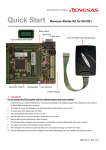
Follow the steps below to install the driver for the QSK.
Administrator privileges are required to install the driver on
a Windows 2000/XP machine.
a) Connect one end of the mini USB cable to the QSK,
and the other end to your PC’s USB port. The green
“Link” LED on the QSK will start to blink,
indicating that Windows has not enumerated
the USB connection (as there is no driver
installed yet).
Mini USB Cable
b) If using Windows 98, 2000, or Me, no
intervention by the user is needed. When the QSK is
plugged in, Windows automatically loads the correct
driver for your device and it is ready to use. Skip to
Section 3.
PC with Windows®
2000, XP or Vista
(Figure 2)
c) If using Windows XP, the first time a QSK board is
plugged into a different USB port, the Windows XP
“Found New Hardware Wizard” window will appear.
d) Select the option “Install the software automatically
(recommended)”. Windows will then begin installing the
USB driver.
i) Another screen will probably appear stating that this
driver has not been XP certified by Microsoft. Click the
<Continue Anyway> button. (We did not participate
in the Microsoft XP driver certification program.)
ii) After the driver has installed, you will be able to click
<Finish> to close the wizard.
NOTE: If you have problems installing the drivers, or if
3 of 8