1
2.2
System Activation Process
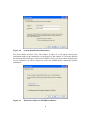
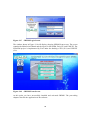
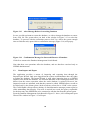
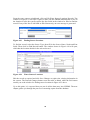
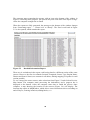
After receiving the activation key from SWALIM, download it to your computer. Then
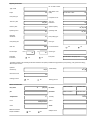
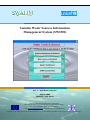
double click the shortcut to SWIMS for the window in Figure 2.13 above to pop up. Click
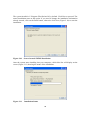
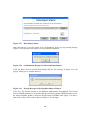
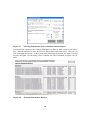
Yes and the window shown in Figure 2.14 will open.
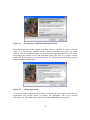
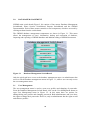
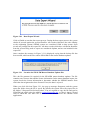
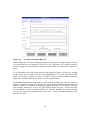
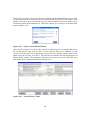
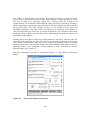
Figure 2.14
System Activation Window
Using the browse button, find the location where the activation key file from SWALIM
was downloaded to, and click open to load the file into the system. Then fill in the Post
Office Box and Email Address, and other database manager details as required. The fields
marked with asteriks (*) must be filled before the system is activated. For the password, it
is advisable that you avoid using the obvious names, which someone can easily guess to
log into your system and interfere with your database. At the same time, avoid using
words which you cannot easily remember, since you will not be able to log into the system
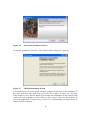
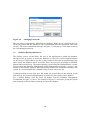
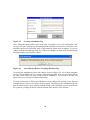
once you have forgotten your password. After filling the fields click on Activate. The
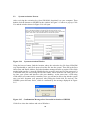
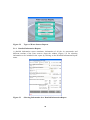
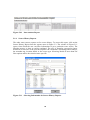
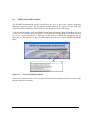
SWIMS system becomes active, which is confirmed by the message displayed in Figure
2.15.
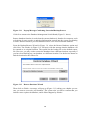
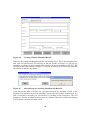
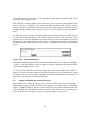
Figure 2.15
Confirmation Message after Successful Activation of SWIMS
Click Ok to close the window and exit to Windows.
12